

Change Task Status and Priority
Every task has a status that shows where it is in the work, and a priority that shows how important it is.
Task statuses
| Status | Meaning |
|---|---|
| Created | The task has been created. |
| Appointed | The task has a performer and a date. New tasks usually start here. |
| Accepted | The performer has accepted the task. |
| In process | Work on the task has started. |
| Done | The task is finished. |
| Closed | The task is closed and needs no more work. |
| Open | The task has been opened again. |
Done tasks count towards your results in Analytics.
Change the status in the task list
- Open Tasks in the left menu.
- Click the status chip of a task, for example Appointed.
- Choose the new status.
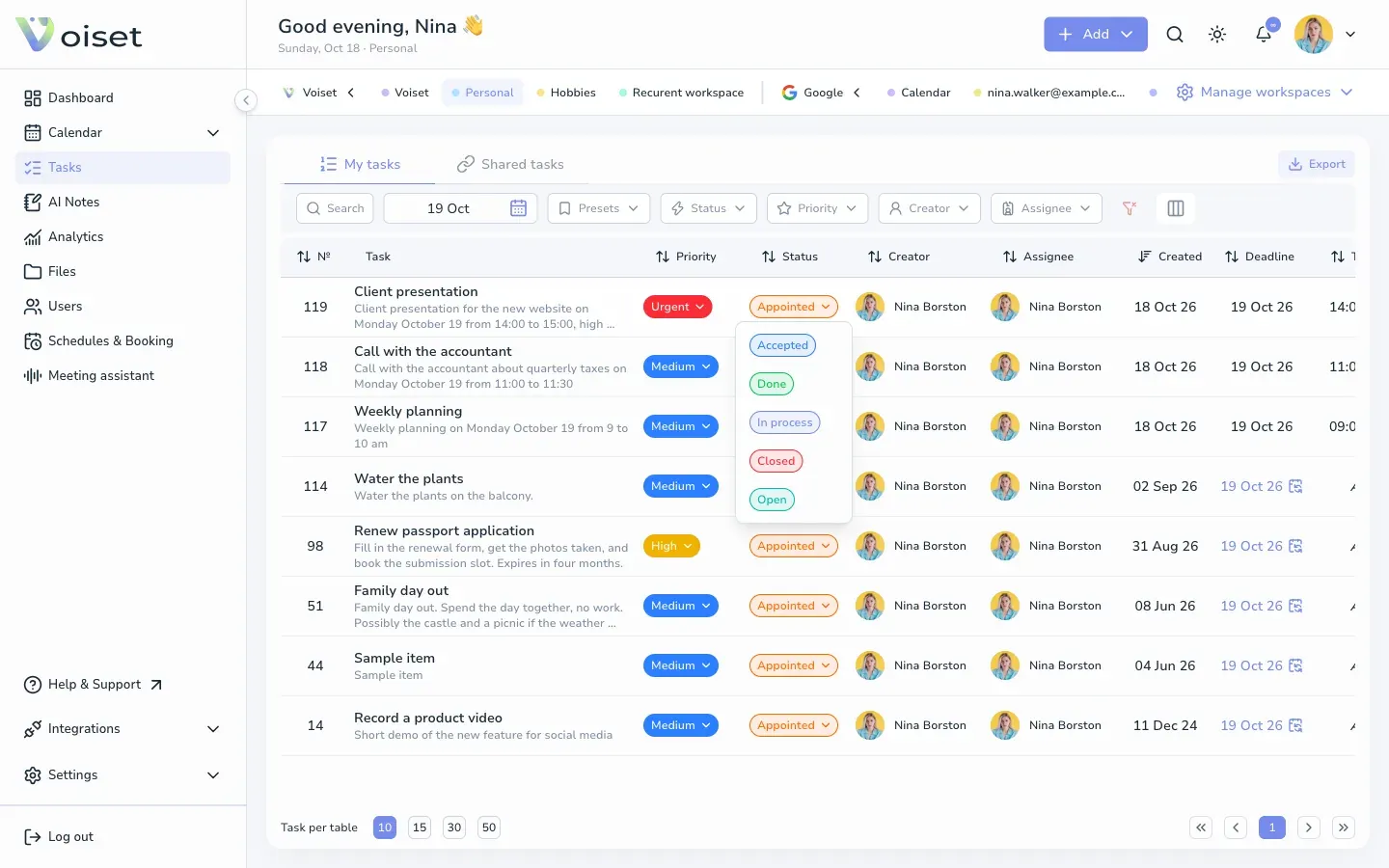
The chip changes color right away.
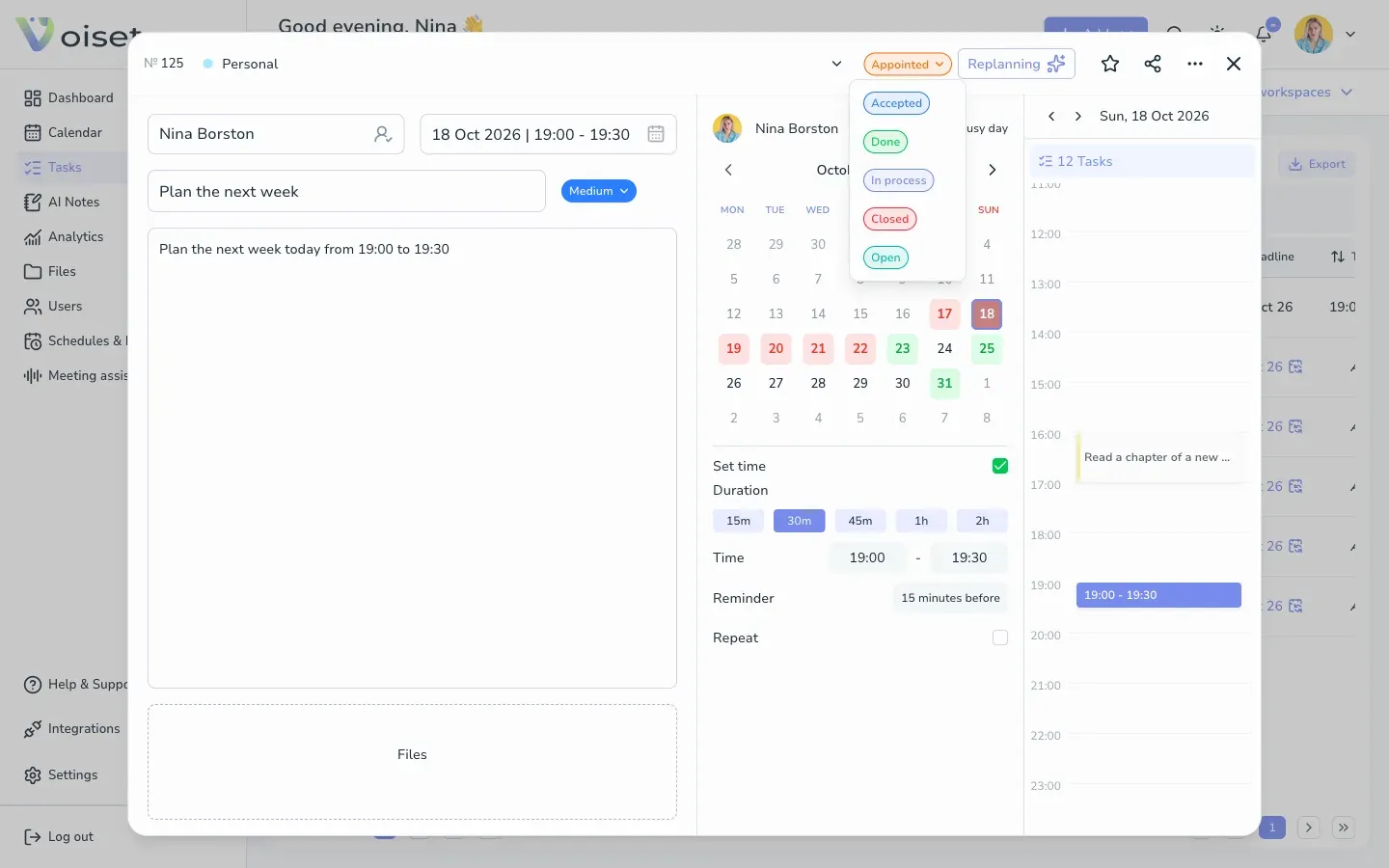
Change the status in the task card
- Click a task to open it.
- Click the status chip at the top of the card.
- Choose the new status.
Change the priority
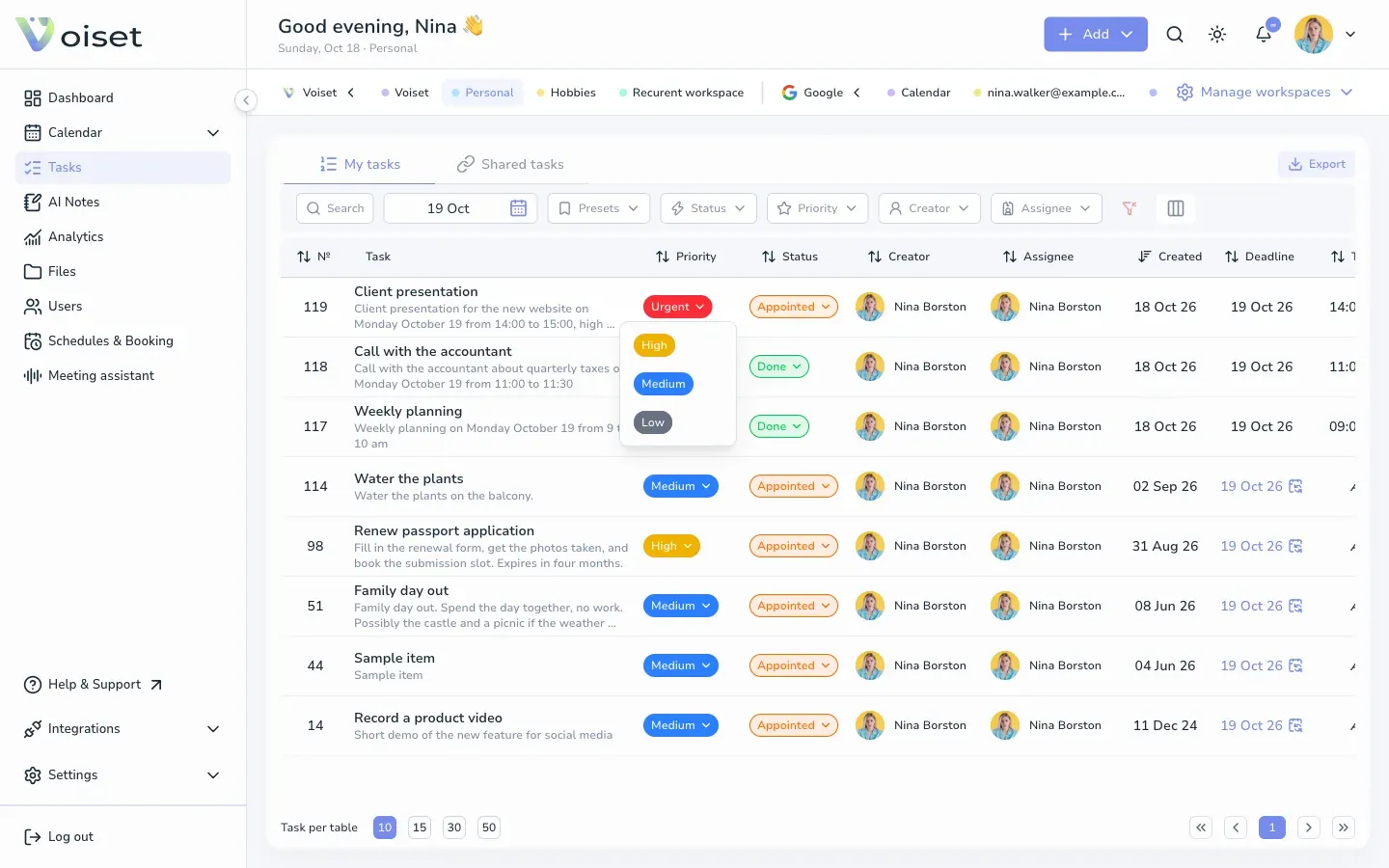
Voiset has four priorities: Urgent, High, Medium and Low. New tasks get Medium unless Smart planning finds another priority in the description (for example "high priority").
To change it, click the priority chip in the task list or next to the task name in the card, and choose a new one.
Filter by status or priority
Use the Status and Priority filters on the Tasks page. See Find and Filter Tasks.