

Find and Filter Tasks
The Tasks page lists the tasks of the current workspace for the selected day. Filters help you find exactly what you need.
1. Open Tasks
Click Tasks in the left menu.
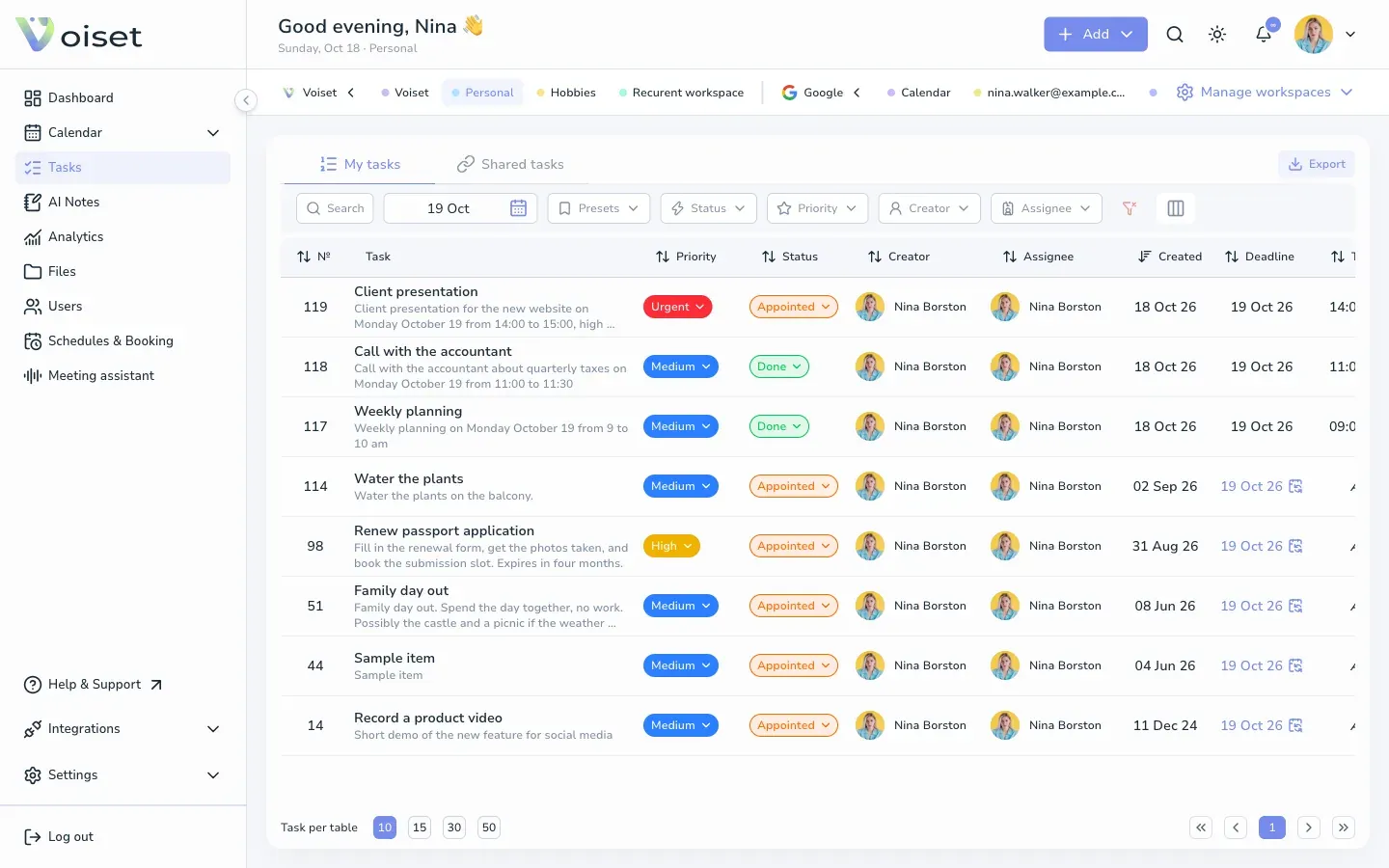
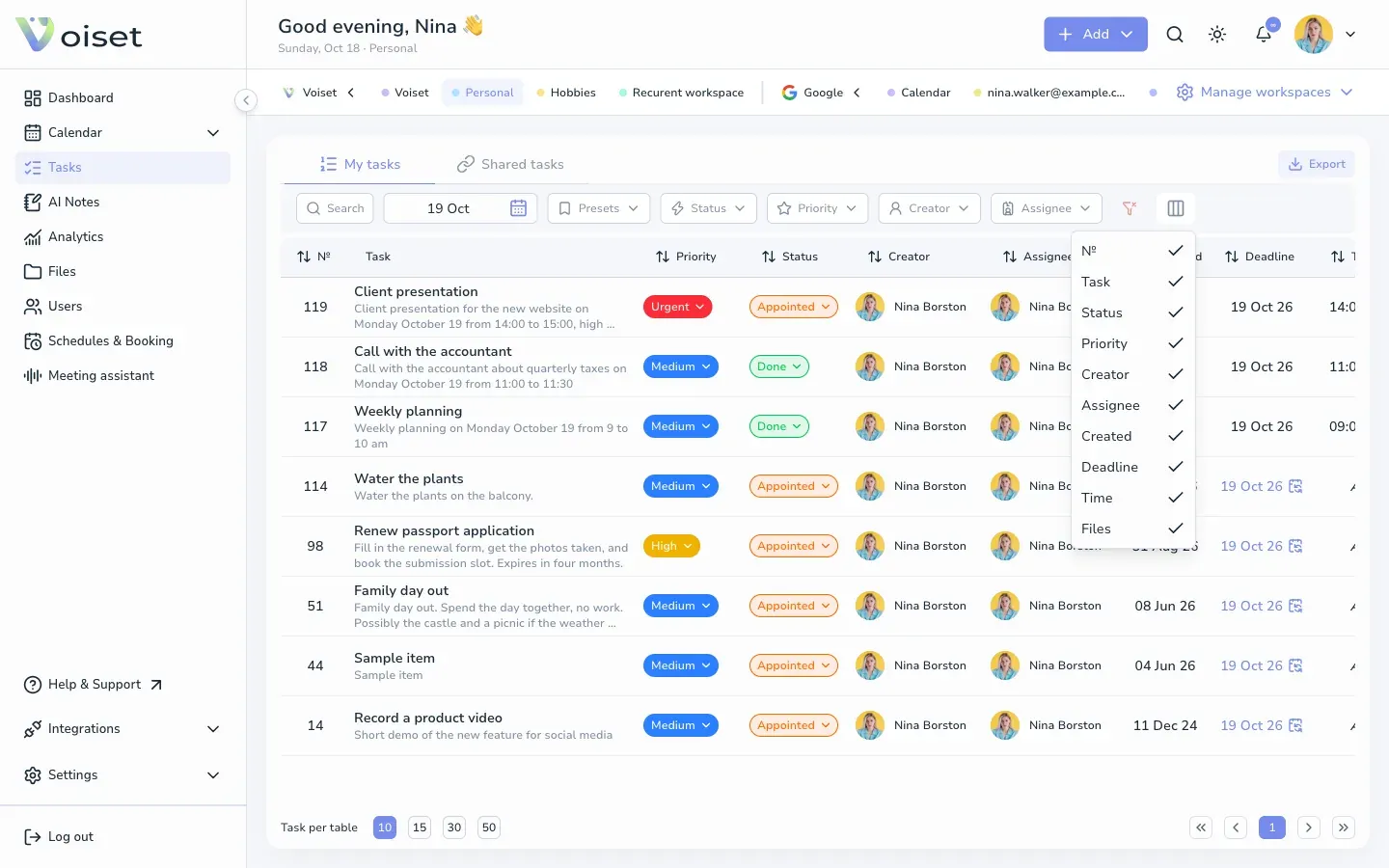
The My tasks tab shows your tasks. The table shows the number, name and description, priority, status, creator, assignee, creation date, deadline, time and files of each task.
To see the tasks of another workspace, click it in the workspace bar at the top.
2. Pick a day
Click the date field next to Search and choose a day in the calendar. The list shows the tasks for that day.
3. Search
Click Search and type a word from the task name or description.
4. Filter
Use the filter buttons above the table. You can combine several filters.
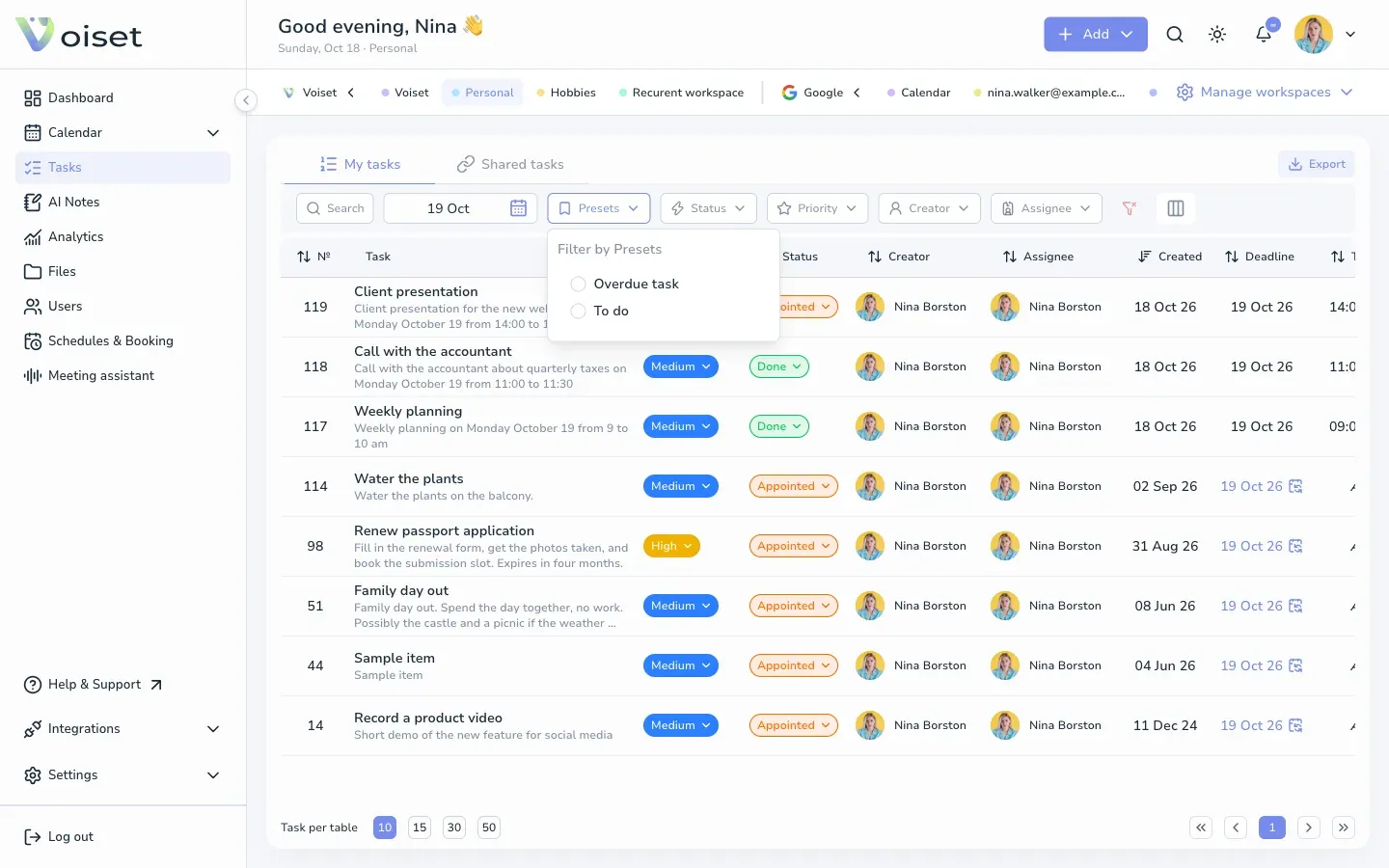
- Presets: ready-made filters. Overdue task shows tasks that are past their deadline, To do shows open work.
- Status: show only tasks with the chosen statuses.
- Priority: Urgent, High, Medium or Low.
- Creator and Assignee: tasks created by or assigned to a specific person.
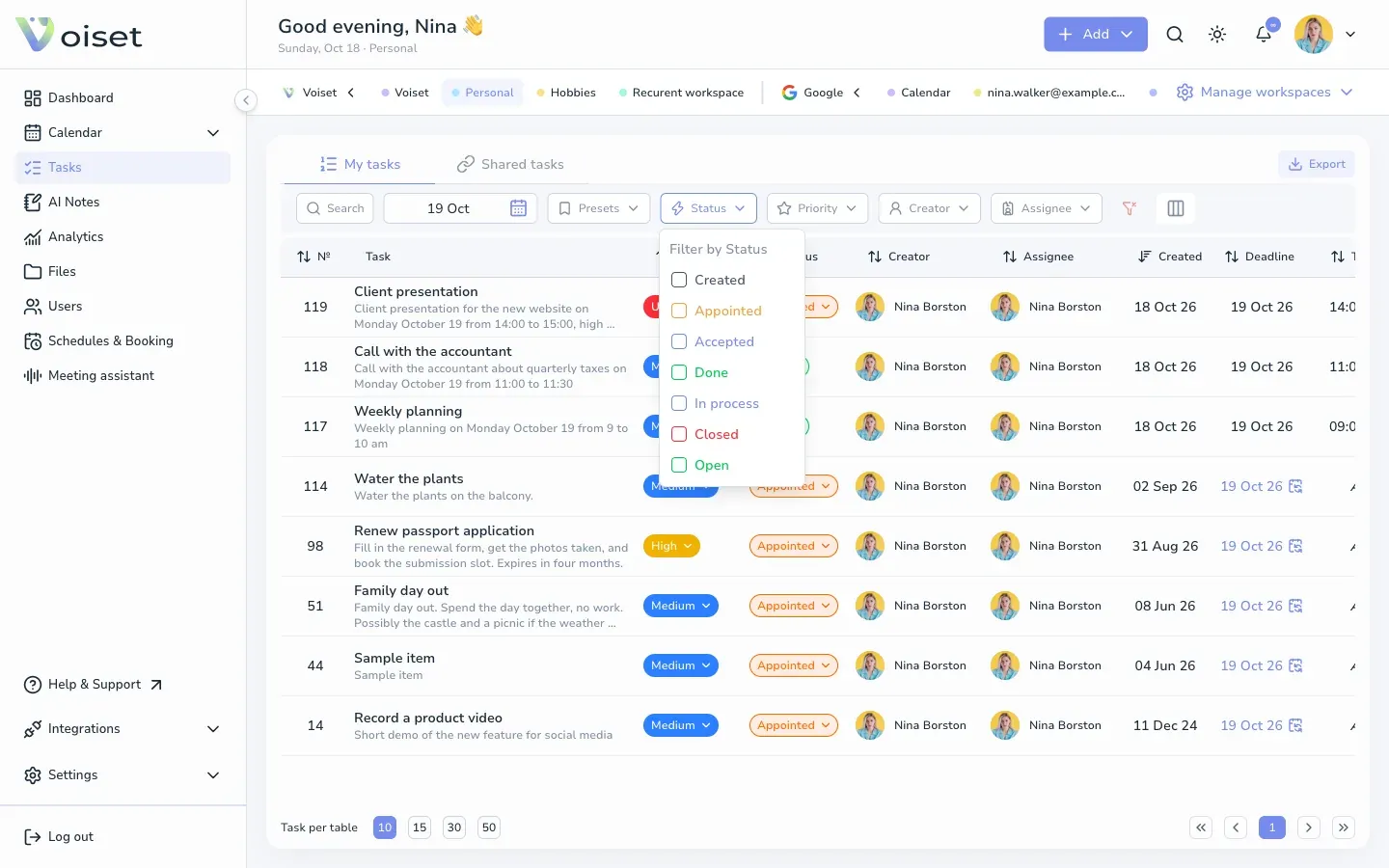
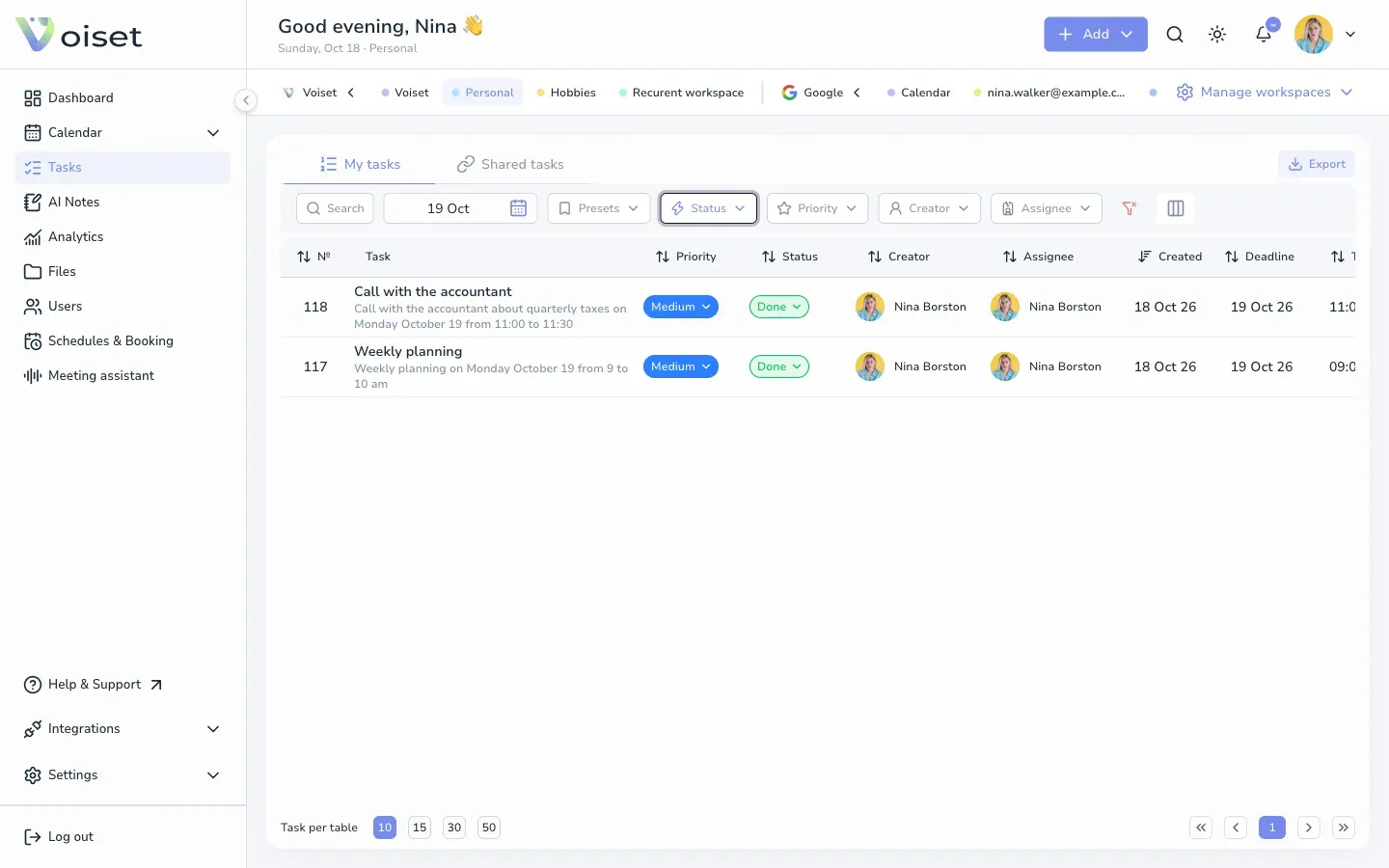
The list updates right away. In this example only tasks with the status Done are shown.
Click the red filter icon (Clear filters) to reset all filters.
5. Sort and set up columns
- Click a column name with arrows (for example Priority, Status, Deadline) to sort by it. Click again to reverse the order.
- Click the columns icon to show or hide columns.
6. Page through the list
At the bottom choose how many tasks to show per page (10, 15, 30 or 50) and use the arrows to move between pages.
Open a task
Click a task to open it. See Edit a Task.