

Convert Note to Task
Voiset is built around two core parts: notes and tasks. They are similar, but they serve different purposes.
A note is a quick idea, thought, or reminder that usually has no specific date, assignee, or extra planning details. A task is a more precise planning item with a date, performer, priority, and files.
For more details about notes, see Smart Notes.
For more details about tasks, see the AI Task Manager.
Where notes come from
Your notes can be created from:
- The mobile app.
- The ChatGPT plugin.
- The web app.
ChatGPT can also create notes automatically based on images, internet content, and other information sources.
Open Notes
Go to the notes page:
There you can see all your notes in one place.
Understand the queue
The top bar shows your workload and helps you understand when your thoughts should be planned into tasks.
Notes are color-coded by freshness:
- Red — older notes.
- Yellow — newer notes.
- Green — the newest notes.
Convert notes into tasks
To start planning, use drag and drop:
- Drag the notes you want to convert from the left side.
- Drop them into the right side.
- Click Schedule a task.
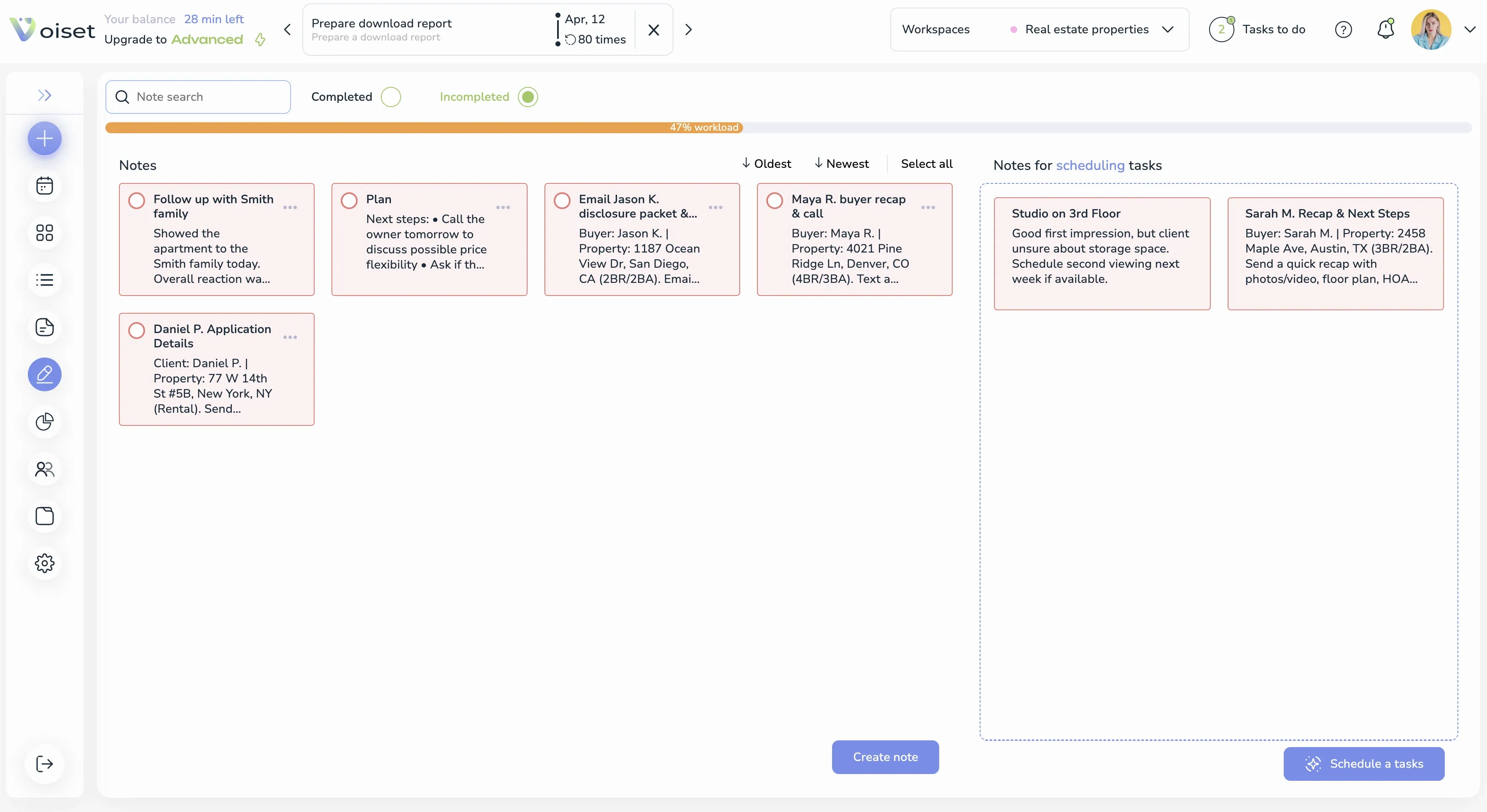
After you click Schedule a task, the system shows a waiting screen while it distributes notes across workspaces.
Workspace distribution
Voiset automatically sorts notes by workspace type:
- Work notes go to workspaces connected to work planning.
- Personal notes go to personal workspaces.
You can review the result and manually move notes if needed.
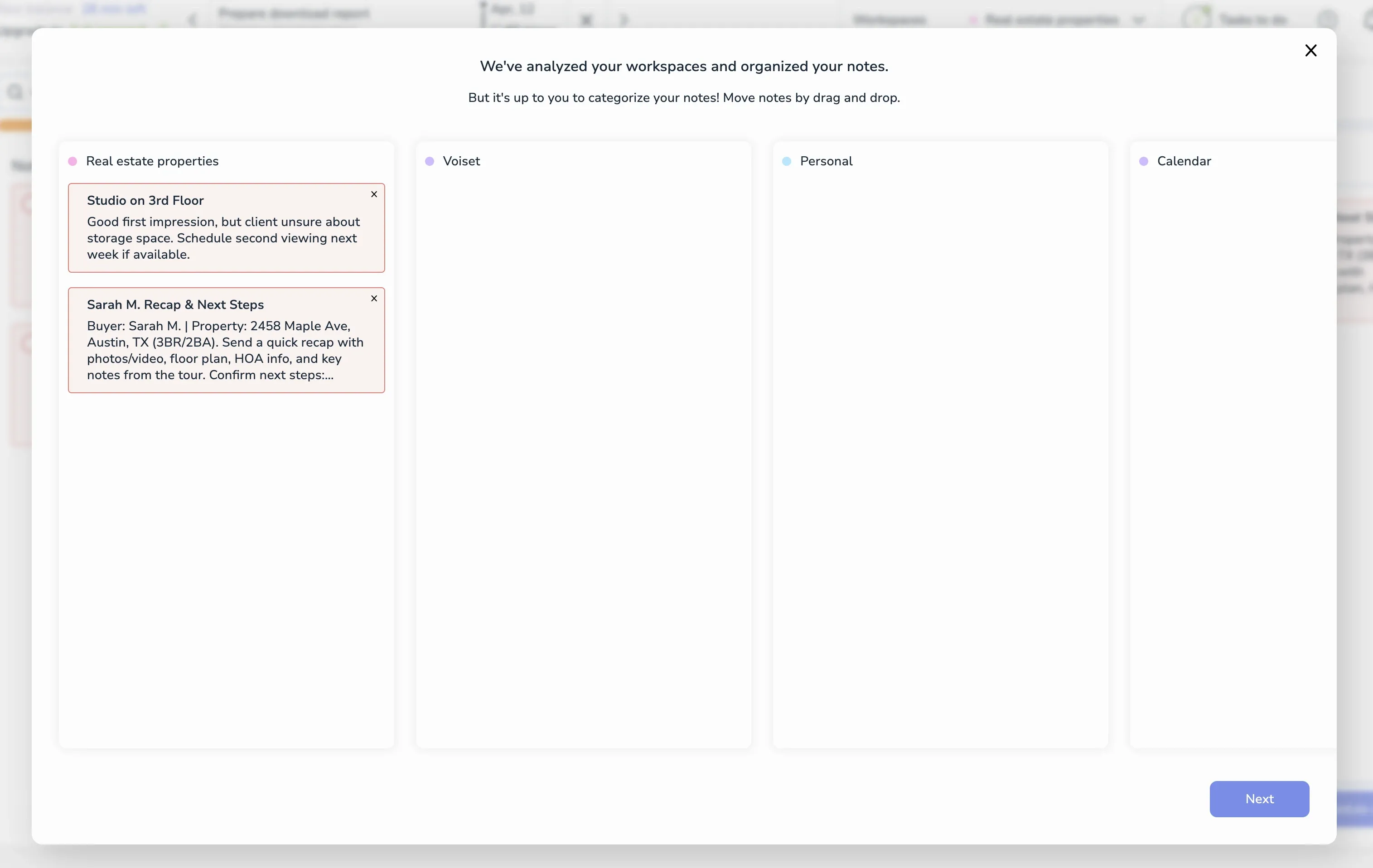
After checking the distribution, click Next.
Pick the best time
Voiset then suggests the best time for each task based on your workload and other connected workspaces.
You will see a calendar view where new tasks are proposed on suitable dates and time slots.
You can also change the time manually for each task.
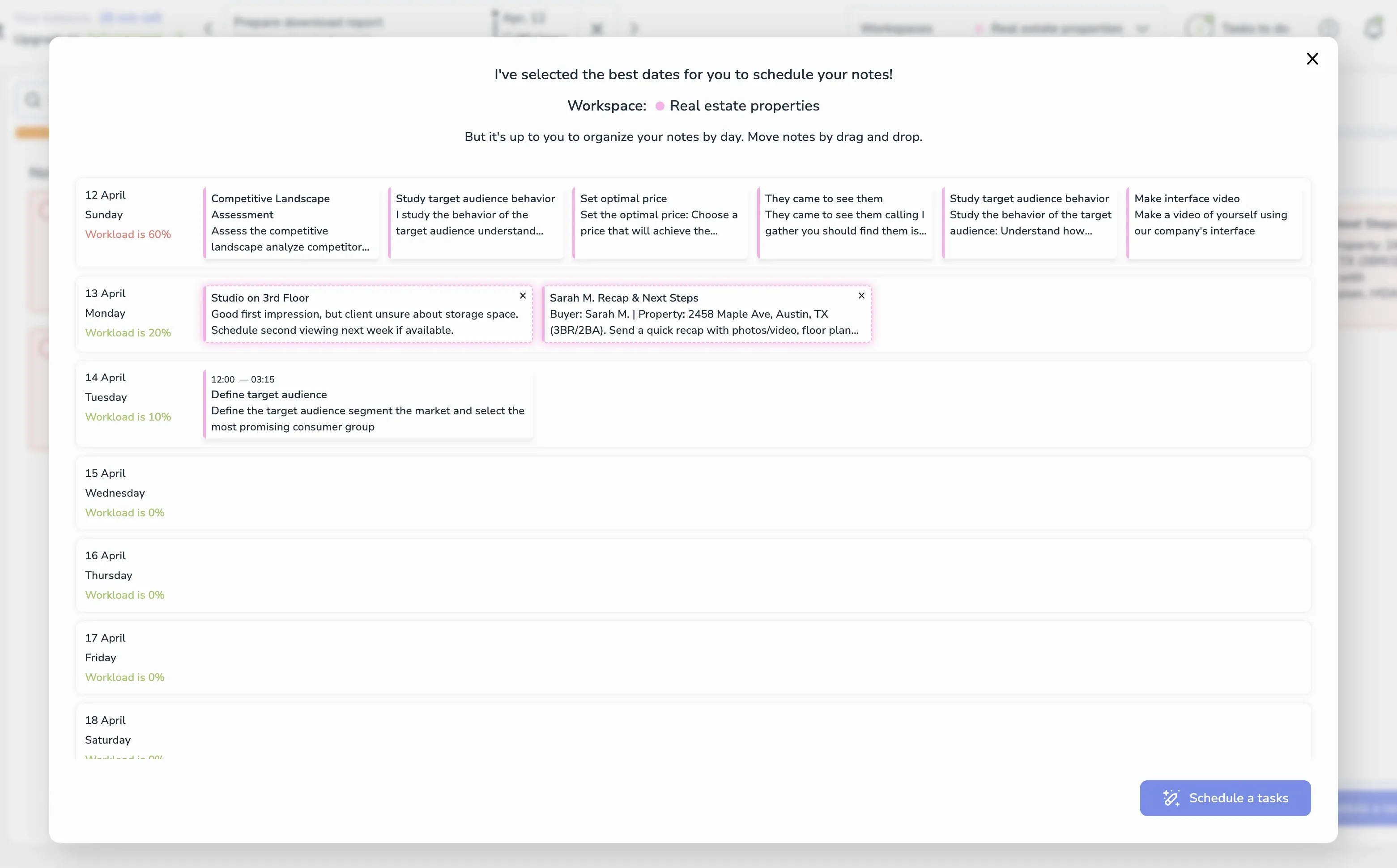
Single note flow
If you convert only one note, Voiset may skip the calendar step and show the task creation screen directly with a suggested date and time.
You can still change the date by clicking the suggested time.
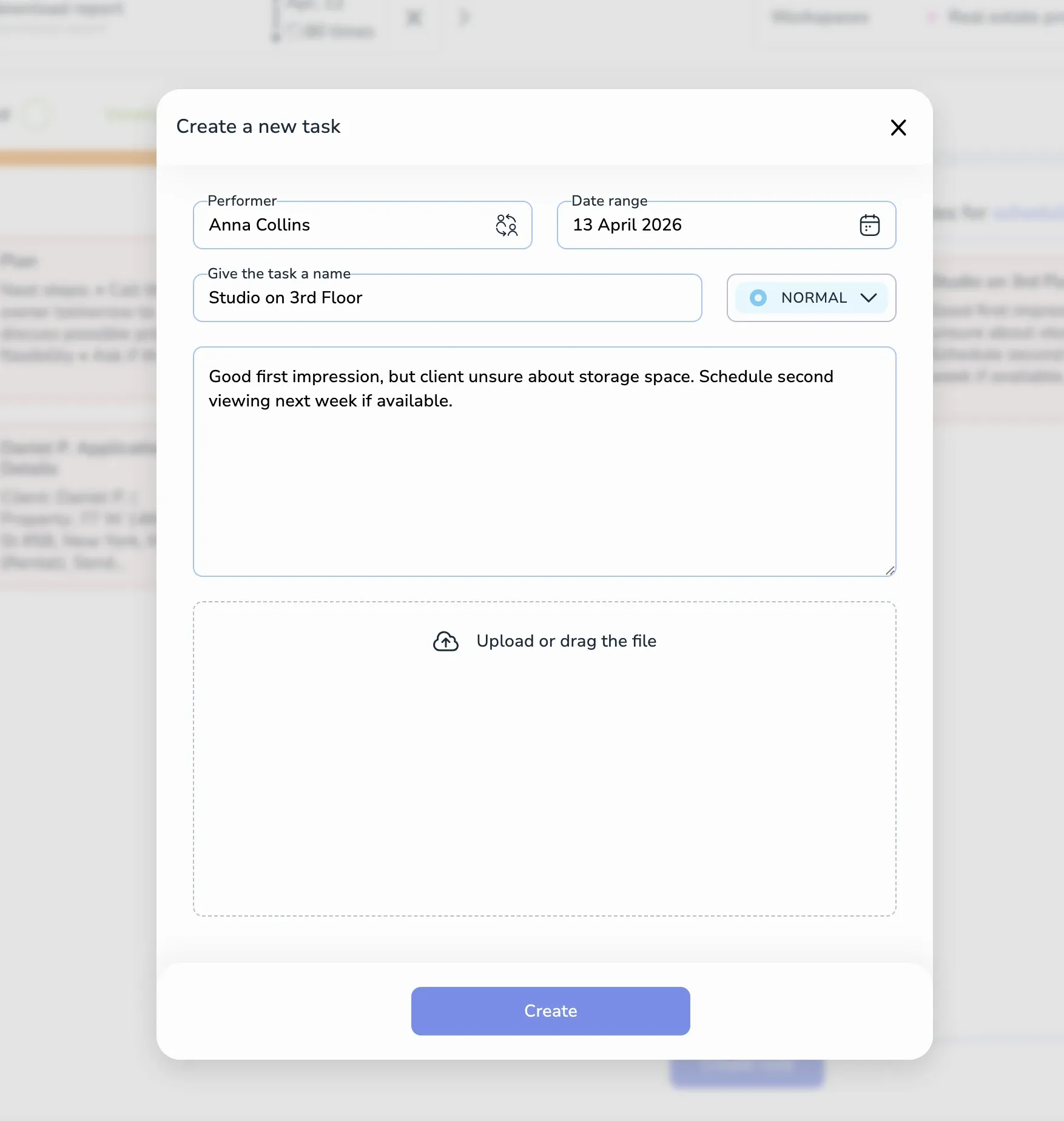
Final result
After confirmation:
- The note becomes a task in your calendar.
- The original note is closed.
- Your planning stays organized without losing important details.