

Agents Integration
Voiset can be connected to Claude as a custom MCP connector. Once connected, Claude can create tasks, take notes, and schedule meetings directly in your Voiset workspace.
What you can do after connecting
When the integration is active, Claude gains access to more than 12 Voiset tools, grouped into three areas:
- Tasks — create tasks, update deadlines, change status, count to-dos, fetch the calendar period.
- Notes — create, list, get, update, and close notes.
- Meetings — create meetings and fetch their participants.
Connection parameters
Use the following values when adding the connector:
| Field | Value |
|---|---|
| Name | Voiset |
| Server URL | https://api.voiset.org/mcp |
| Client ID | claude |
| Client Secret | claude-secret-change-me |
Step-by-step setup
1. Open the Add custom connector dialog
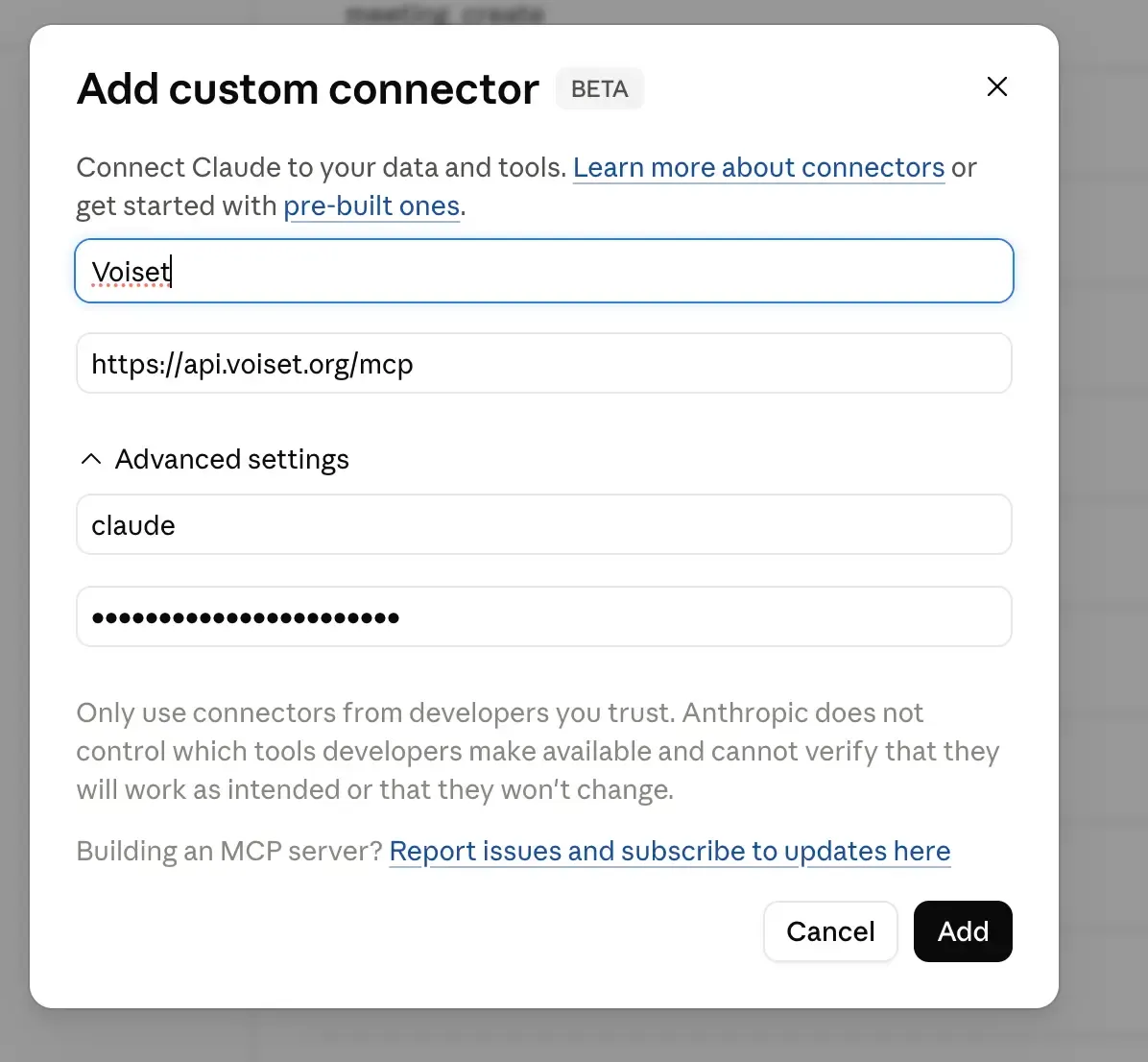
In Claude, open Settings → Connectors and click Add custom connector. The connector dialog opens with a BETA badge.
2. Enter the name and server URL
- Name field — type
Voiset. - Server URL field — paste
https://api.voiset.org/mcp.
3. Expand Advanced settings
Click Advanced settings to reveal two additional fields and enter:
- Client ID —
claude - Client Secret —
claude-secret-change-me
4. Add the connector
Click Add. Claude validates the connection and adds Voiset to your list of connectors.
Allow tool permissions
After the connector is added, open it from the connectors list. You will see the Tool permissions section with all Voiset tools.
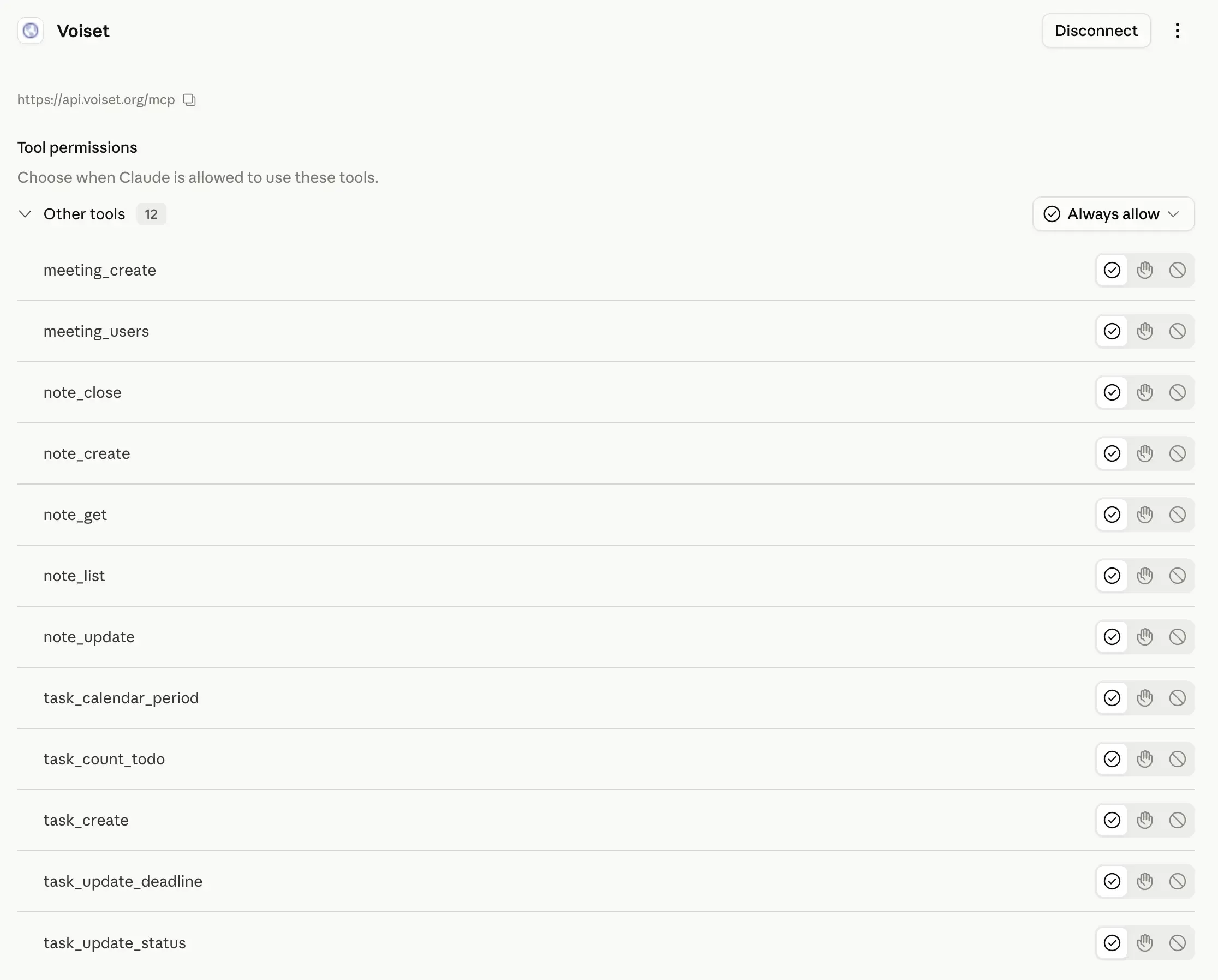
For the smoothest experience, set the Other tools group to Always allow — Claude will then be able to use Voiset tools without asking every time.
Each tool can also be controlled individually with three options:
- ✓ Always allow — Claude can use the tool without confirmation.
- ✋ Ask — Claude requests confirmation before each call.
- ⊘ Never — the tool is disabled.
The available tools are:
| Tool | Purpose |
|---|---|
meeting_create | Schedule a new meeting |
meeting_users | List participants of a meeting |
note_create | Create a new note |
note_get | Read a note |
note_list | List notes |
note_update | Edit a note |
note_close | Close a note |
task_create | Create a new task |
task_update_deadline | Change a task deadline |
task_update_status | Change a task status |
task_count_todo | Count open tasks |
task_calendar_period | Fetch tasks for a calendar period |
Verify the connection
Open a new chat in Claude and try a simple command, for example:
"Create a task in Voiset: call the design team tomorrow at 10 AM."
Claude will invoke the task_create tool and confirm the new task. Open your Voiset workspace to see it in the task list.
Troubleshooting
- "Failed to connect" — make sure the Server URL is exactly
https://api.voiset.org/mcpwith no trailing slash and no extra spaces. - Authentication errors — re-open Advanced settings and re-enter the Client ID (
claude) and Client Secret. Both fields are case-sensitive. - Tools not appearing — disconnect the connector and add it again; the tools list is loaded after a successful connection.
- Account not found — sign in to your Voiset account at least once before connecting, so the workspace exists when the connector authenticates.
Disconnect
To remove the integration, open the Voiset connector in Claude and click Disconnect in the top-right corner. Your Voiset data is not affected — only Claude's access to it is revoked.