

Work with Files
Voiset stores files in your workspaces. You can upload files directly to a workspace or attach them to tasks, meetings and notes. All files of the current workspace are collected on the Files page.
Open Files
Click Files in the left menu.
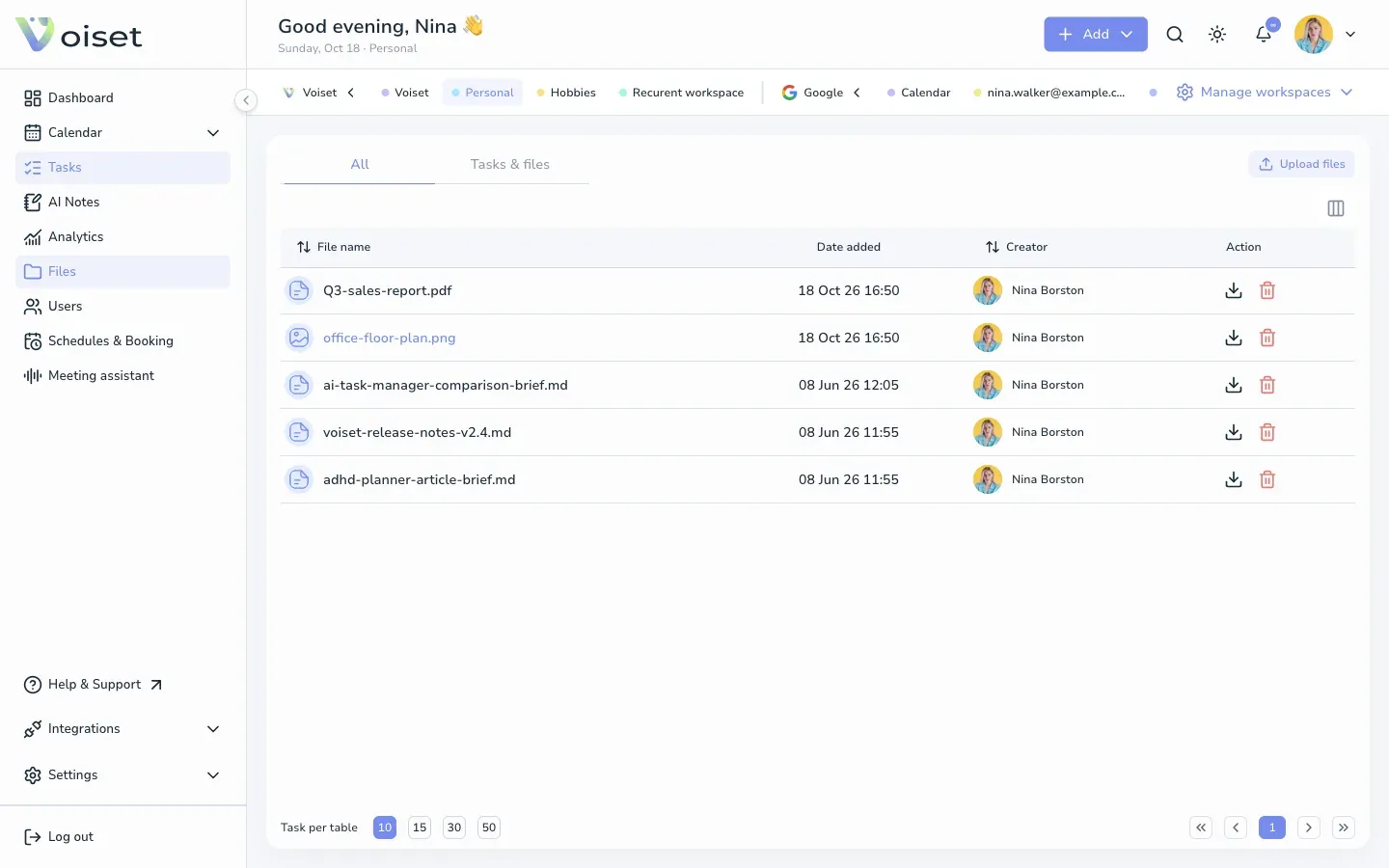
The page shows the files of the current workspace. To see the files of another workspace, click it in the workspace bar at the top.
The All tab lists every file with its name, the date it was added and who added it. Click Columns to choose which columns to show, and click a column name to sort.
Upload files
- Click Upload files.
- Click Choose a file or drag files into the window. You can upload any format and several files at once.
- Remove a file from the list with the trash icon if you added it by mistake.
- Click Upload files and wait until each file shows 100%.
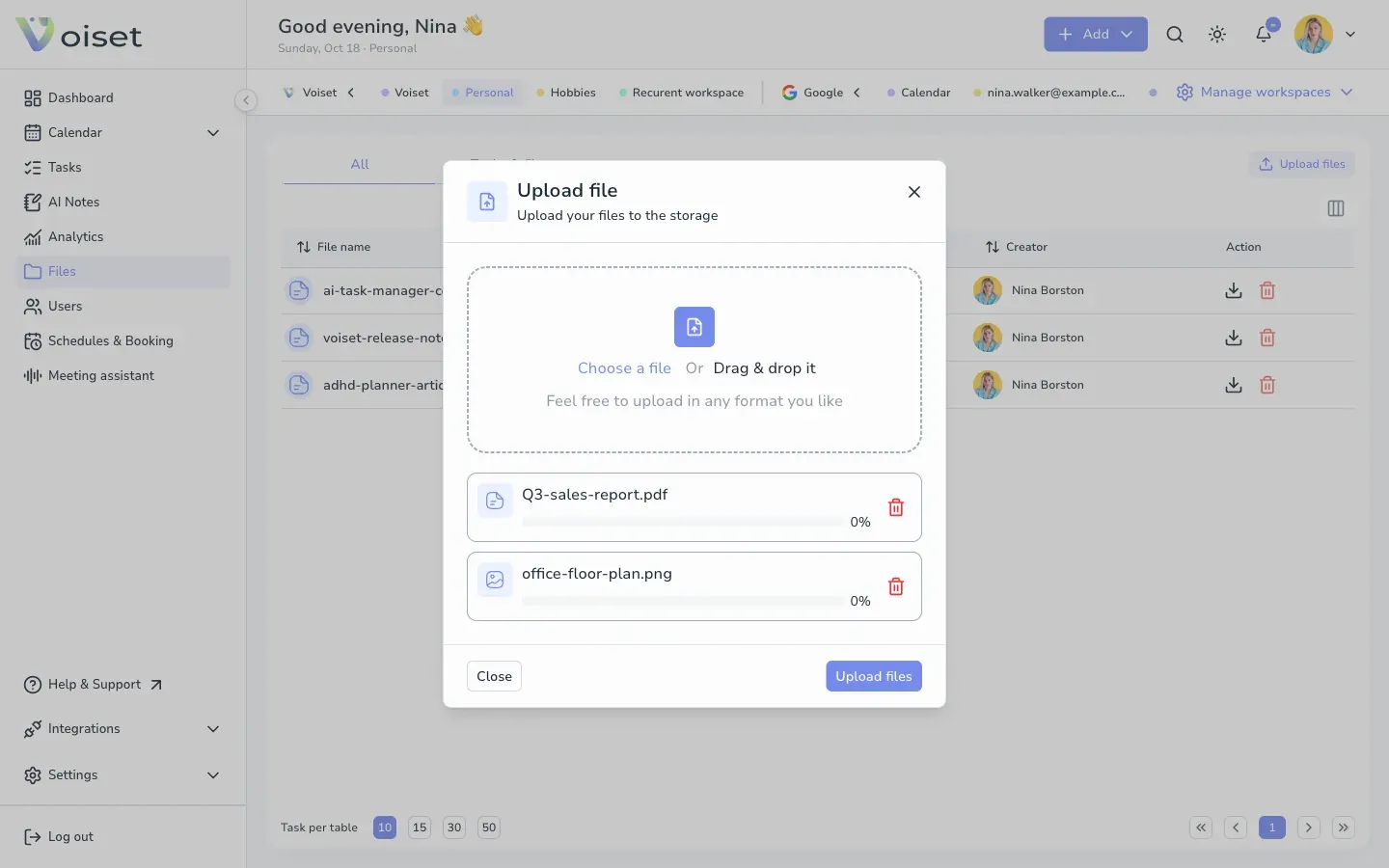
The files appear in the list of the current workspace.
Download or delete a file
In the Action column:
- click the download icon to save the file,
- click the red trash icon to delete it.
Attach files to a task
- Open the task form: Add > Task.
- Drag files into Upload or drag the file or click it to choose files.
- Create the task as usual. See Create Task.
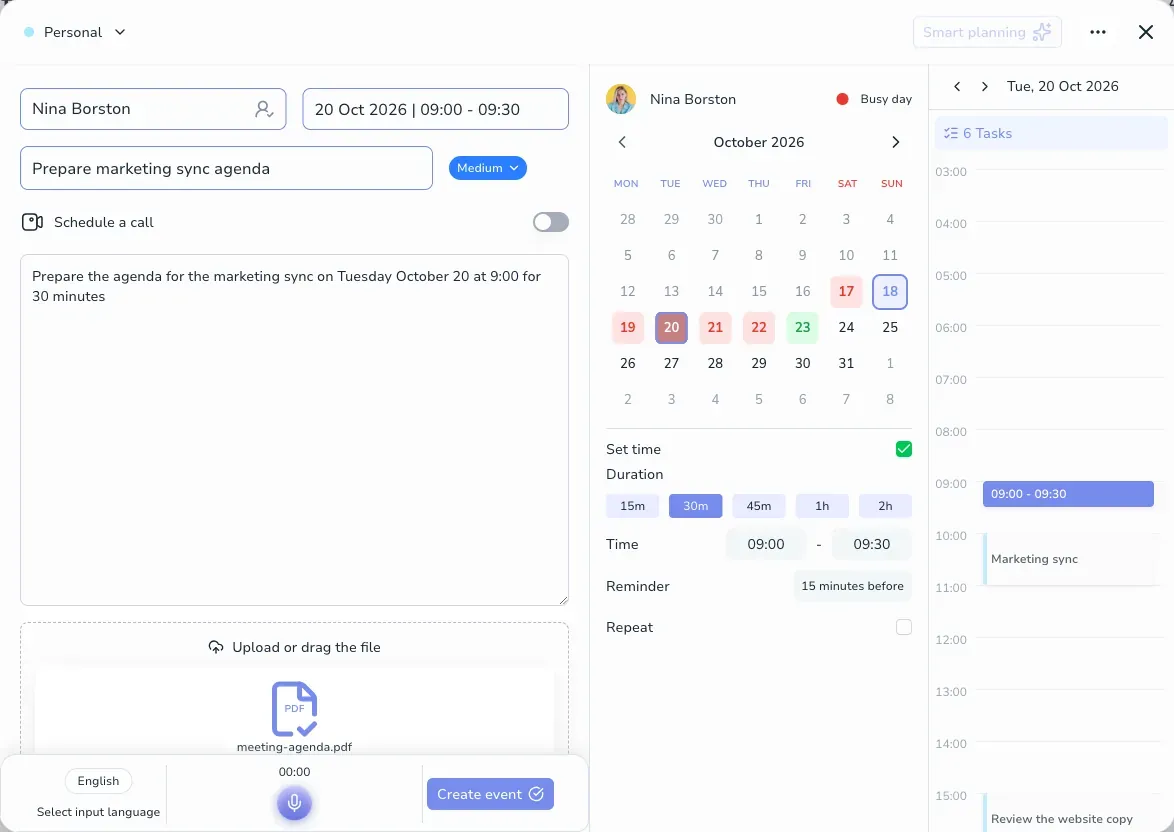
Keep attachments small, large files load slowly in the mobile app. Notes and calls have the same file area.
Find files by task
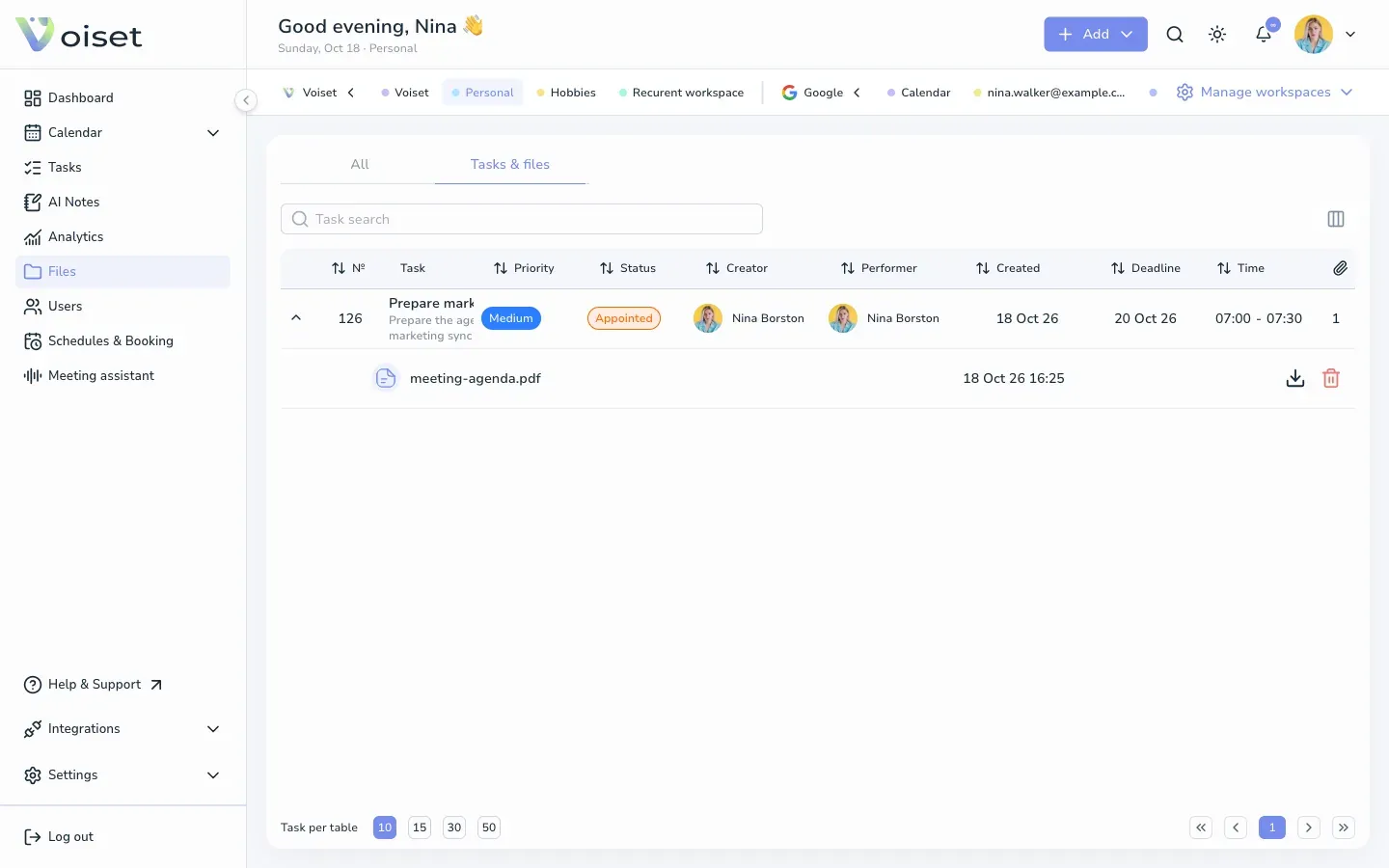
Open the Tasks & files tab. It lists tasks that have files, with their status, performer and dates. Use Task search to find a task. Click the arrow next to a task to see its files, then download or delete them.
Storage
Files count towards the storage of your plan. Workspace members share the storage of the workspace owner. You can see how much storage is left in Settings > Billing.