

Complete a Note
When a note is no longer needed, mark it as complete. It leaves your list of open notes but stays available in the Completed list.
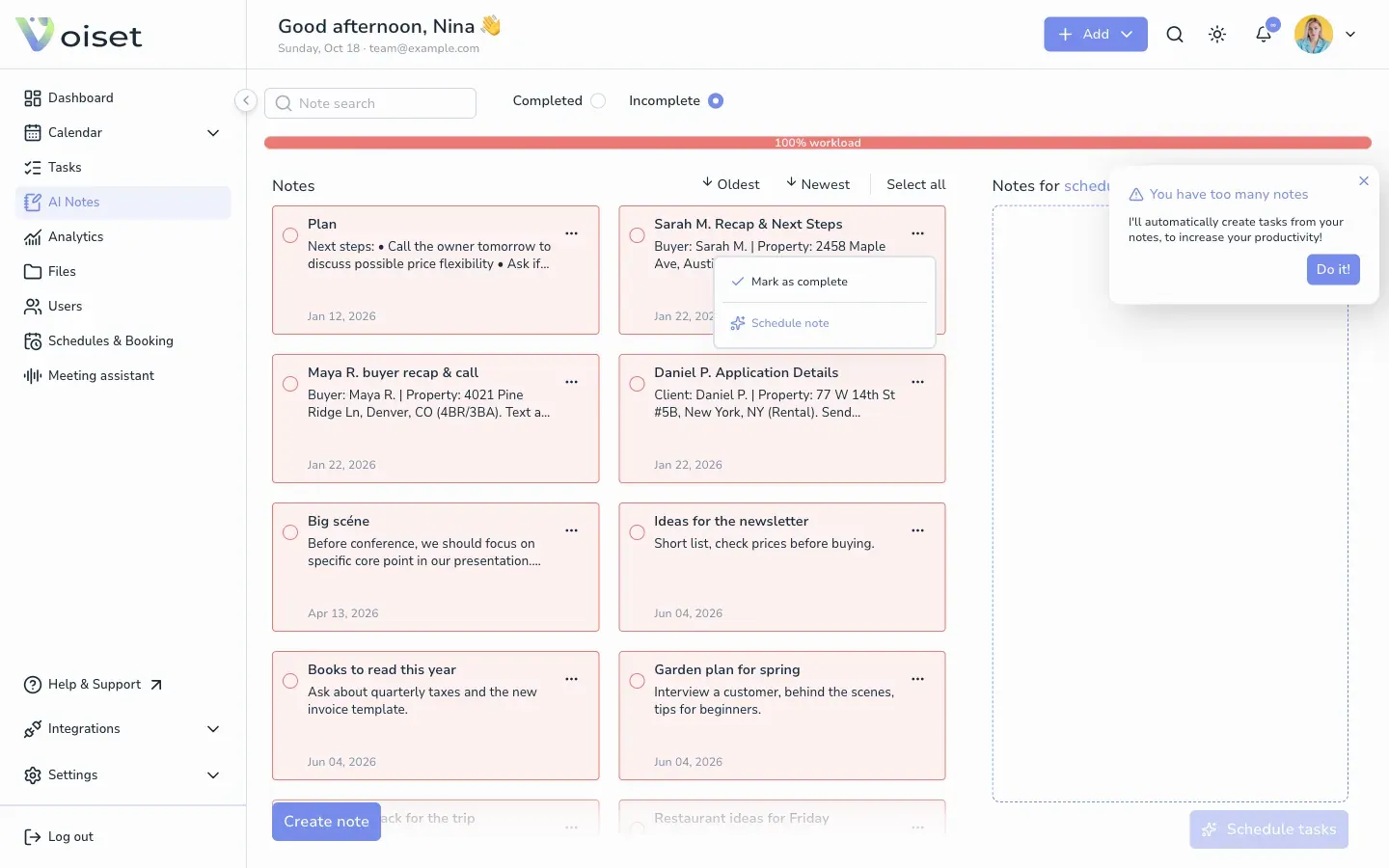
Mark a note as complete
- Open AI Notes in the left menu.
- Click ... on the note.
- Choose Mark as complete.
See completed notes
At the top of the AI Notes page switch from Incomplete to Completed. Completed notes are shown crossed out.
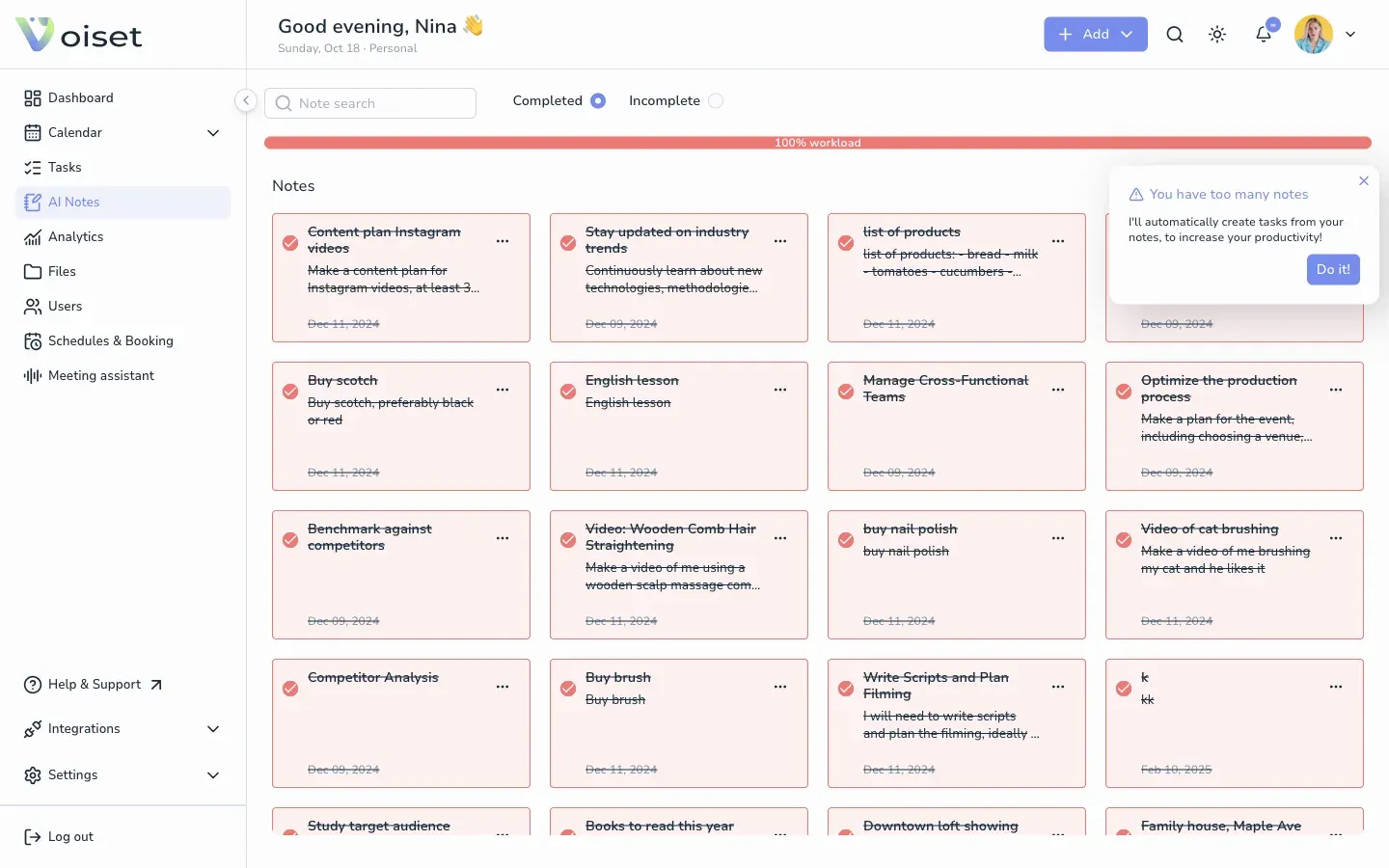
Switch back to Incomplete to see your open notes.
Keep your notes under control
The bar at the top shows how many open notes you have. When there are too many, Voiset offers to plan them for you. Click Do it! to turn them into tasks. See Convert Note to Task.