

Edit a Task
Every task opens as a card where you can change everything you set when you created it.
1. Open the task
Click the task in any of these places:
- the task list on the Tasks page,
- the task table on the Dashboard,
- the calendar (daily, weekly or monthly view),
- search results (press Ctrl+K or Cmd+K).
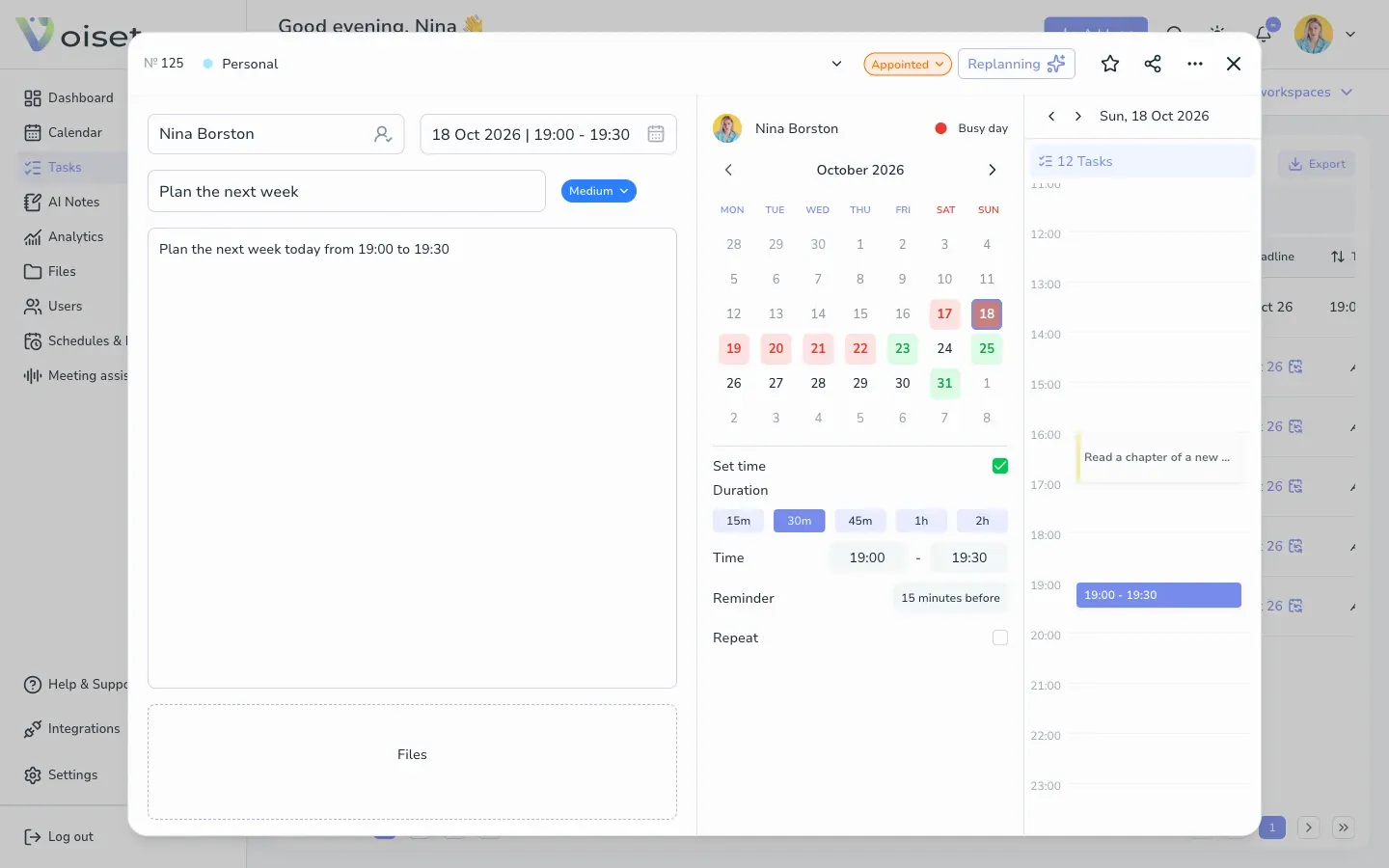
The card shows the task number and workspace at the top, the task details on the left, the calendar of the performer in the middle and the timeline of the day on the right.
2. Change the details
- Performer: click the performer field and pick another person from the workspace.
- Date and time: click the date field, or pick a day in the calendar. Change Duration, Time, Reminder and Repeat under the calendar. You can also drag the edges of the task on the day timeline to change the start and end time.
- Name and description: click the text and type.
- Priority: click the priority chip next to the name.
- Status: click the status chip at the top. See Change Task Status and Priority.
- Files: drag files into the Files area.
- Workspace: click the workspace name in the top left corner and choose another one.
The calendar colors show how busy each day is for the performer, so you can move the task to a freer day.
3. Other actions in the card header
- Replanning: ask Voiset to plan the task again.
- Star: add the task to your favorites.
- Share: get a link to the task. See Share a Task.
- ...: delete the task, show comments or convert the task into a note.
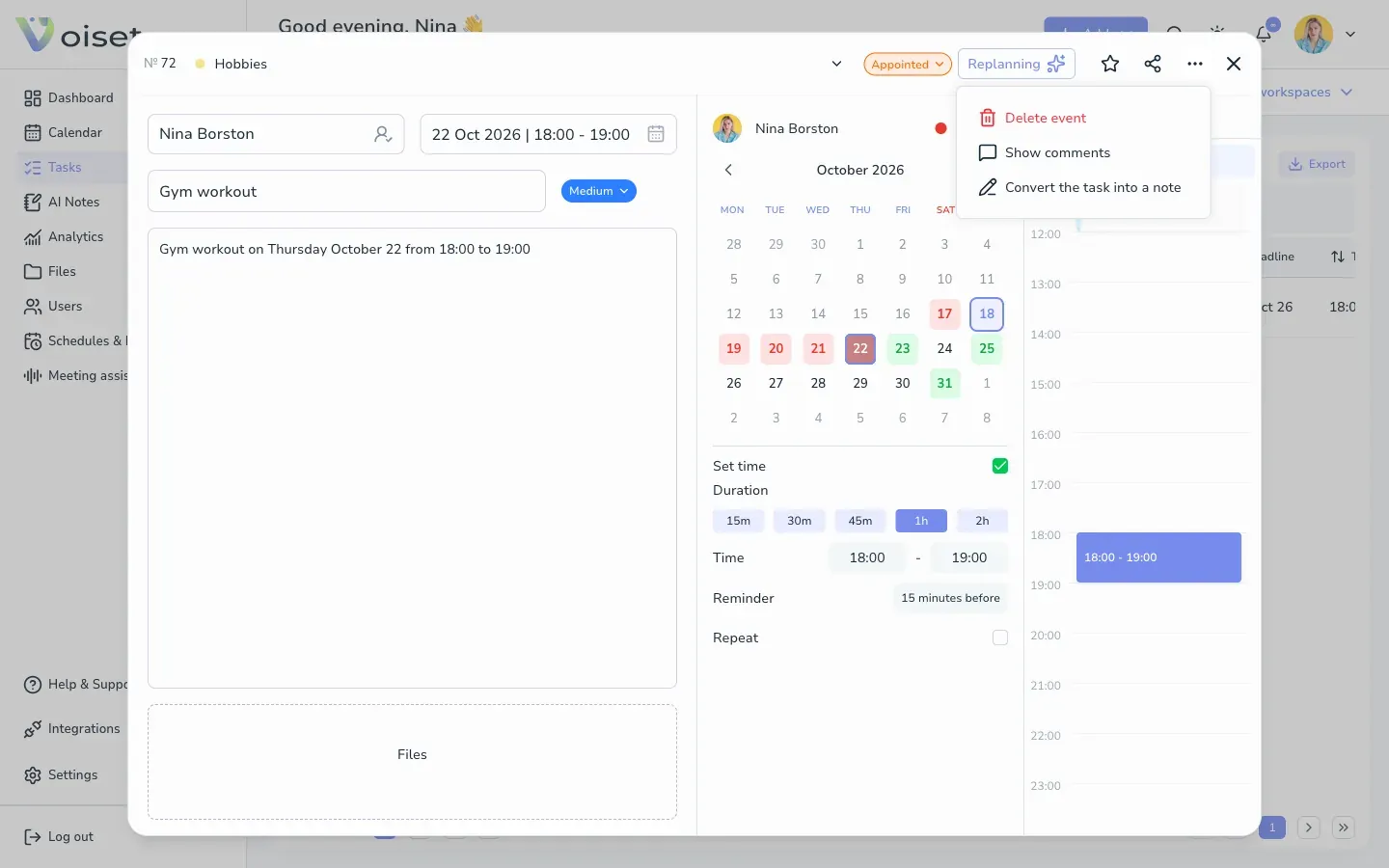
Close the card with X.