

Create Booking Page
The booking page is one of the most important parts of the Voiset planning system. It lets you create a public schedule for a workspace and share a booking link with external users or clients, so they can choose a suitable time for a call on their own.
More about this feature: Meeting Booking
This page is especially useful when your availability depends on multiple workspaces and connected calendars. You can define schedules for each workspace and then decide which of them should be included in the final booking availability. As a result, users always see only the slots that are truly free, even if some of your time is already occupied in other areas of the system.
Where to start
To create a booking page, open https://voiset.org/workspaces.
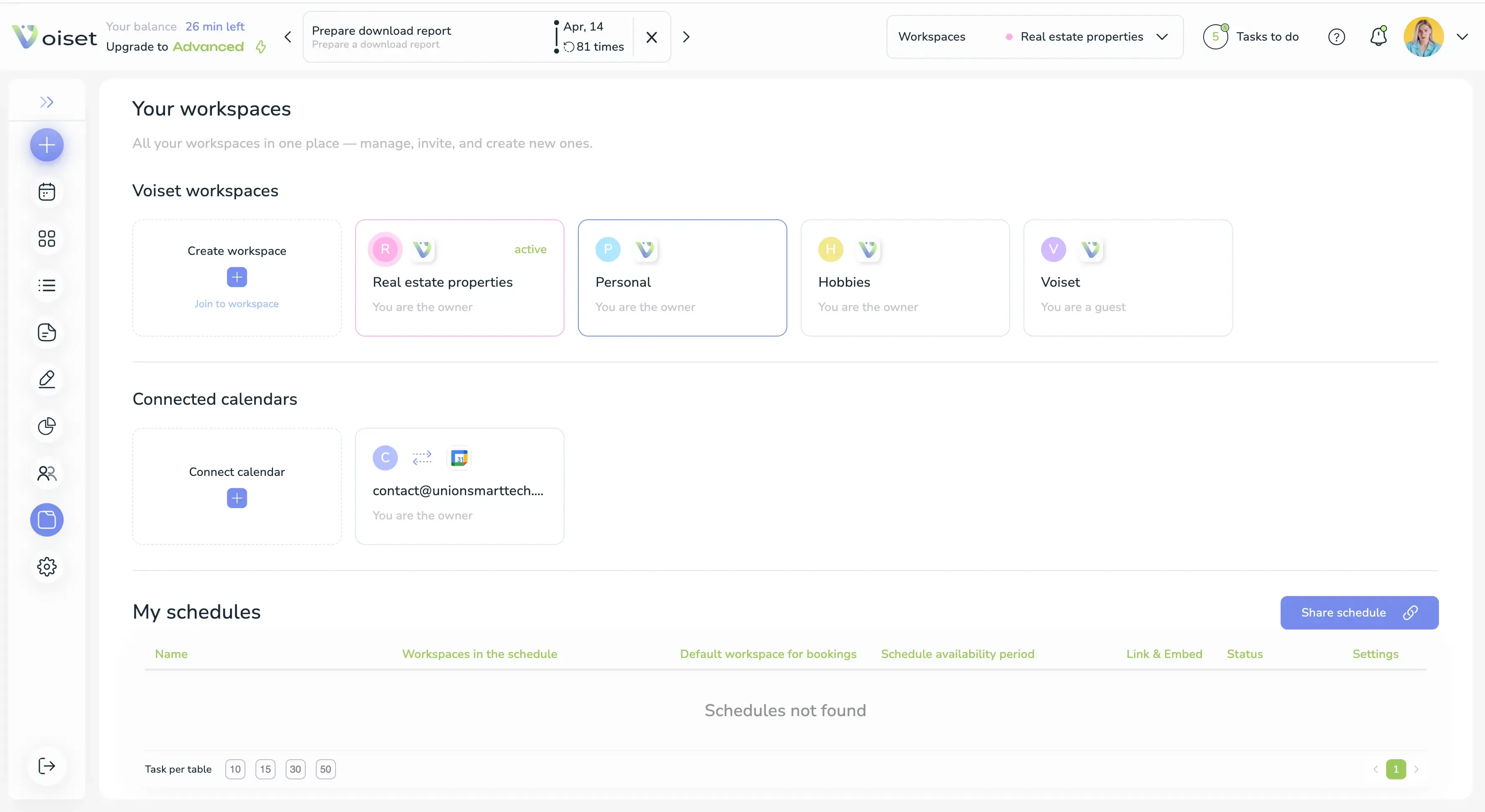
This is the main place for managing workspaces, schedules, and connected calendars. Each workspace in Voiset has its own environment, and each schedule can be linked to one or more of them.
Workspaces overview
In the Voiset workspaces section, you can see all workspaces created in your planner. When you click a workspace, you open the schedule assigned to that workspace.
The Workspaces overlap map is especially important. It shows how one workspace overlaps with another and helps you understand which time ranges are available for booking.
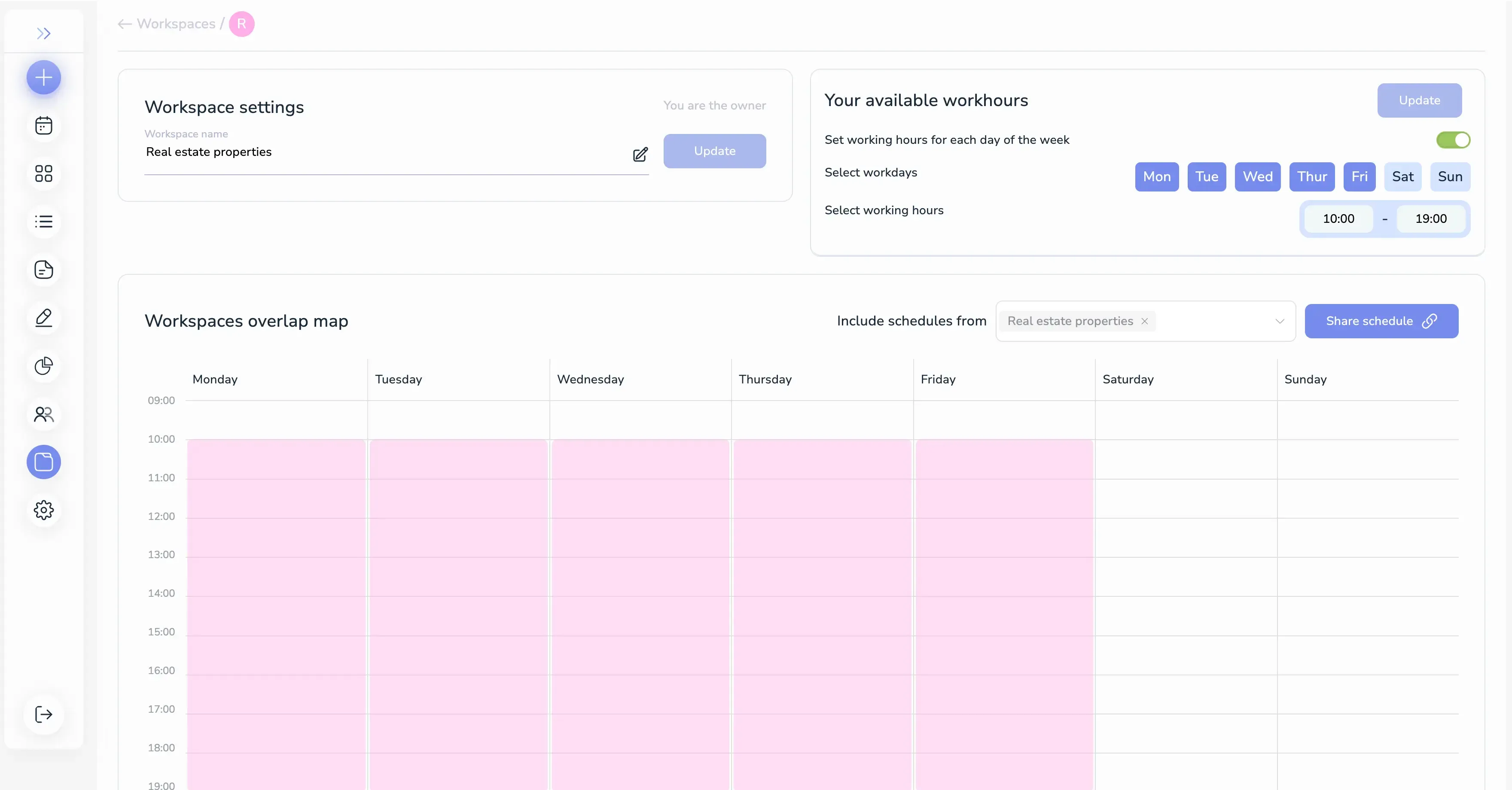
This map is useful when you want to build a schedule based on the intersection of several workspaces. It helps you exclude busy periods and keep only the time slots that should remain available for clients.
Connected calendars
The Connected calendars tab shows external calendars linked to Voiset, including providers such as Zoom, Google Calendar, and Microsoft Teams. In most cases, these calendars are used to create call bookings and synchronize events with your schedule.
If external calendars are connected, Voiset can use them as part of the availability logic when generating a public booking page.
NickName requirement
Before creating a booking page, make sure your profile has a NickName set.
In most cases, this nickname is already created automatically during registration. Usually, Voiset takes it from the email prefix before the "@" symbol. The nickname must be unique across the entire Voiset system.
If needed, you can change it in your profile settings here:
https://voiset.org/settings/profile/main
The field is called NickName.
Create a schedule
To create a booking page, click Share schedule.
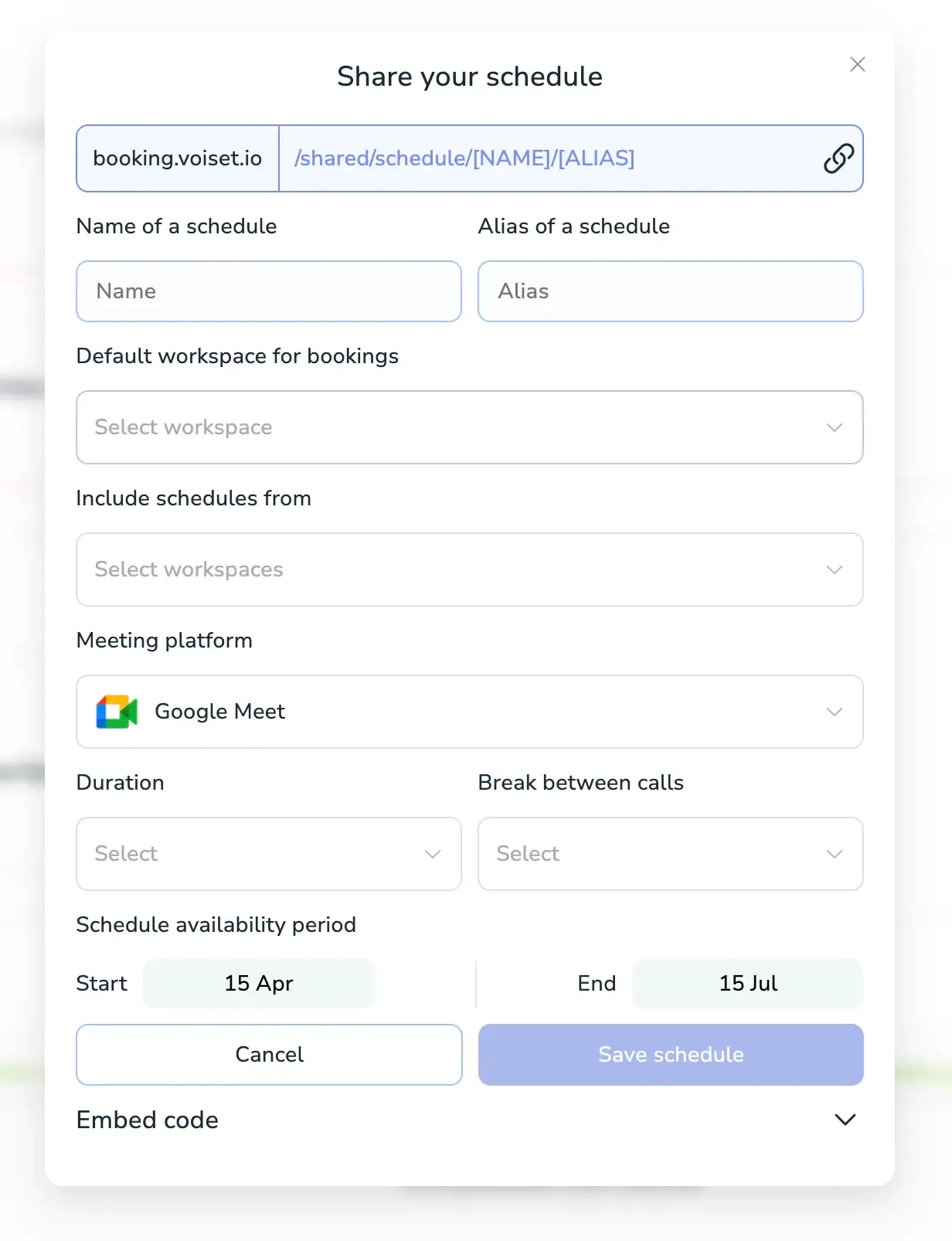
This opens the schedule settings panel. Below are the main parameters you need to configure.
1. Public link
The first line shows the final link that will be generated after all settings are saved. This is the link you can share with users for booking.
2. Name
Enter the name of your schedule. This is the title visible to your users.
Examples: Consultation, China language training, or any other clear booking name.
3. Alias
Set a unique alias for the schedule. This alias is used at the end of the booking link and must be unique inside your own schedules.
4. Default workspace for bookings
Select the workspace where the booking will be created. The call information will appear there first.
If this workspace is also synchronized with an external calendar, the event will appear both in the target workspace and in the synchronized calendar workspace.
5. Include schedules from
This is one of the most important settings. It controls which workspace schedules should be considered when calculating availability.
If you include multiple schedules and one of them has an event that overlaps with a free slot, that slot disappears from the public booking page. This allows Voiset to calculate real availability based on your actual workload.
To be included here, the workspace must have working hours defined.
6. Meeting platform
Choose the platform that will be used for the call. If you have not connected any platform yet, you can connect one directly from this step.
7. Duration
Set the duration of the meeting. This is required for every booking schedule.
8. Break between calls
Set the gap between meetings. This is the free time reserved between bookings, giving you a short break before the next call.
9. Schedule availability period
Set the availability period by choosing the start and end dates for the schedule.
10. Embed code
If you open the Embed code dropdown, you can copy the HTML code for adding the booking page to your own website.
Important: the embed code becomes active only after the schedule is saved.
Save the schedule
When all settings are ready, click Save schedule.
After saving, your new schedule appears in the schedule list.

From there, you can:
- Click the three-dot menu to delete or edit the schedule.
- Click the chain-link icon to copy the public booking URL and share it with clients.
Booking page example
After the schedule is published, the public booking form becomes available.
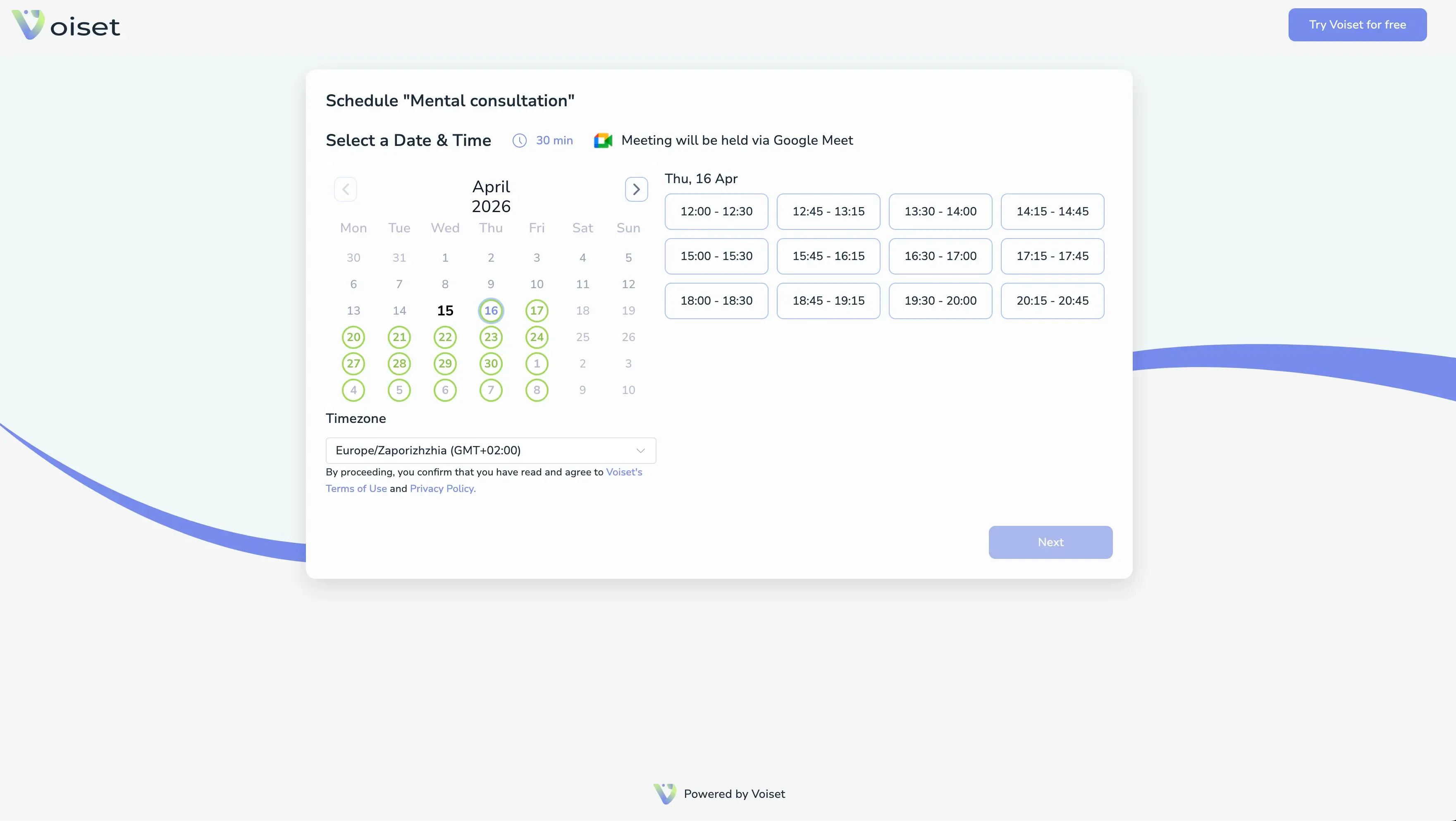
The user sees the available days and time slots. The colored circles show how much free time is available on each day.
Green means the day has many open slots, while other colors indicate lower availability.
User booking flow
Once the user selects a free slot, Voiset shows a form with the required booking details.
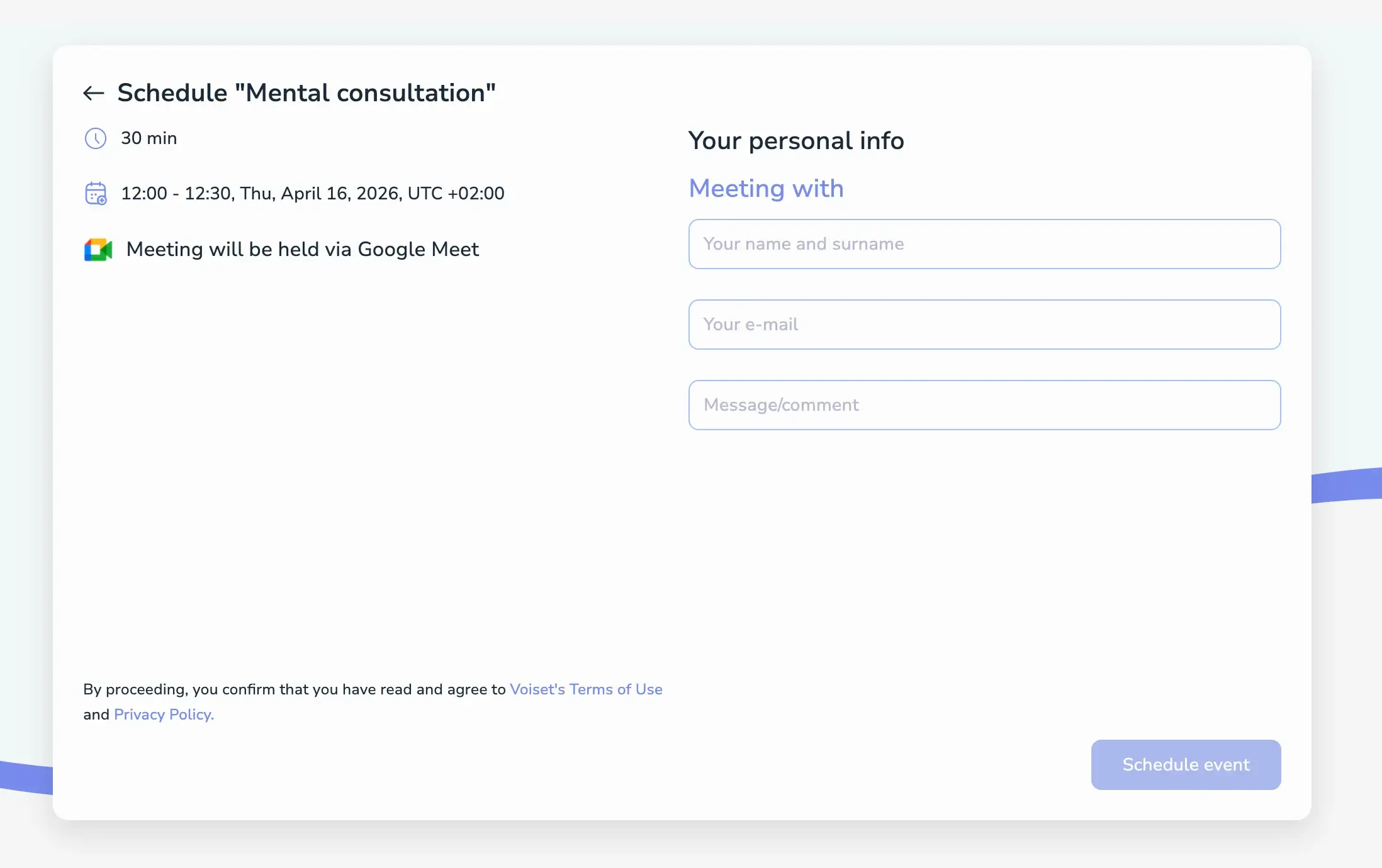
The user fills in the required fields, and the system creates the booking.
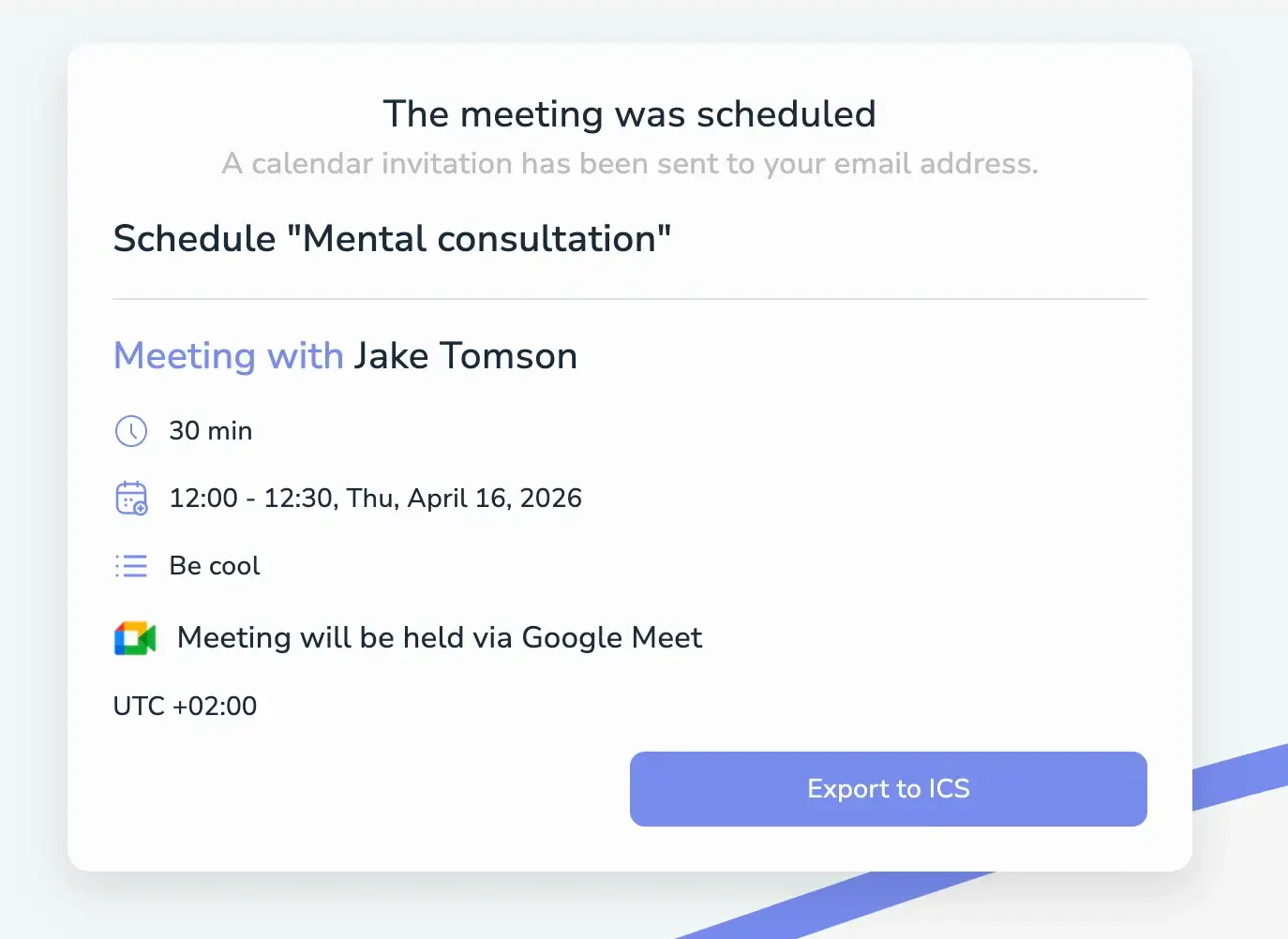
After submission, Voiset shows a success message, sends a notification to the user’s email, and offers an ICS file so the event can be added to their personal calendar.
Why this matters
This process makes it very easy to create a public booking page for calls. The setup takes only a few minutes, but the result is a fully self-service booking experience for your clients.
The schedule is also dynamic. Availability is calculated from your tasks and other workspace events, which means the AI planner can balance your load and keep the booking page accurate throughout the day and night.
Summary
Voiset booking pages let you:
- Create public scheduling links for calls.
- Control availability across multiple workspaces.
- Include or exclude workspace schedules when calculating free time.
- Connect external calendars and meeting platforms.
- Let clients book time independently.
- Export bookings to ICS and email notifications.