

Connect Calendars
Keep using your current calendar. Voiset connects to it, shows its events next to your tasks and takes them into account when it plans your day. Nothing needs to be moved.
Each calendar you connect becomes its own workspace in Voiset. You choose which calendars to include.
Open calendar settings
In the left menu open Integrations > Calendars, or go to app.voiset.io/settings/integrations/calendars.
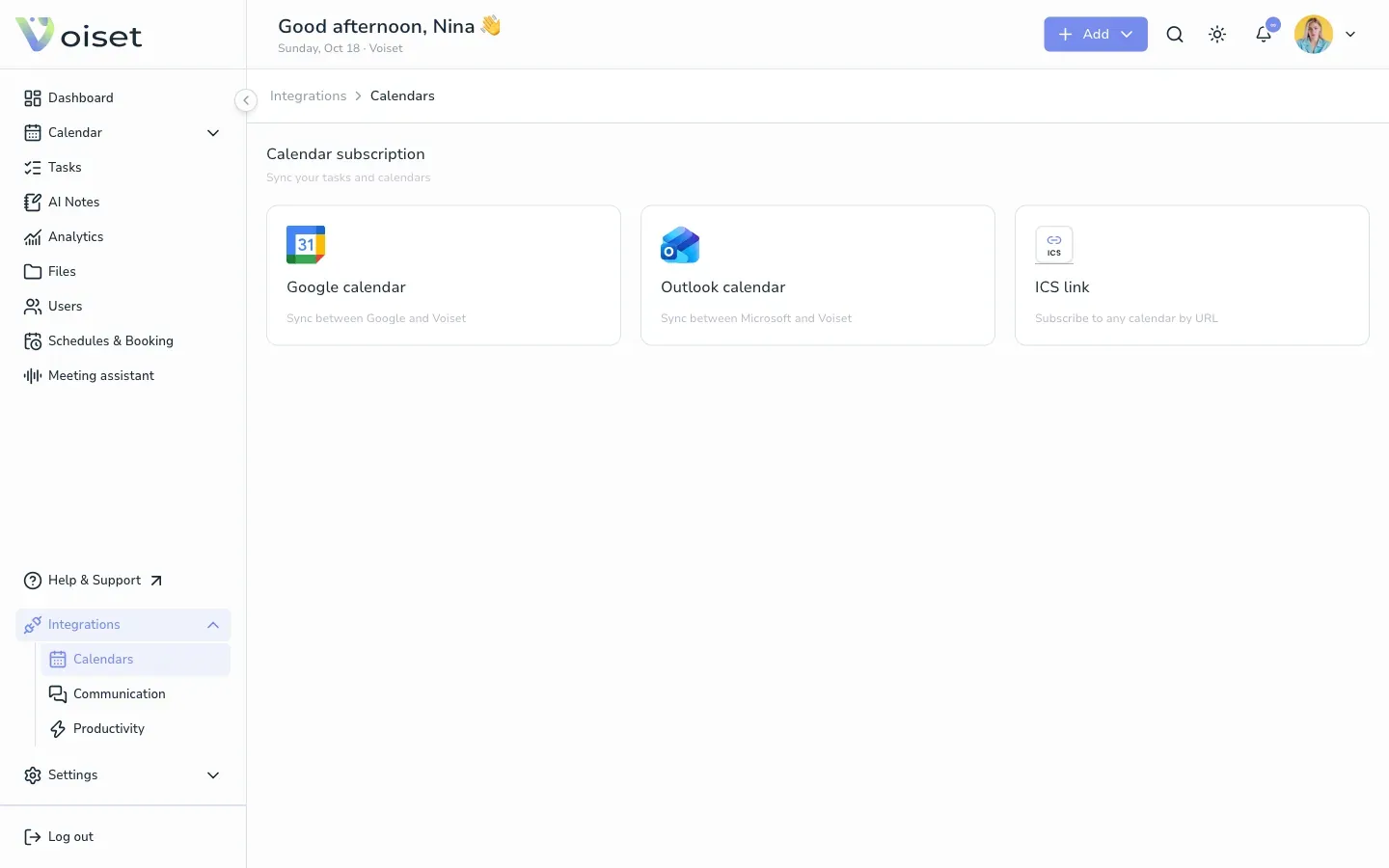
You can connect:
- Google calendar
- Outlook calendar
- ICS link: any calendar that has a public link
Google Calendar
- Click Google calendar.
- Click Add account and sign in with your Google account.
- Choose which calendars to show in Voiset.
- Choose the sync type for each calendar.
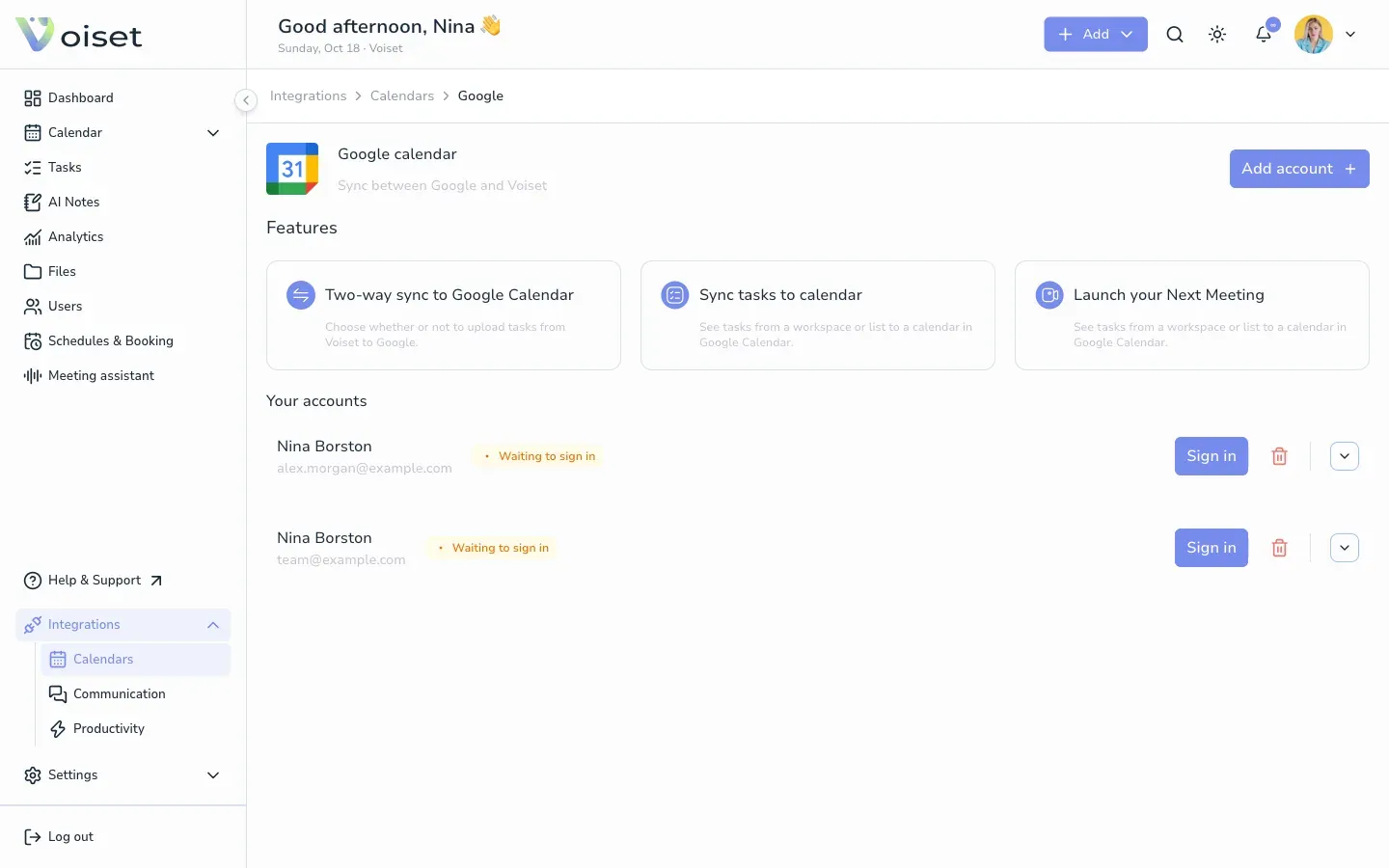
Your connected accounts are listed under Your accounts. If an account shows Waiting to sign in, the connection has expired. Click Sign in to renew it. Click the trash icon to remove an account.
Outlook Calendar
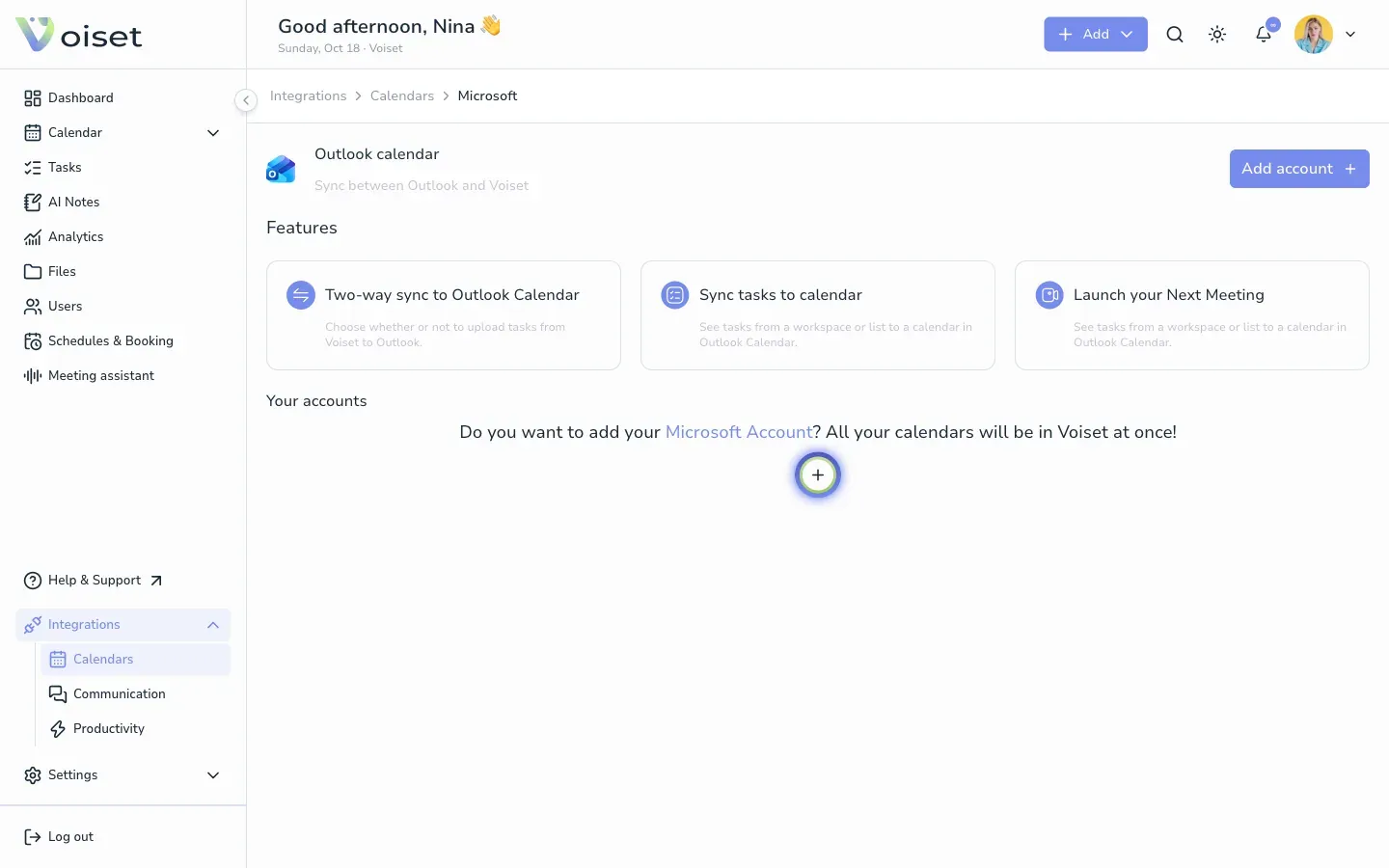
- Click Outlook calendar.
- Click Add account and sign in with your Microsoft account.
- Choose the calendars and the sync type.
Sync types
You choose the sync type for each calendar:
- One-way (read-only): Voiset shows the events from the calendar. You cannot change them in Voiset.
- Two-way: you can also create tasks and events in Voiset in one click, and they appear in the external calendar.
- Sync off: the calendar is connected but not shown.
The same options work for Google and Microsoft.
ICS link
Use an ICS link for calendars from Apple, school or team schedules, public holidays and other sources.
- Click ICS link.
- Click Add link.
- Paste the calendar URL (ICS or webcal).
- Enter a Workspace name.
- Click Subscribe.
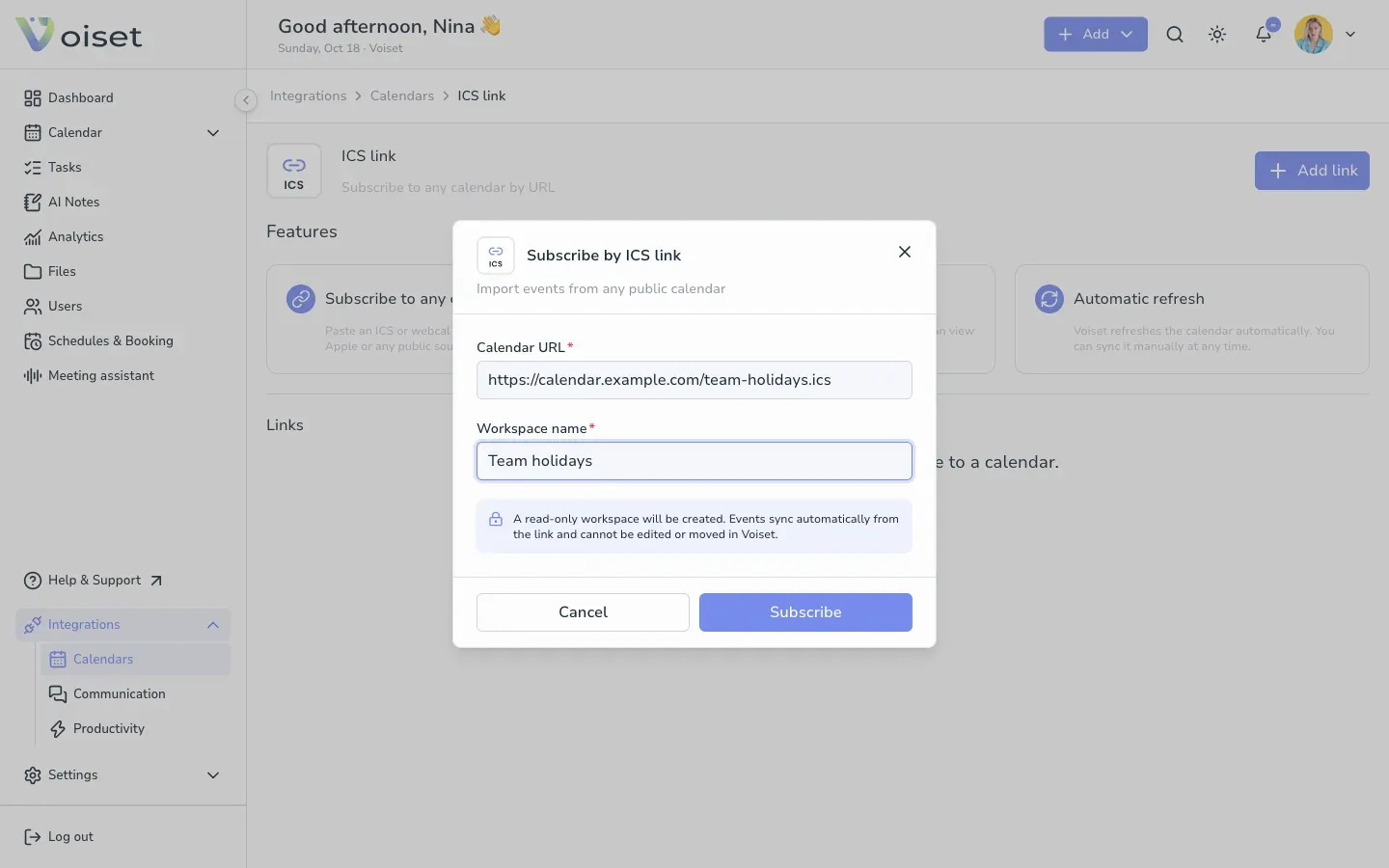
Voiset creates a read-only workspace for the calendar. Its events cannot be edited or moved in Voiset. The calendar refreshes automatically, and you can sync it manually at any time. Step-by-step guide: Subscribe to an ICS Calendar.
Show or hide calendars
In the master calendar each connected calendar has its own color. Check or uncheck it in the left panel to show or hide its events.