

Create Schedule
A schedule is an important part of the Voiset planning system. It helps you define when a workspace is available for work, planning, and booking. While a schedule is not strictly required in every case, it makes the AI planner much more effective because it can distribute tasks around your real availability.
Schedules are also the foundation for public booking pages. After you create a schedule, you can turn it into a booking page and let external users reserve time for calls on their own.
More about planning logic: Autoplanning
Where schedules live
All workspaces are available here:
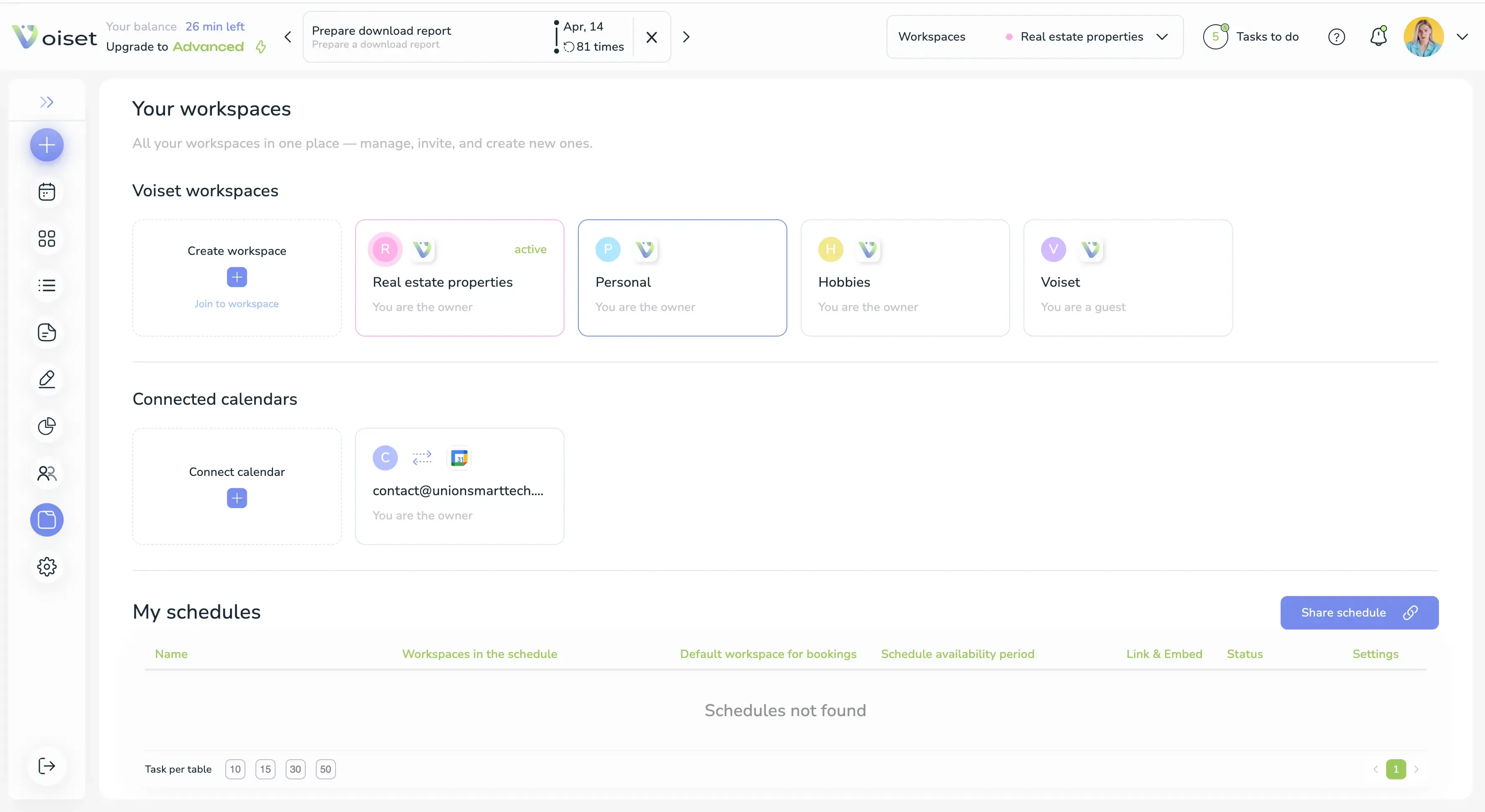
This is the main area where you manage workspaces and schedules. In Voiset workspaces, you see the workspaces created in the system. In Connected calendars, you see external calendars linked to your account.
Each workspace can have its own schedule. When you click a workspace, you see the schedule assigned to that workspace.
Why schedules matter
Schedules help Voiset understand when each workspace is available. This is useful in two important cases:
- For task planning, so the system can balance workload more accurately.
- For booking pages, so public availability is based on real calendar and workspace constraints.
This is especially helpful for projects that require special time windows or a more controlled planning structure.
Workspace schedule screen
If a workspace has no schedule yet, it looks empty:
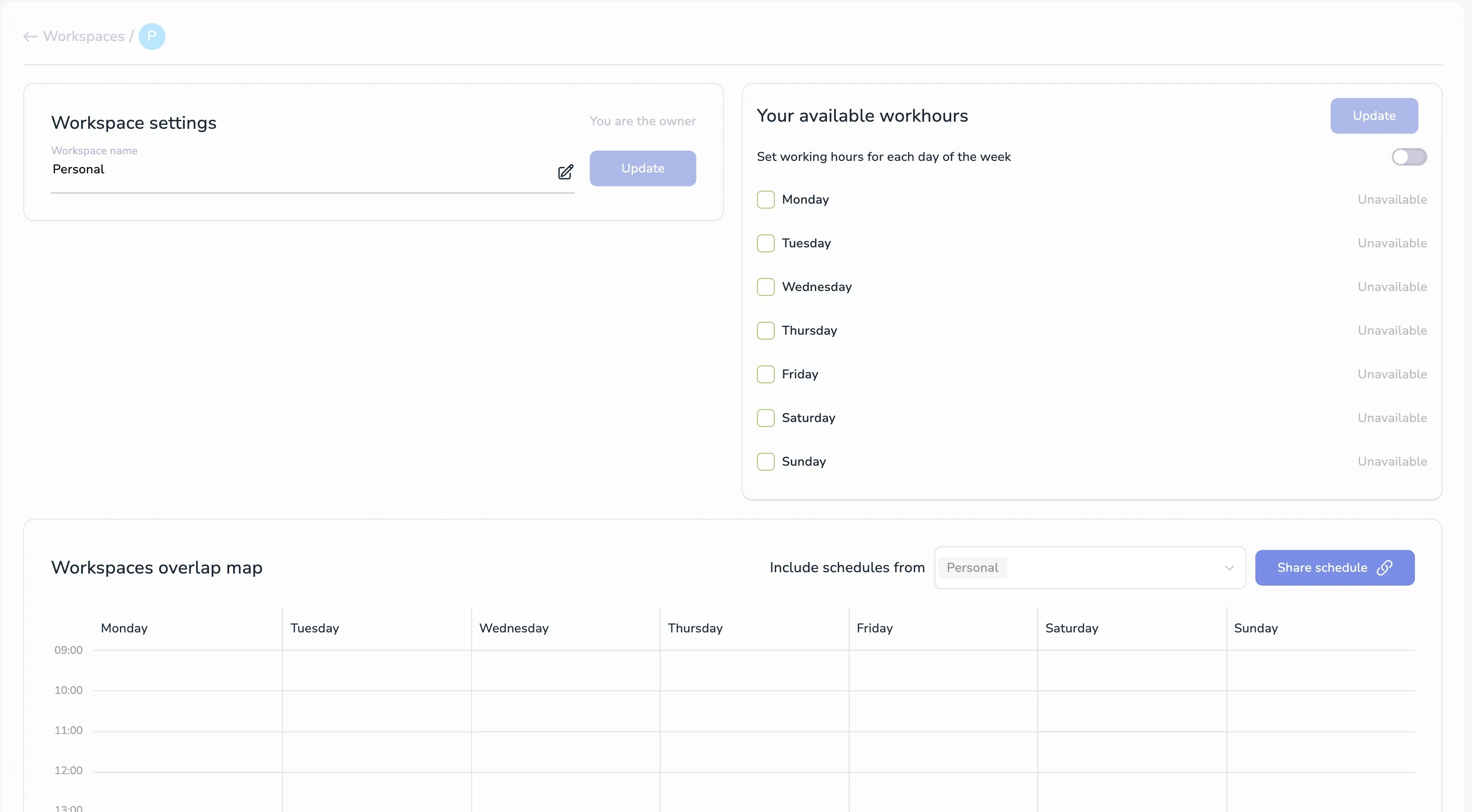
This screen shows that the workspace still needs working hours to be defined. Once you configure them, the schedule becomes active and can be used by the AI planner and booking system.
Set working hours
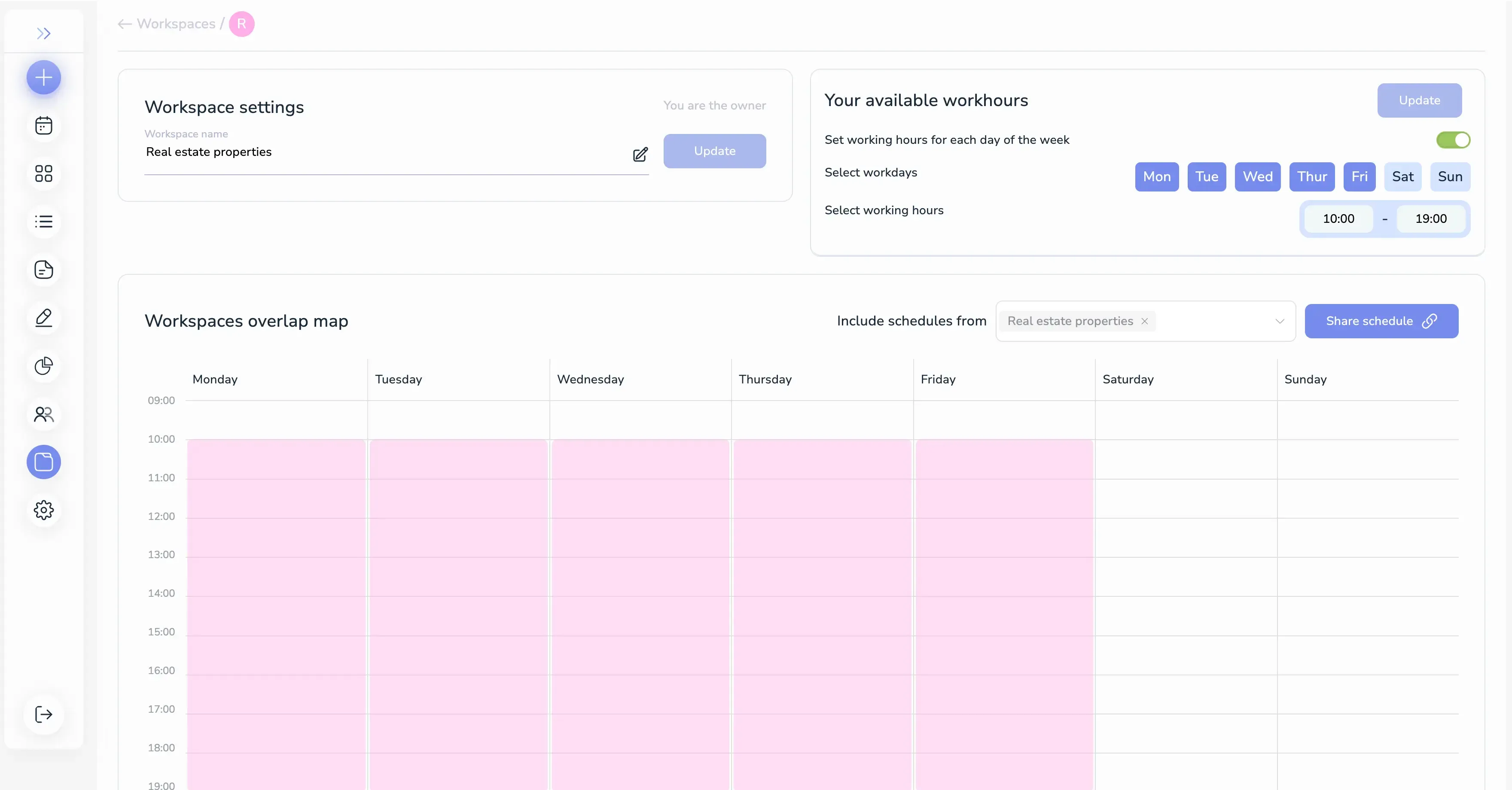
To create a schedule, choose the days of the week and define the working time for each one.
You can do this in two ways:
- Use the Set working hours for each day of the week switch to apply the same working hours logic across selected days.
- Leave it off if you want to define a separate time range for each day.
For each day, you can specify the time window when work should be planned or when the workspace should be considered available.
After setting the values, click Update to apply the schedule.
Workspaces overlap map
The Workspaces overlap map shows all schedules on one weekly timeline.
This view is useful when you want to understand how different workspaces overlap and where the system should place tasks or public booking slots. It gives you a clear picture of available and occupied periods across the selected workspace set.
By using this map, you can quickly identify the time intervals that should remain open for planning and the ones that should be excluded.
Connected calendars
The Connected calendars section shows external calendars connected to Voiset.
These calendars can be used as part of your schedule logic, especially if you work with meeting-based workflows. In many cases, they represent the systems where your calls and external events already live.
If a calendar is connected, its events can influence planning and availability in Voiset.
Booking page connection
Once a schedule is created, you can also build a booking page from it.
More about booking pages: Create Booking Page
This means the same schedule can support two things:
- Internal planning in Voiset.
- Public self-booking for external users or clients.
How to create a schedule
- Open https://voiset.org/workspaces.
- Choose the workspace you want to configure.
- Define working hours for the selected days.
- Decide whether to use the unified working-hours switch.
- Click Update.
- Review the workspace in the overlap map.
- Use the schedule later for planning or booking.
Result
After the schedule is saved, Voiset can use it to balance your workload more intelligently and keep your planning structure consistent across workspaces.
This is one of the most important setup steps in the system, because it improves both internal planning and public booking availability.