

Create Workspace
Workspaces keep different parts of your life and work apart: a team, a client, a project, your family. Each workspace has its own tasks, notes, files, people and schedule. In the calendar every workspace has its own color.
Create a workspace
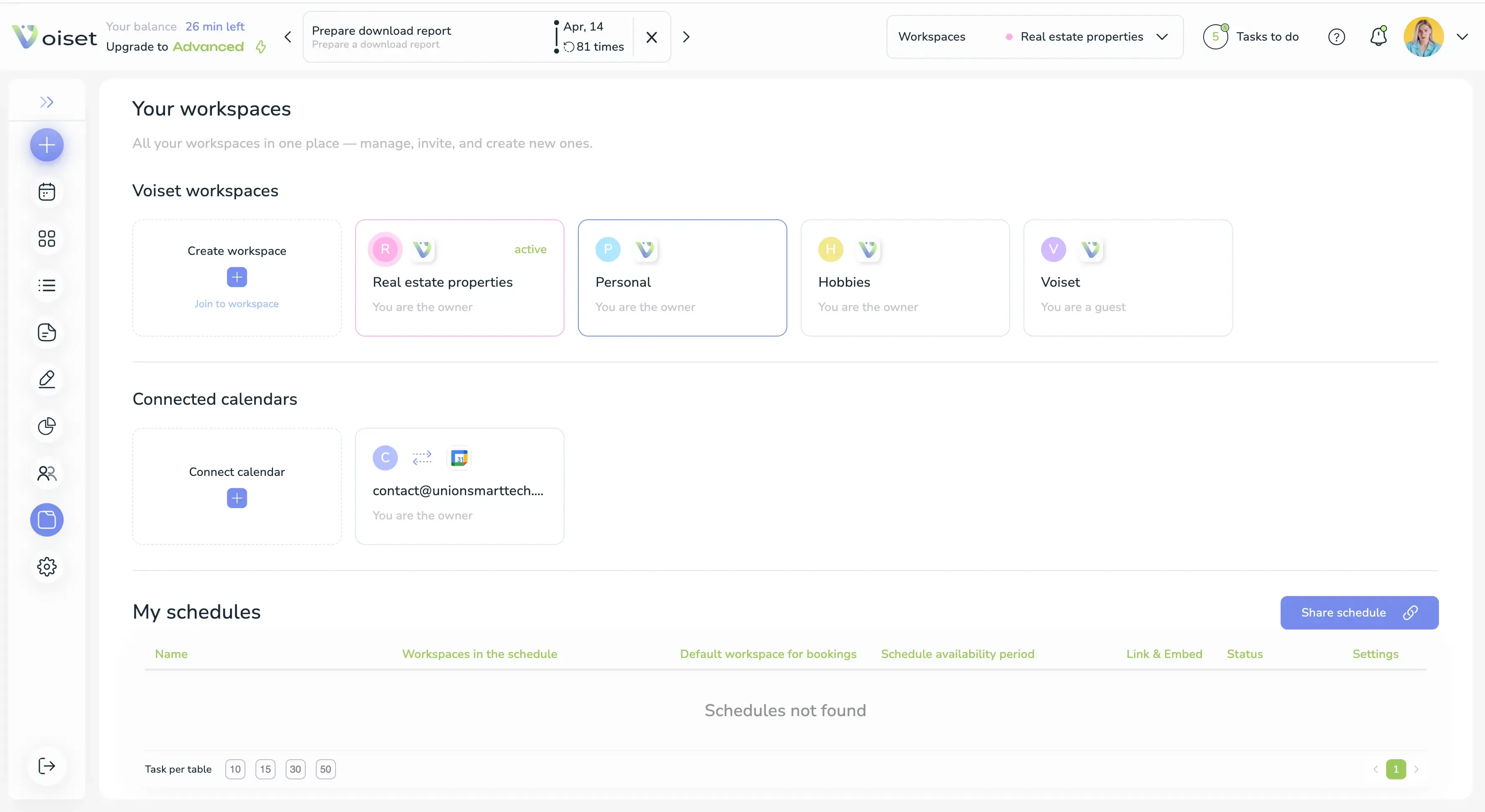
- Click Schedules & Booking in the left menu.
- Under Voiset workspaces click Create workspace.
- Enter the Workspace name.
- To invite people right away, enter their email and click +, or choose them from Select users.
- Click Create workspace.
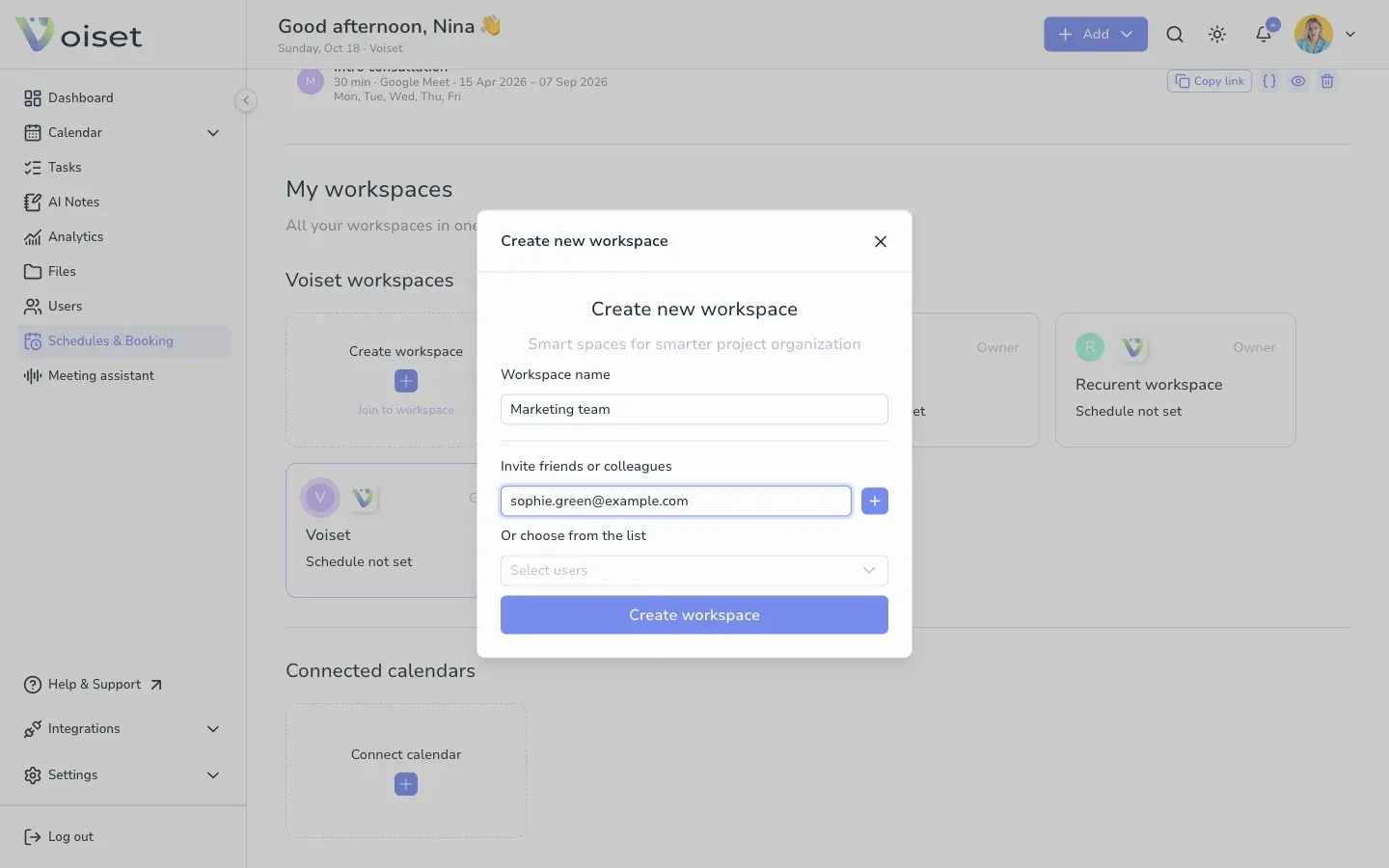
The new workspace appears in the list. Click it to set working hours, invite people or rename it. See Create Schedule.
The number of workspaces depends on your plan. You can see how many you use in Settings > Billing.
Join a workspace
If someone shared an invitation code with you:
- On the Schedules & Booking page click Join to workspace.
- Enter the code.
- Click Join.
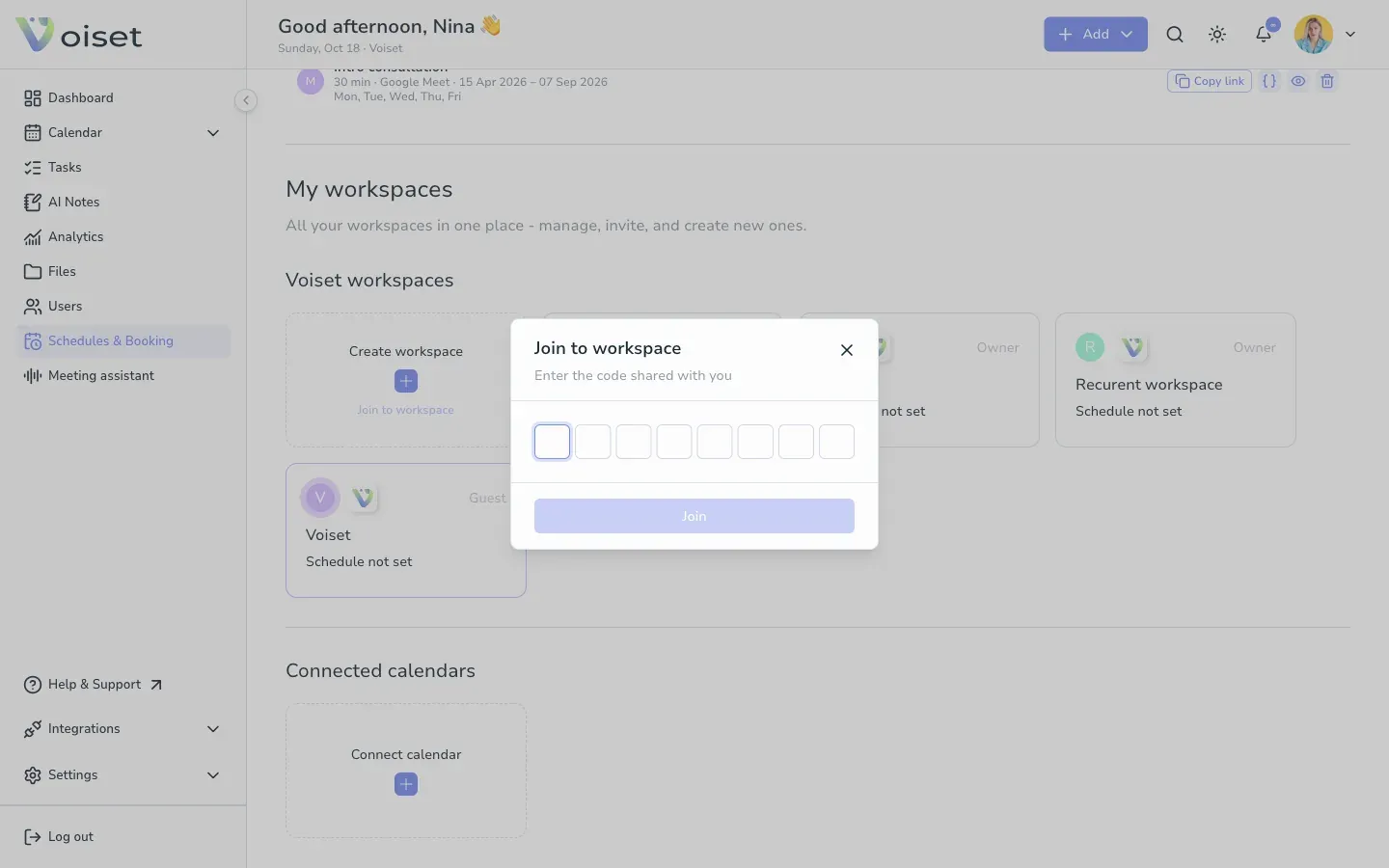
In the workspace list you are shown as Guest in workspaces you joined and as Owner in workspaces you created.
Switch between workspaces
The bar at the top of the Dashboard lists all your workspaces and connected calendars. Click a workspace to make it the current one. New tasks are created in the current workspace unless you choose another one in the task form.