

Workload and Drag and Drop in the Calendar
The Voiset calendar shows how busy each day is, so you can see overloaded days before they happen and move work to freer days.
Workload colors
Days in the calendars are colored by the number of tasks:
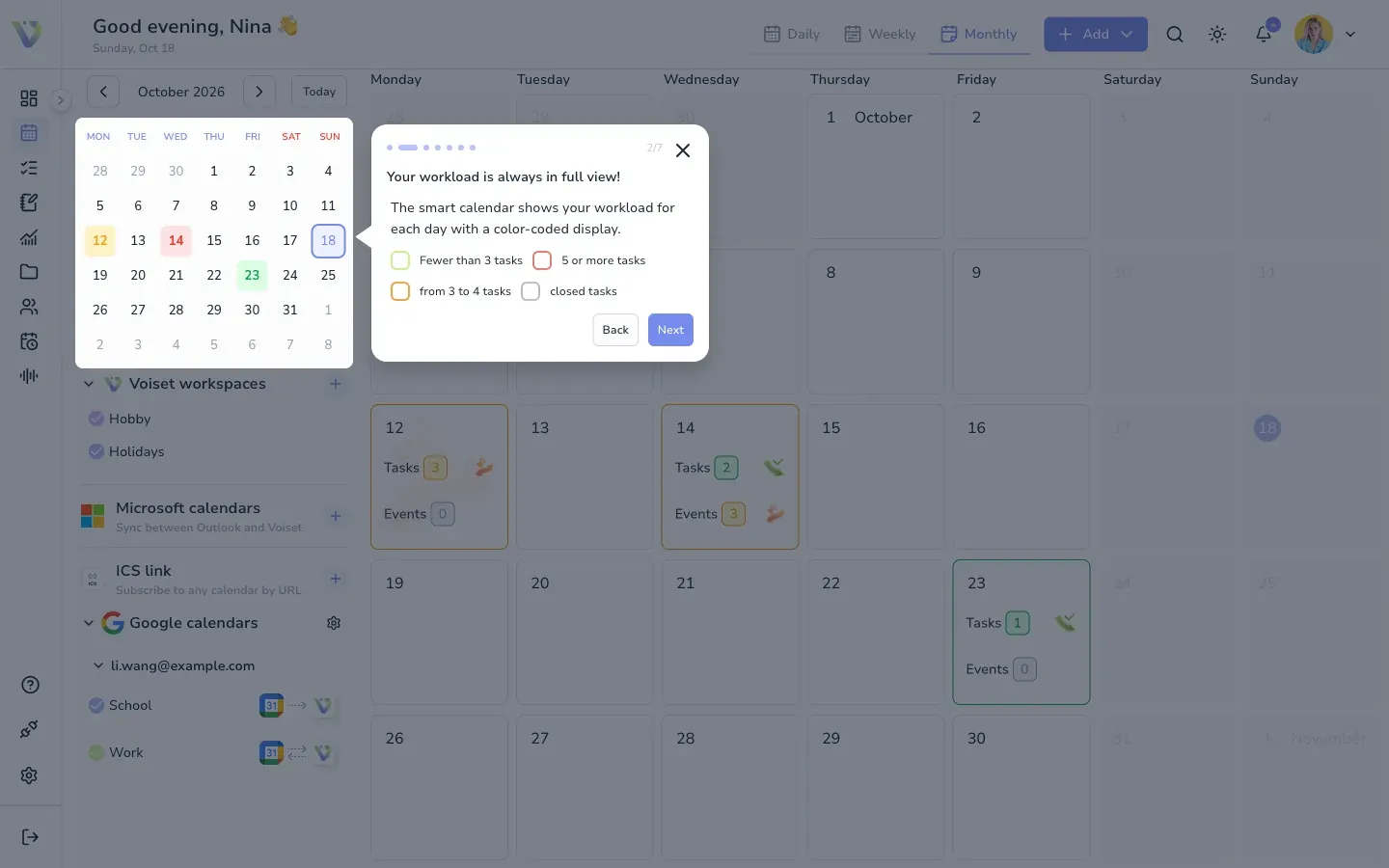
- Green: fewer than 3 tasks.
- Yellow: 3 to 4 tasks.
- Red: 5 or more tasks.
Closed tasks are not counted. You see the same colors in the mini calendar, in the monthly view and in the calendar inside the task form.
Tasks and events of a day
In the monthly view each day shows two counters: Tasks and Events. Click a counter to see the list for that day and open the full list.
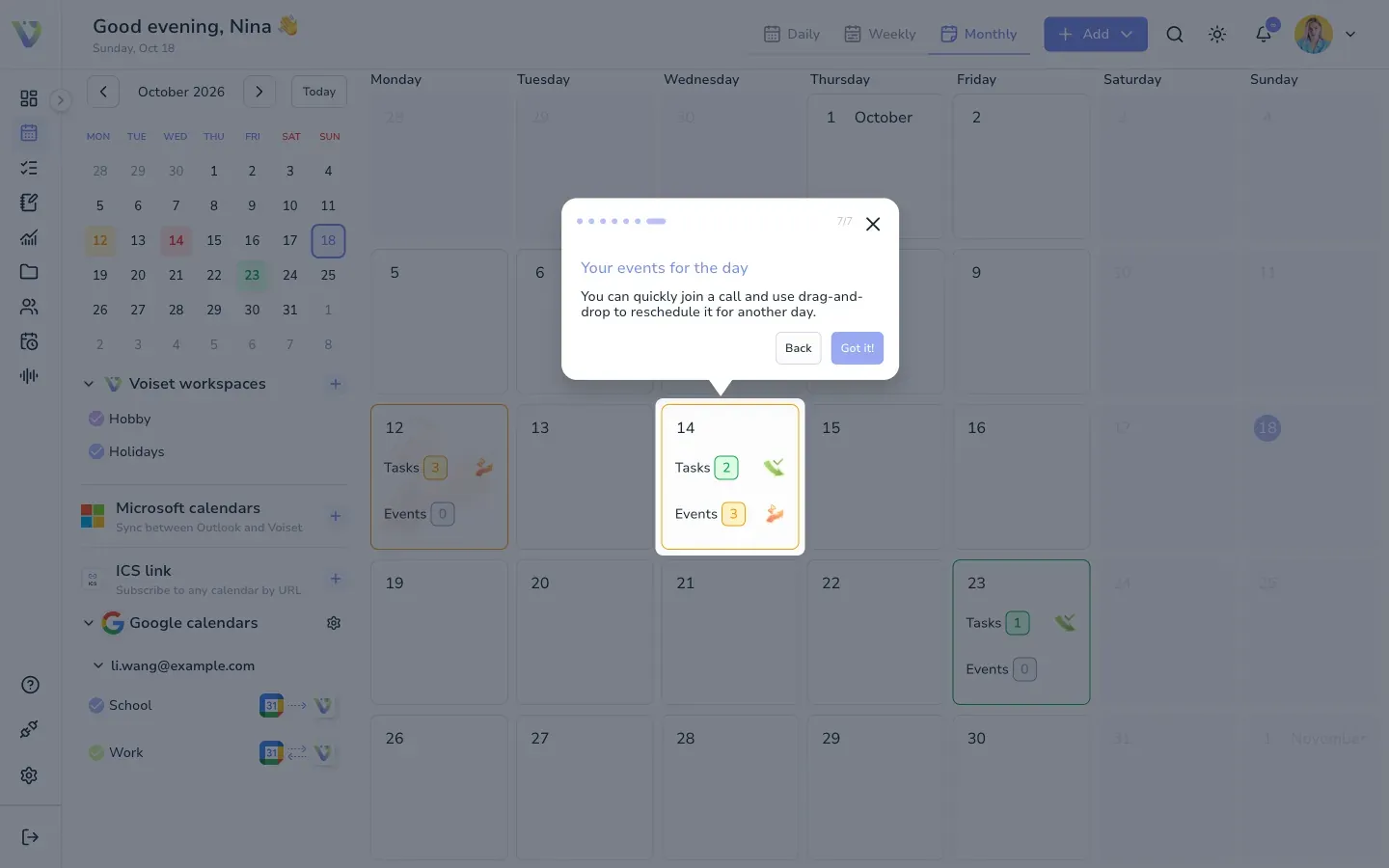
From the list you can join a call right away.
Move tasks with drag and drop
- In the monthly view, drag a task or an event to another day.
- In the weekly view, drag a task to another day or time. Drag an all-day task onto the timeline to give it a time.
- In Split mode of the weekly view, you can also drag a task to another workspace.
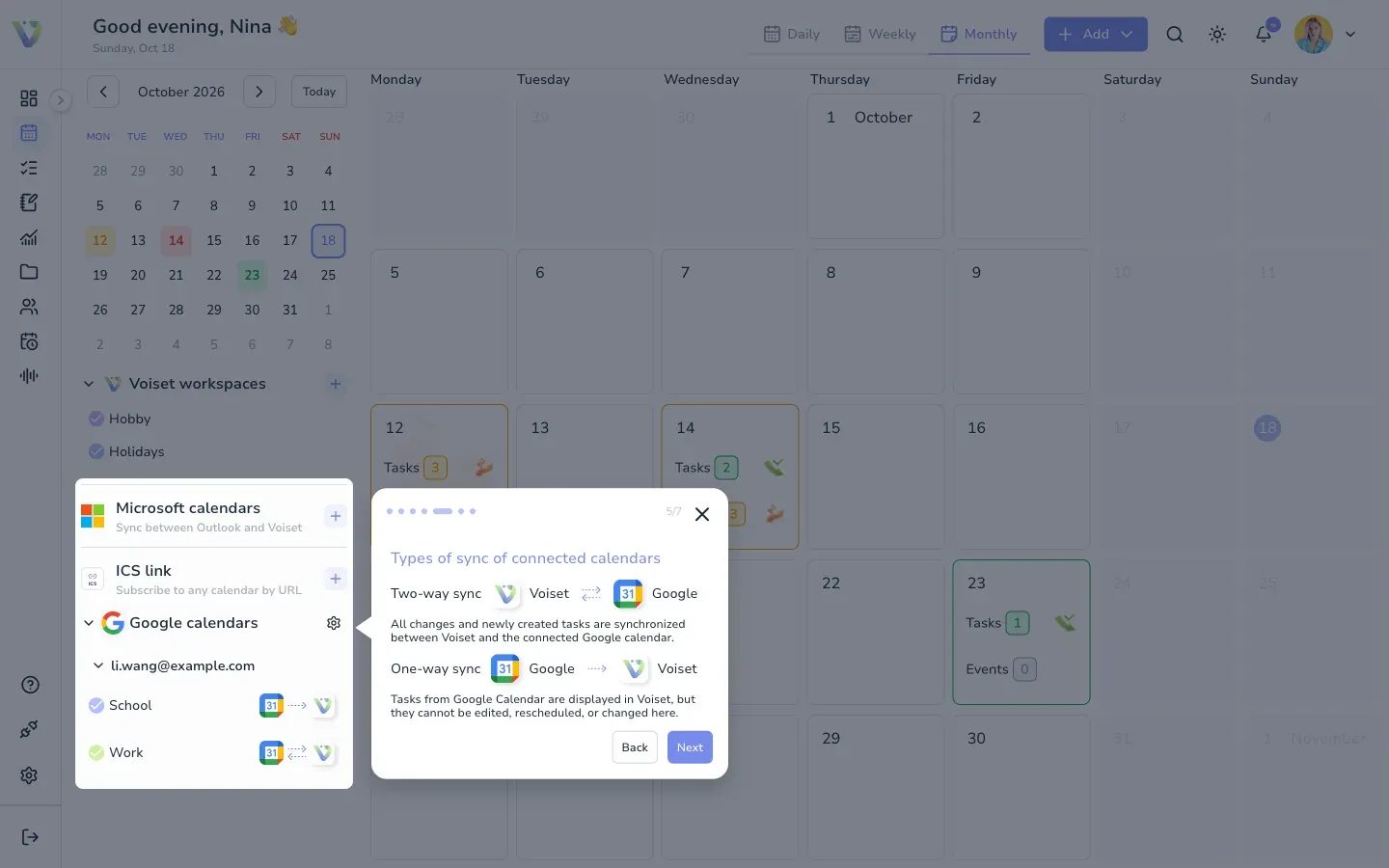
Tasks from calendars with one-way sync cannot be moved. Read about sync types in Connect Calendars.
More about the views in Working with Master Calendar.