

Manage Booking Pages
All your booking pages are listed under My schedules on the Schedules & Booking page. Active ones also appear in Active Bookings on the Dashboard.
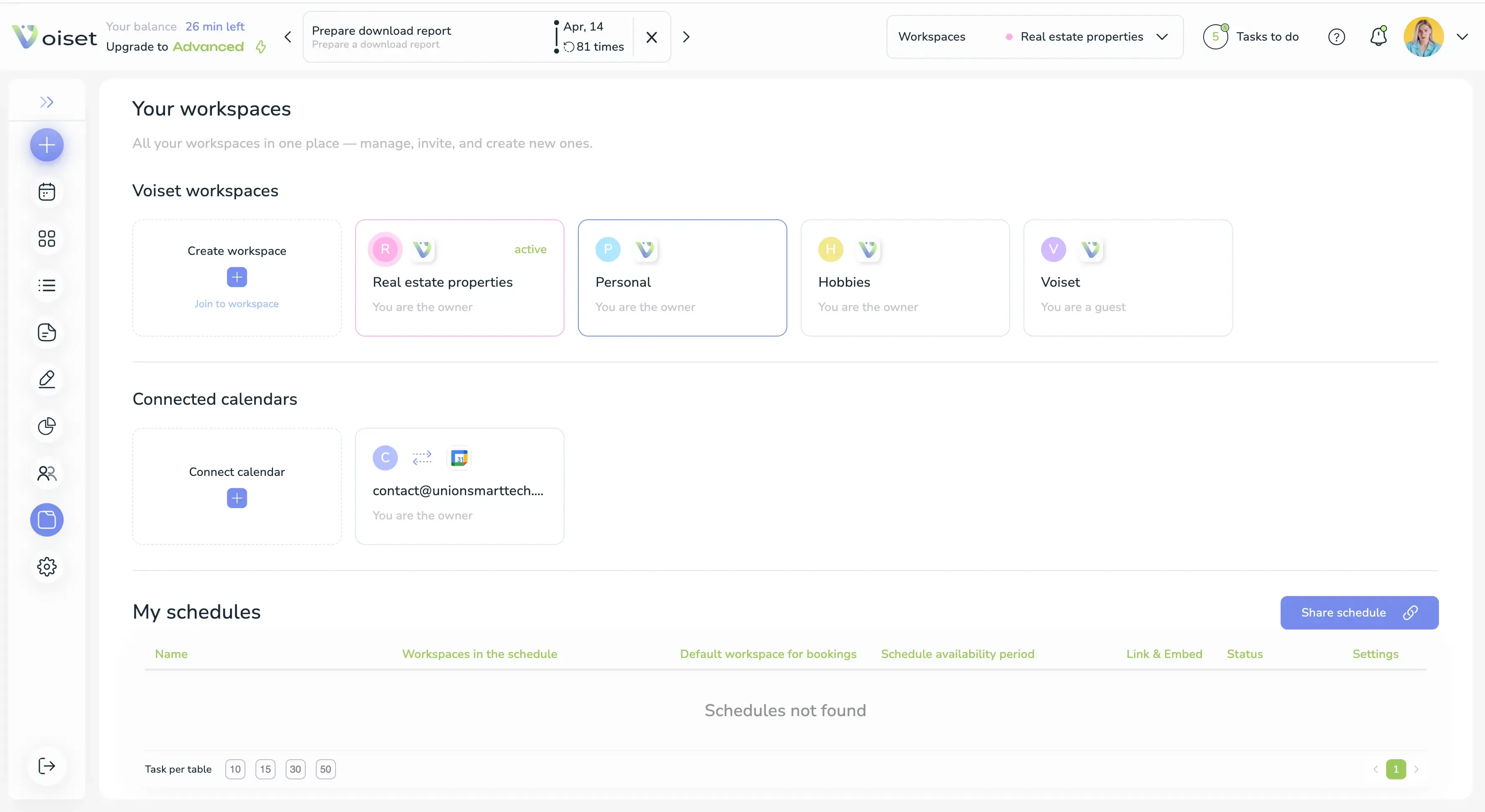
Each row shows the name, the meeting length and platform, the period when people can book, and the working days.
Share the link
Click Copy link and send the link to your clients or add it to your email signature. On the Dashboard use the link icon in Active Bookings.
Add the booking form to your website
Click the **** icon to copy the embed code. Paste it into the HTML of your page. The code adds the booking form to your site as a frame.
Preview the page
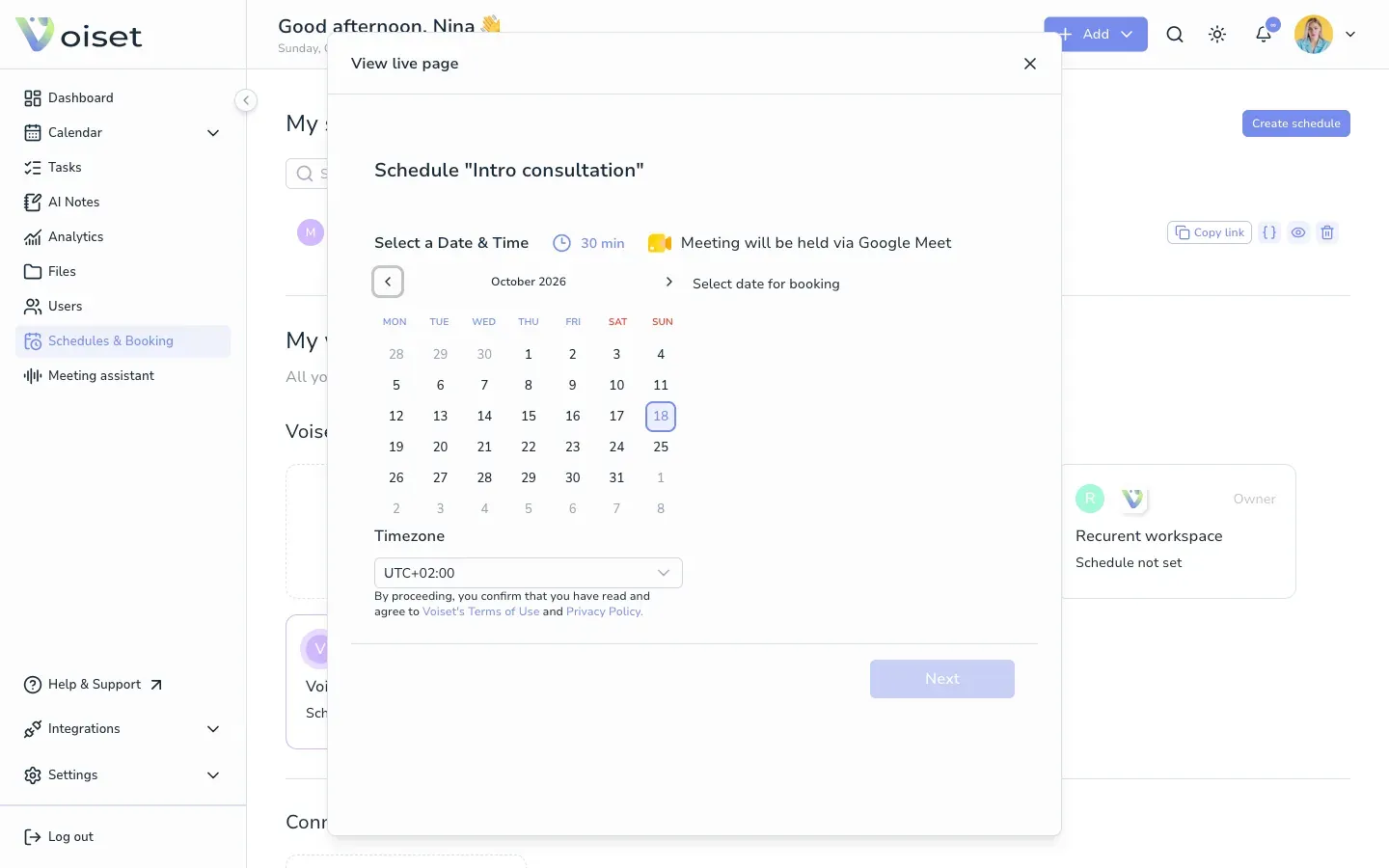
Click the eye icon. The live page opens in a window, exactly as your clients see it.
Edit the booking page
Click the name of the schedule. The Share your booking page panel opens with the current settings.
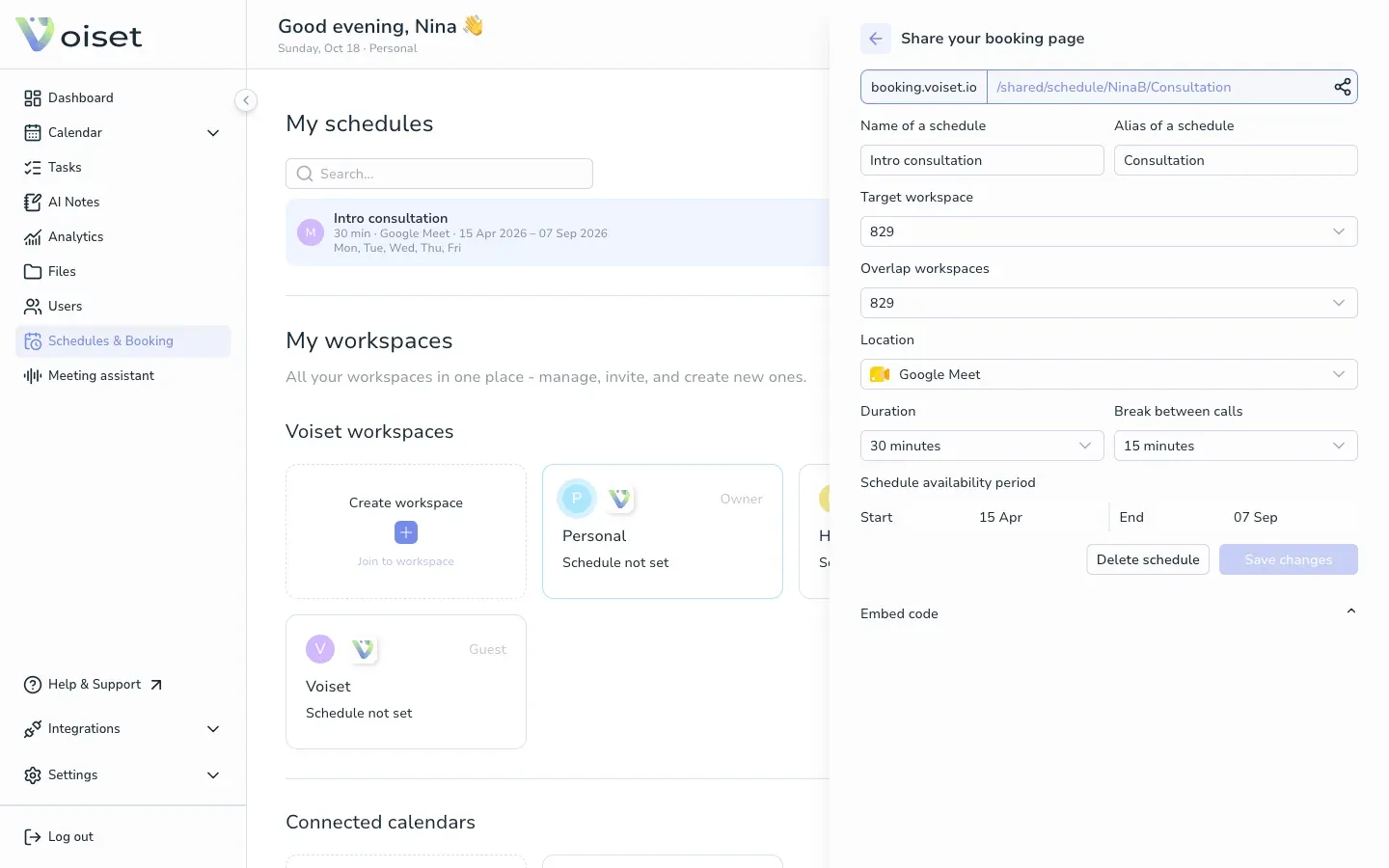
Change what you need, for example the duration, the break between calls or the availability period, and click Save changes.
If the availability period has ended, the page shows no free slots. Set a new End date to open it again.
Delete the booking page
Click the trash icon in the list, or Delete schedule in the edit panel. The public link stops working.
To create a new booking page, see Create Booking Page.