

Switch Between Workspaces
The workspace bar at the top of the Dashboard, Tasks and Files pages shows all your workspaces and connected calendars. The workspace you select is the current workspace.
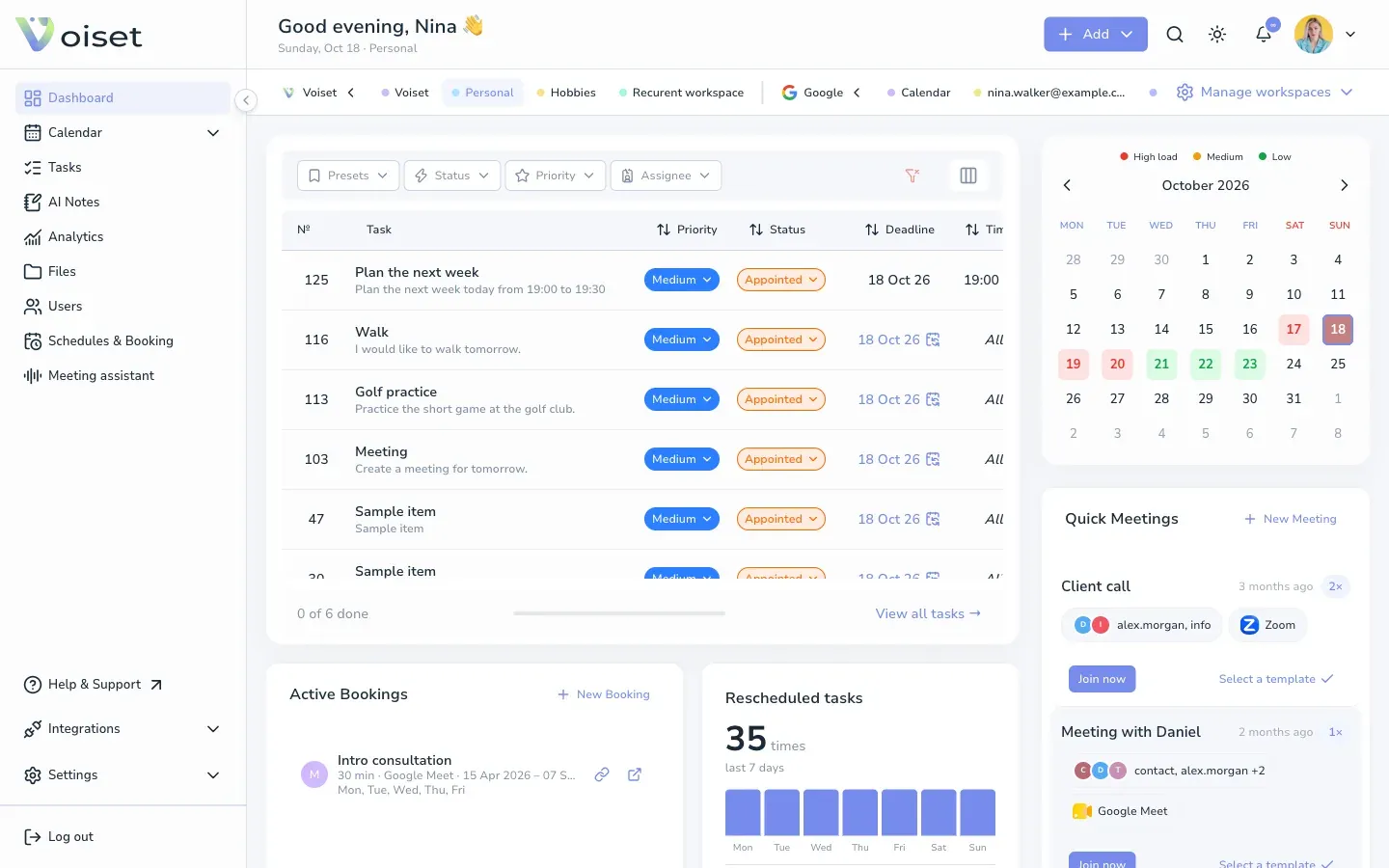
What the current workspace changes
- New tasks, notes and calls are created in it, unless you pick another workspace in the form.
- The Dashboard, Tasks and Files pages show its data.
- Its name appears under the greeting at the top, for example "Sunday, Oct 18 · Personal".
Change the current workspace
Click a workspace name in the bar. The bar has three groups:
- Voiset: workspaces created in Voiset.
- Google and Microsoft: calendars from connected accounts.
- ICS: calendars added by link.
Click the arrow next to a group name to collapse or expand it.
Create or join a workspace
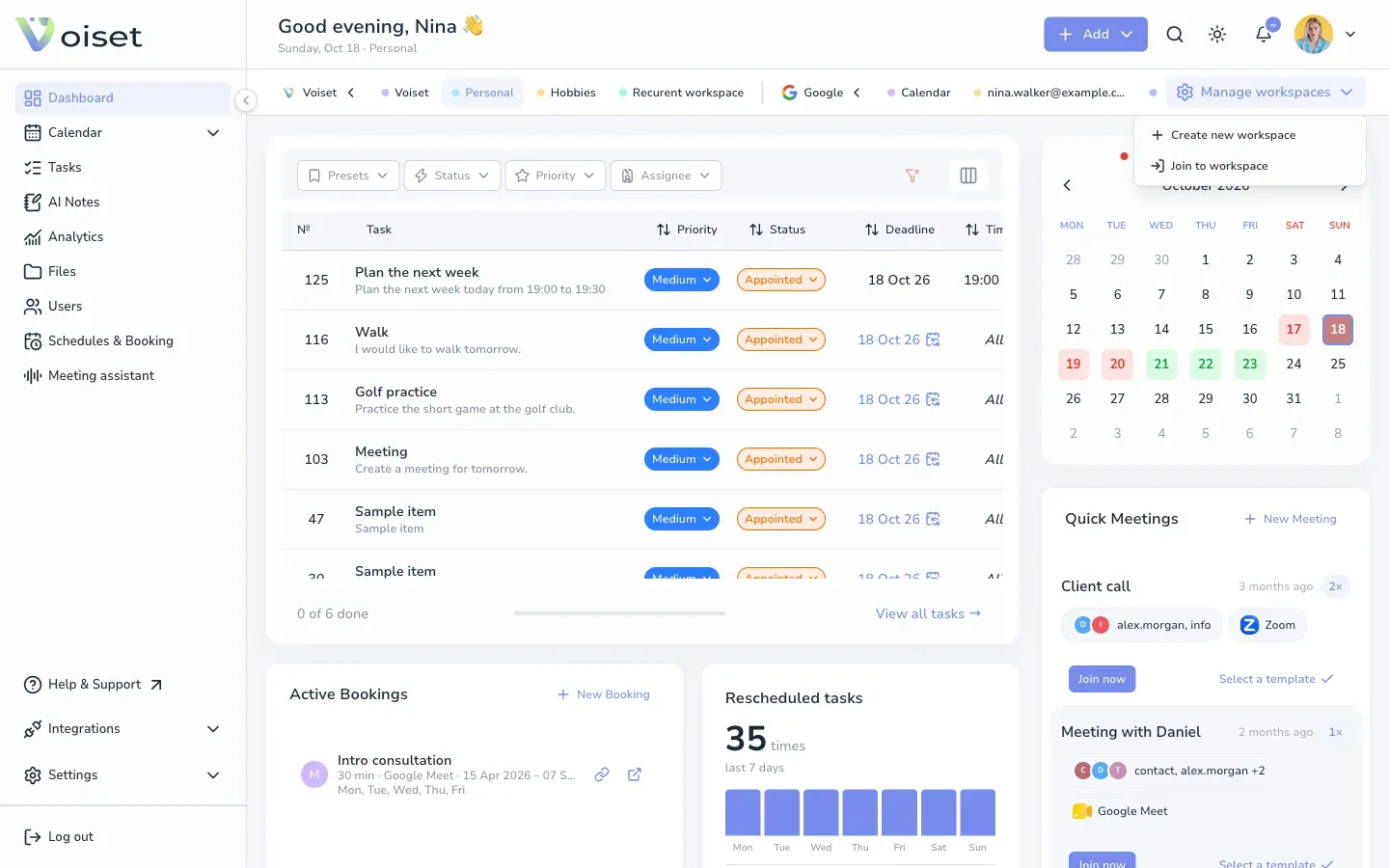
Click Manage workspaces at the right end of the bar and choose:
- Create new workspace,
- Join to workspace (with an invitation code).
See Create Workspace.