

Working with Master Calendar
Voiset gives you a master calendar that brings your tasks, events, and connected workspaces together in one place. It helps you see your schedule clearly across the day, week, or month, and it gives the AI planner a single view for balancing your workload automatically.
The master calendar shows your own tasks. If you need to review tasks for other team members, use the workspace calendar view here: https://voiset.org/calendar
Why it matters
Voiset can connect external calendars and create multiple workspaces for different kinds of work. The master calendar makes it possible to review everything in one place, while still keeping the structure of separate workspaces.
Each workspace has its own color. These colors are generated automatically, which makes it easy to distinguish workspaces in the calendar without extra labels or visual clutter.
This is especially useful when you combine calendar planning with workspace-level scheduling and call booking. If you want to organize time for a specific project or client, the master calendar gives you the overview, and the workspace tools let you control the details.
Calendar views
Master calendar is available in three main formats:
- Daily view.
- Weekly view.
- Monthly view.
Each view serves a different planning need. Daily view is best when you want to focus on one day at a time, weekly view is ideal for planning ahead, and monthly view gives you the broadest overview of your tasks and events.
Daily view
Open the daily calendar here:
https://voiset.org/agenda/daily
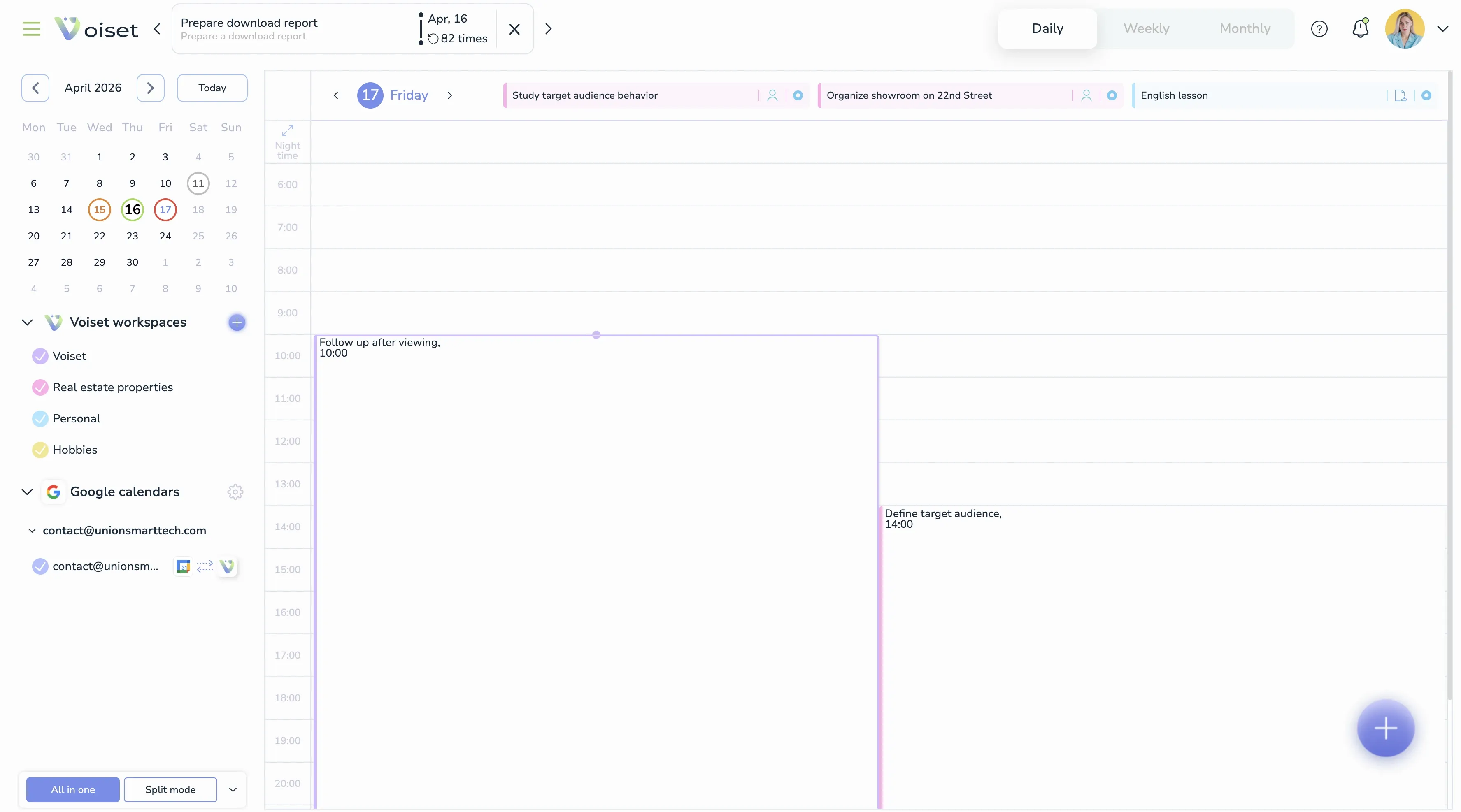
Daily view is useful when you want to work with one day at a time. Tasks for the day appear in a vertical timeline, so you can see what is planned at each time slot.
On the left side you can switch days quickly with the mini calendar. Under the calendar, you can see the available workspaces and turn them on or off depending on what you want to include in the view. This is helpful when you want to focus only on selected projects or calendars.
If you click an empty time slot or the + button, you can create a new task. The task creation flow is described here: Create Task
You can also create a call directly from the same flow. The call creation flow is described here: Create Meeting
Daily view is especially convenient when you need to understand what exactly is happening during one specific day and place new tasks into free time immediately.
Weekly view
Open the weekly calendar here:
https://voiset.org/agenda/week
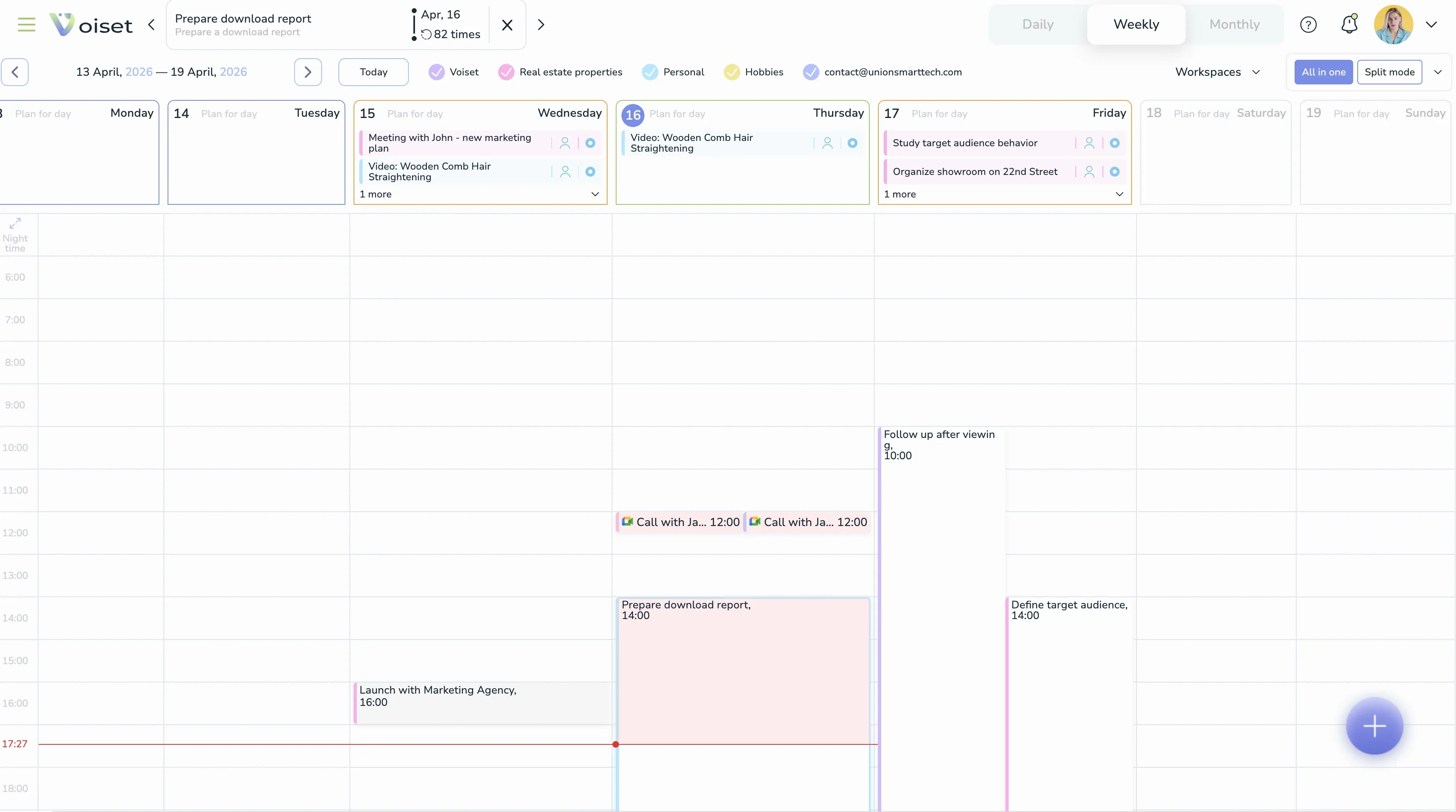
Weekly view is designed for weekly planning with AI. It gives you a horizontal timeline across the days of the week, while still showing the workspaces and filters at the top.
This view is especially helpful when you want to rebalance your week, move tasks between days, or see how your commitments are distributed across the whole week. If one day becomes overloaded, you can move tasks to another day and keep the week balanced.
If your workspace allows edits, you can drag tasks and events between days. If split mode is enabled, you can also move items between workspaces. If a task is meant to be done on a specific day, you can drag it into the right time slot and turn it into a scheduled item.
Weekly planning is one of the most useful ways to work with the AI planner because it gives a broad but still practical picture of your workload. This is the view you will usually use when planning several days ahead.
Monthly view
Open the monthly calendar here:
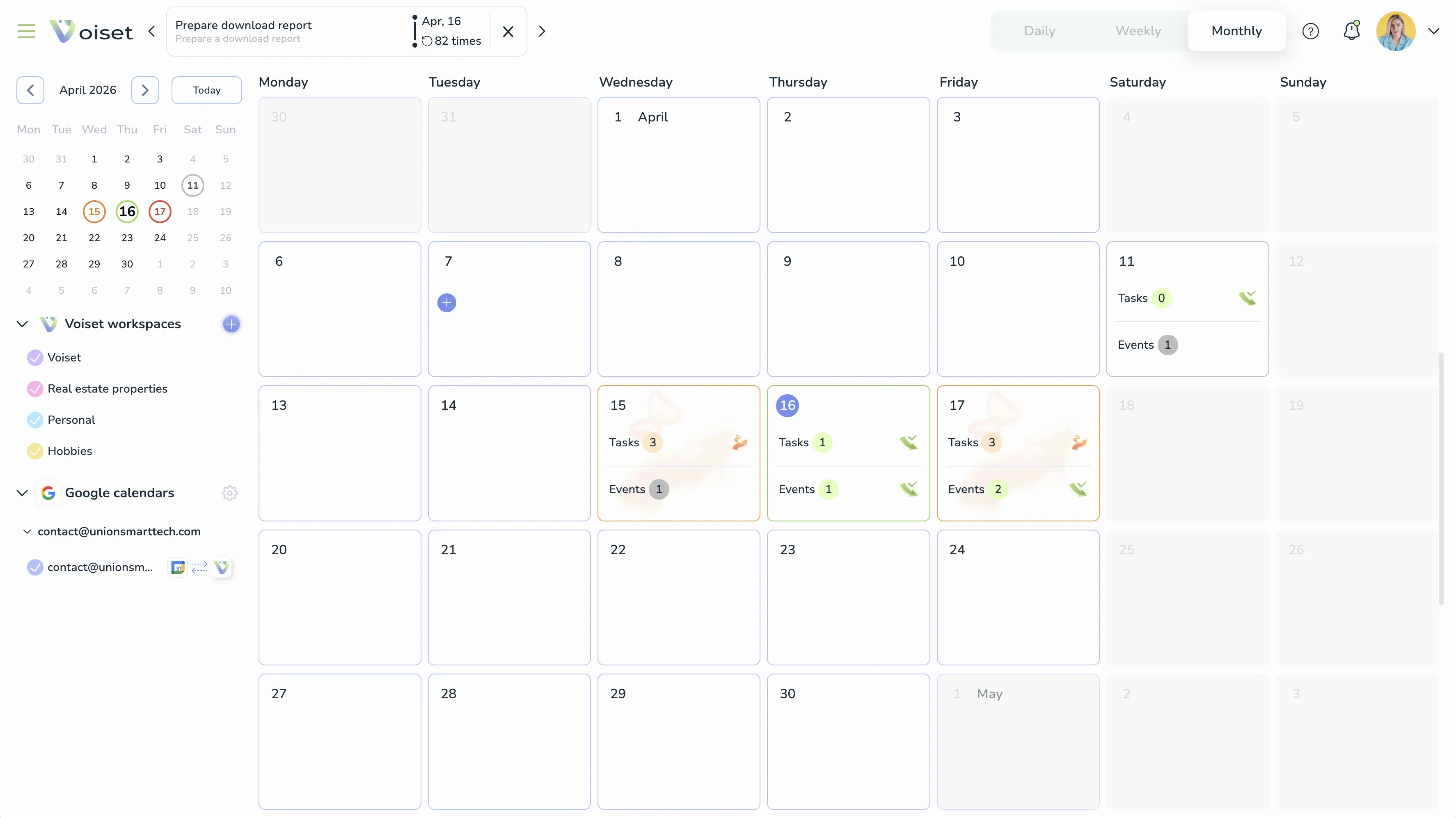
The monthly view gives you the broadest planning picture. It lets you see tasks and events across the whole month at once, which is useful for long-term planning and overview work.
In this view, you can quickly scan busy days, find empty periods, and understand how your month is structured. It is especially useful when you want to keep an eye on larger projects, deadlines, or recurring activities.
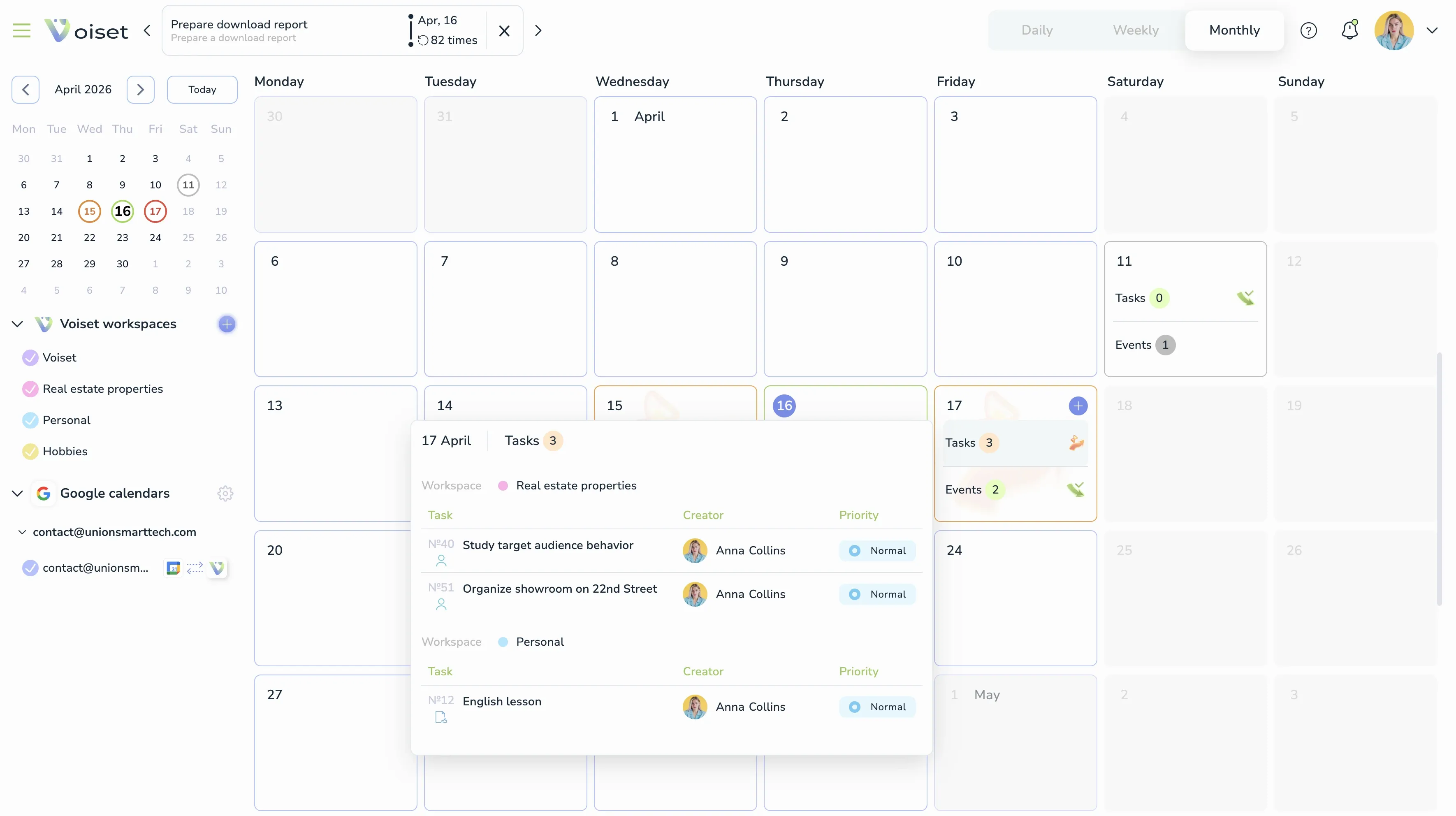
When you click an item inside a day, you can open the details for that task or event, or move it to another day if your workspace allows editing.
All in one and split mode
Voiset supports two display modes:
- All in one.
- Split mode.
In All in one, everything is shown in a single calendar column, but each workspace item keeps its own color. This is useful when you want a compact overview and do not need to separate workspaces visually.
In Split mode, each workspace is shown separately. This is better when you want to compare spaces and keep the structure of each workspace more visible. It is often the better choice when you work with several calendars or project streams at the same time.
How to use the master calendar
A typical workflow looks like this:
- Open the master calendar.
- Choose the view you need: daily, weekly, or monthly.
- Filter workspaces if needed.
- Review tasks, events, and free time.
- Click empty time slots or use + to create a task.
- Use drag and drop to adjust timing or move items between days.
- Switch between All in one and Split mode depending on how much detail you need.
This flow makes the master calendar a practical everyday tool rather than just a static overview. You can use it both for detailed scheduling and for high-level planning.
How the AI planner helps
The master calendar is not just a visual interface. It is also part of the AI planning system.
By showing your tasks and events across different time ranges, Voiset can better balance your workload both manually and automatically. This makes it easier to keep your day structured, move things around when plans change, and maintain a realistic schedule across the month.
It also works especially well together with workspace schedules and booking pages. When those parts are configured correctly, Voiset can use the same planning logic across internal work, team collaboration, and public booking availability.