

Connect Zoom to Voiset
Zoom integration allows Voiset to create and manage Zoom meetings directly from the platform.
You can connect Zoom from the settings page or directly from the meeting creation form.
Step 1: Go to Settings
Click the Settings (⚙️) icon in the left sidebar.
Step 2: Open Connections
Navigate to Integrations > Communication:
https://voiset.org/settings/integrations/communication
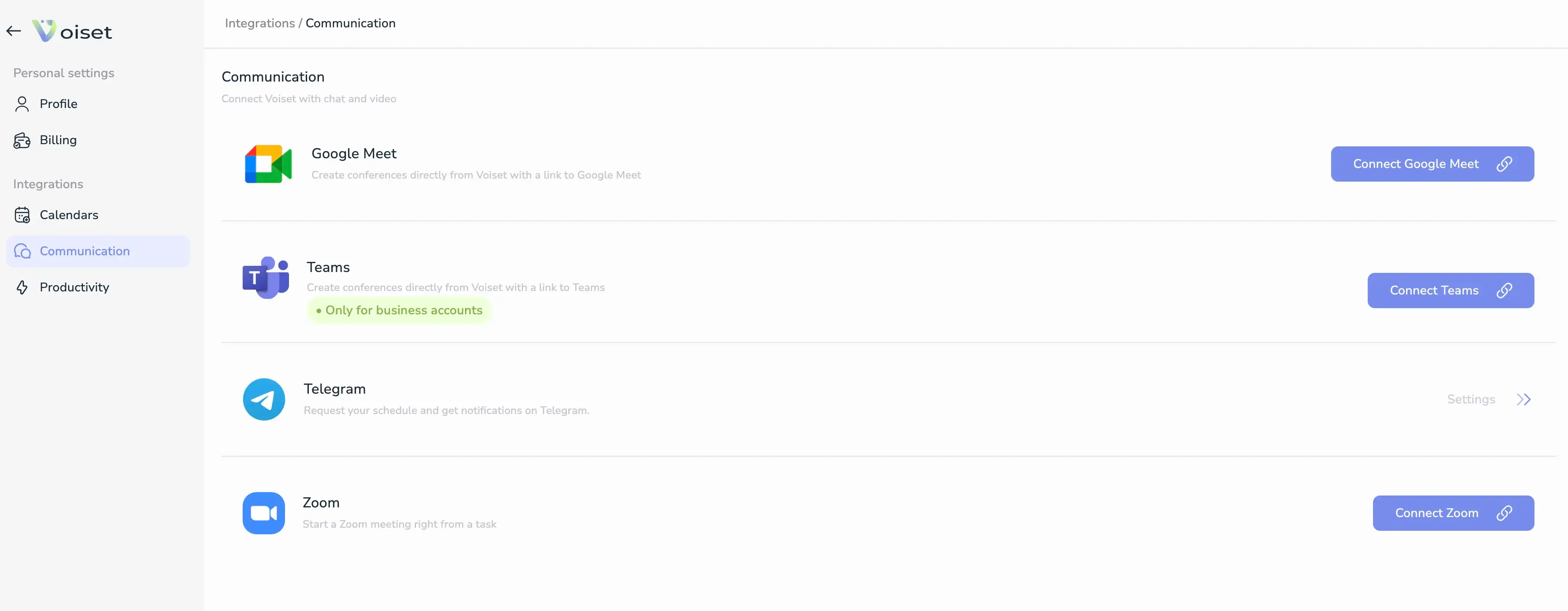
Step 3: Connect Zoom
If no Zoom account is connected, click Connect Zoom.
Step 4: Authorize Zoom
Enter your Zoom account email and password, or use social login options.
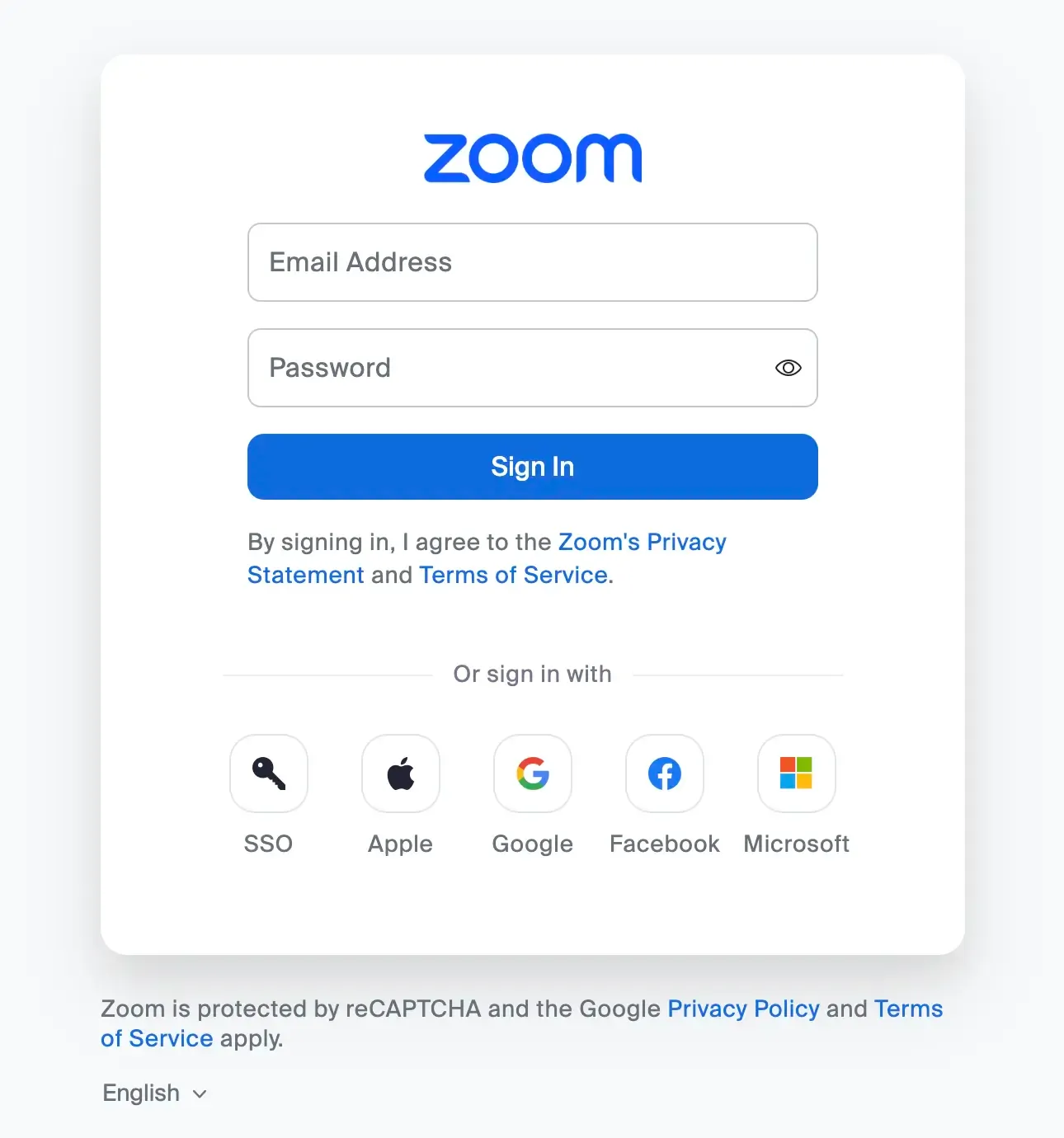
Click Sign in.
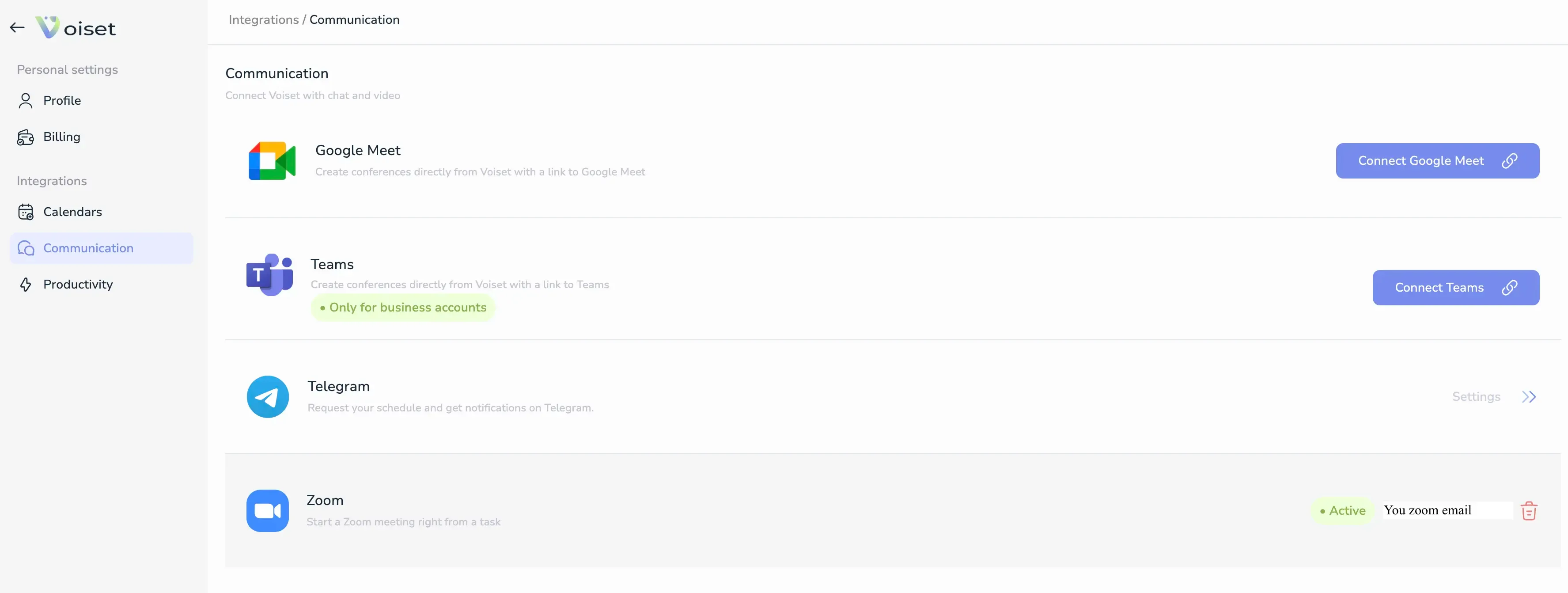
Step 5: Success
After successful authorization, you'll see your connected Zoom account with email address.
Disconnect Zoom (optional)
Click the trash 🗑️ button next to your Zoom account to remove it.
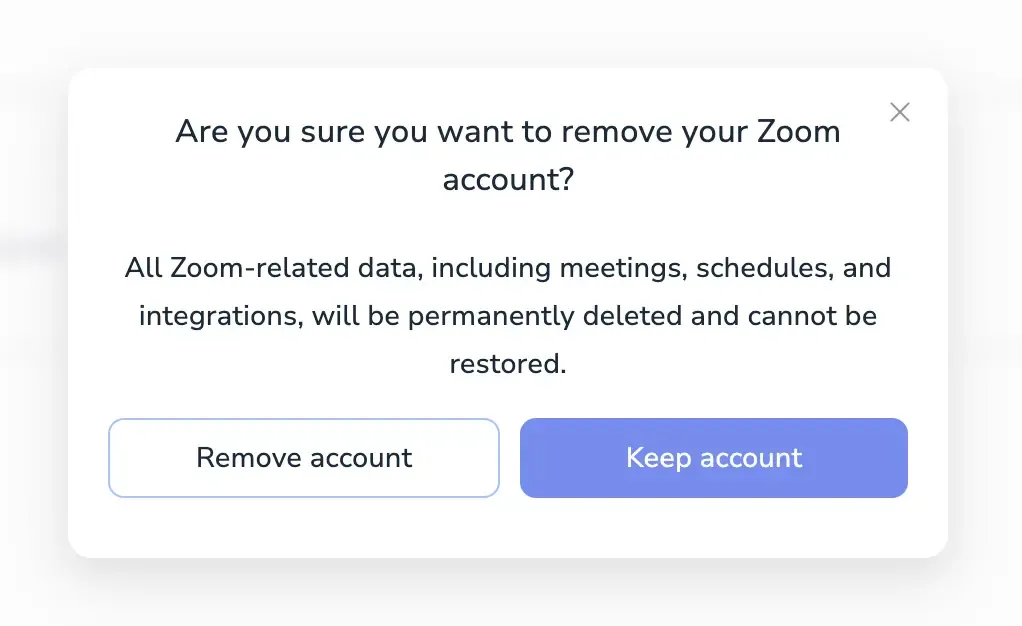
Removing the Zoom account will delete all Zoom-related data, meetings, schedules, and integrations permanently.
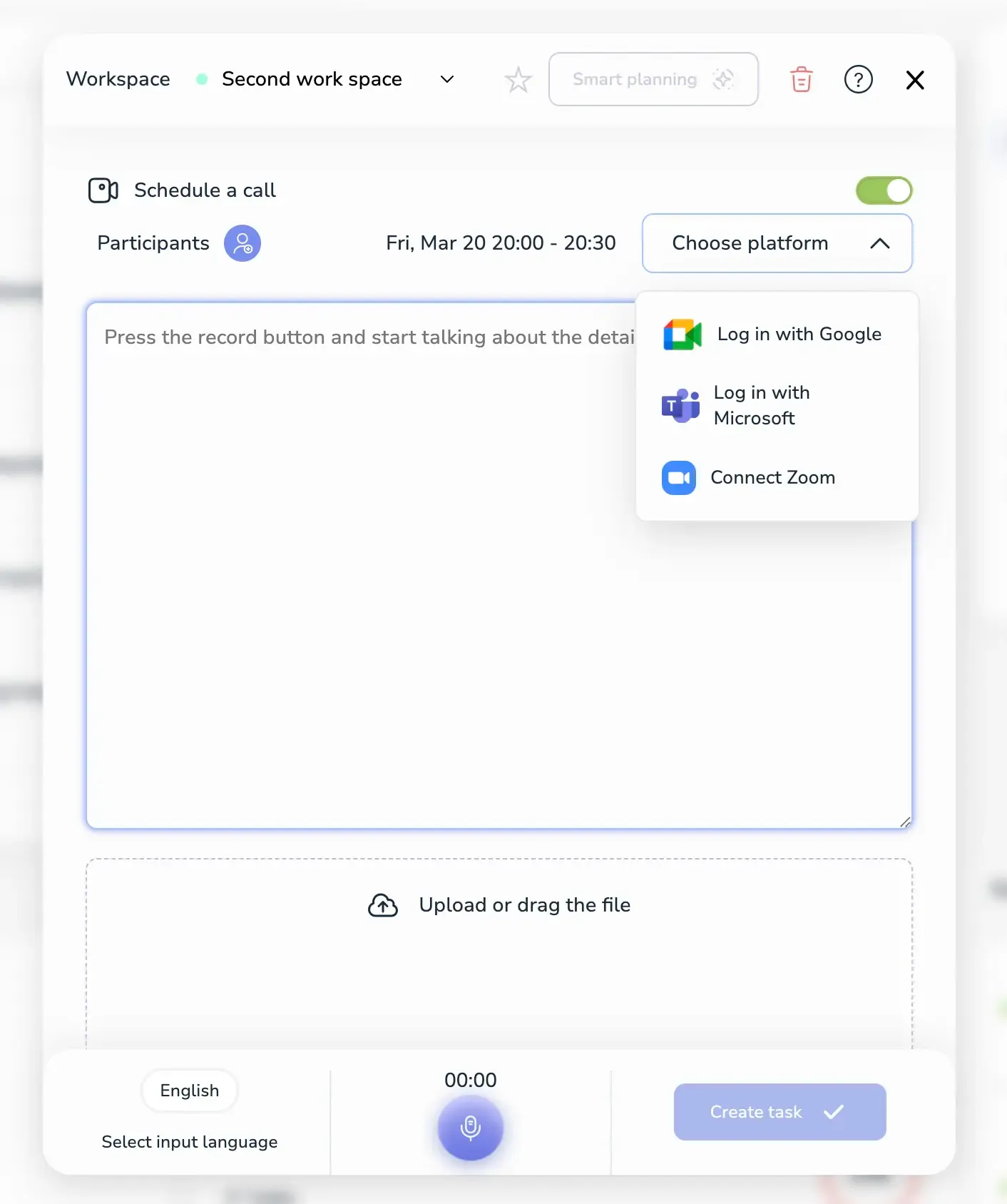
Alternative: Connect from meeting creation
You can also connect Zoom directly from the Create Task form:
- Click Create (+) in the sidebar
- Choose Schedule a call
- Select Zoom from the platform dropdown
- Click Connect Zoom
Ready to use
Once connected, you can create Zoom meetings from Voiset task creation, booking pages, or any scheduling workflow.