

Subscribe to an ICS Calendar
Many calendars can be shared as a link that ends with .ics or starts with webcal://. Apple Calendar, Google and Outlook public calendars, school and sports schedules, and public holiday calendars all work this way. Add such a link to Voiset and its events appear next to your tasks.
An ICS calendar is read-only: Voiset shows the events, but you cannot edit or move them. Voiset still takes them into account when it plans your day.
1. Copy the calendar link
Find the share or subscribe link in the app that owns the calendar. For example:
- Google Calendar: calendar settings, Integrate calendar, Public address in iCal format or Secret address in iCal format.
- Outlook: Settings > Calendar > Shared calendars > Publish a calendar, then copy the ICS link.
- Apple Calendar (iCloud): share the calendar as a Public Calendar and copy the link.
A secret or private link gives access to your events. Only paste it into services you trust.
2. Add the link in Voiset
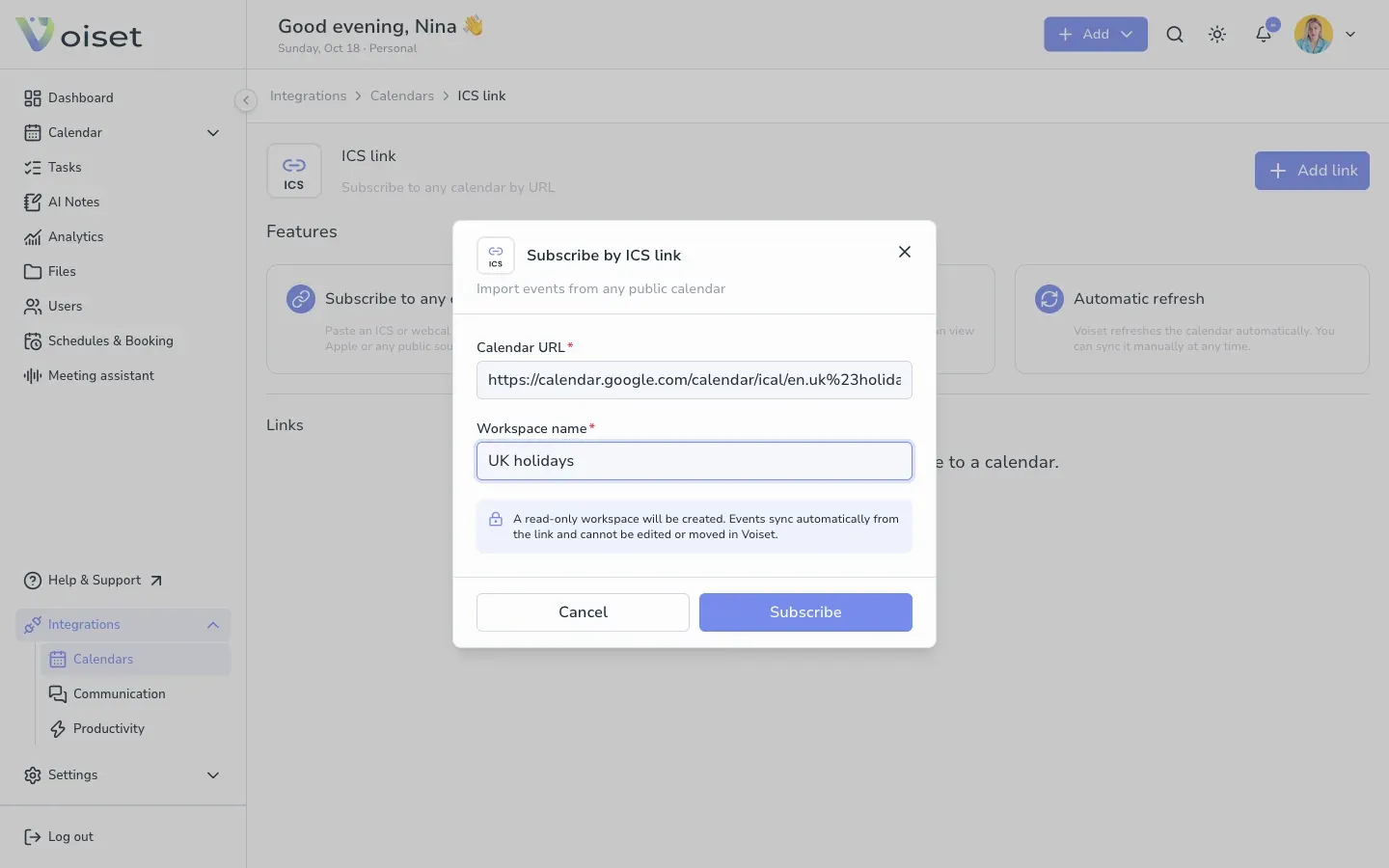
- In the left menu open Integrations > Calendars and click ICS link. You can also click + next to ICS link in the calendar.
- Click Add link.
- Paste the link into Calendar URL.
- Enter a Workspace name, for example "UK holidays".
- Click Subscribe.
3. Check the subscription
The calendar appears under Links with the label Read only, its status and the time of the last sync.
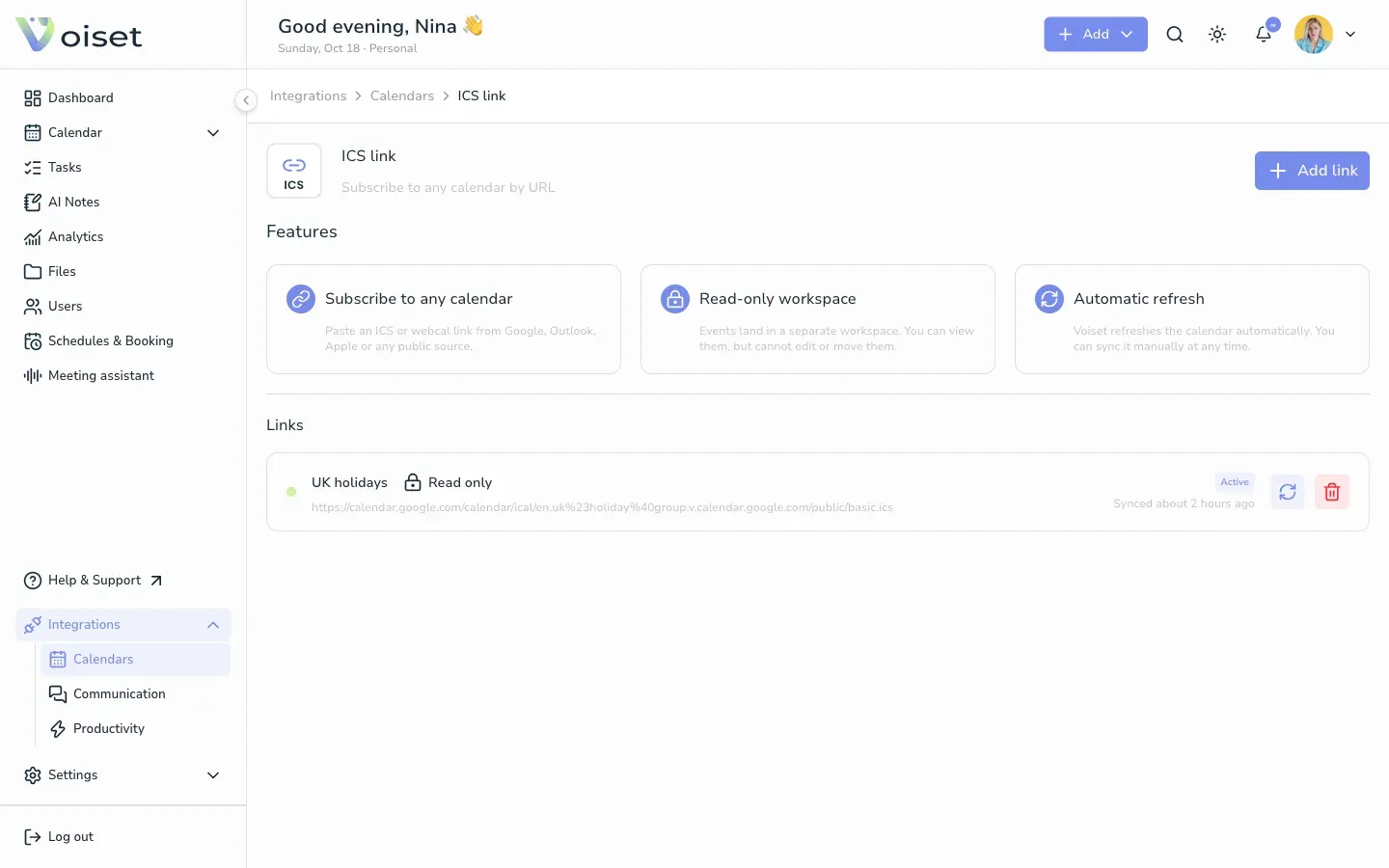
- Click the refresh icon to sync the calendar now. Voiset also refreshes it automatically.
- Click the red trash icon to remove the subscription.
4. See the events
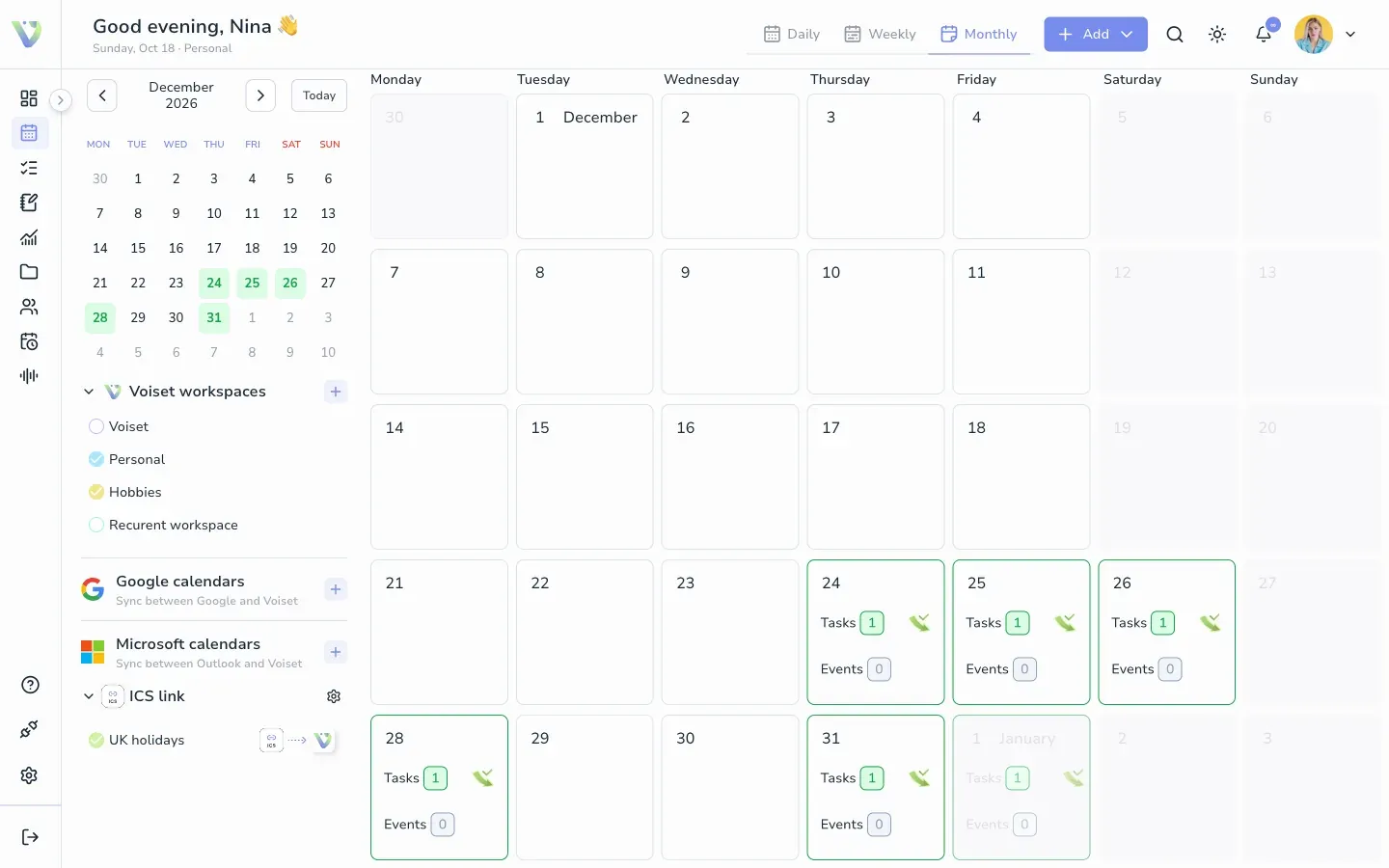
Voiset creates a separate workspace for the calendar. In the master calendar it is listed under ICS link in the left panel. Check or uncheck it to show or hide its events.
To connect a Google or Outlook calendar with two-way sync instead, see Connect Calendars.