

Dashboard Overview
The Dashboard is the first page you see after logging in. It brings together your day: tasks, meetings, bookings, notes and contacts.
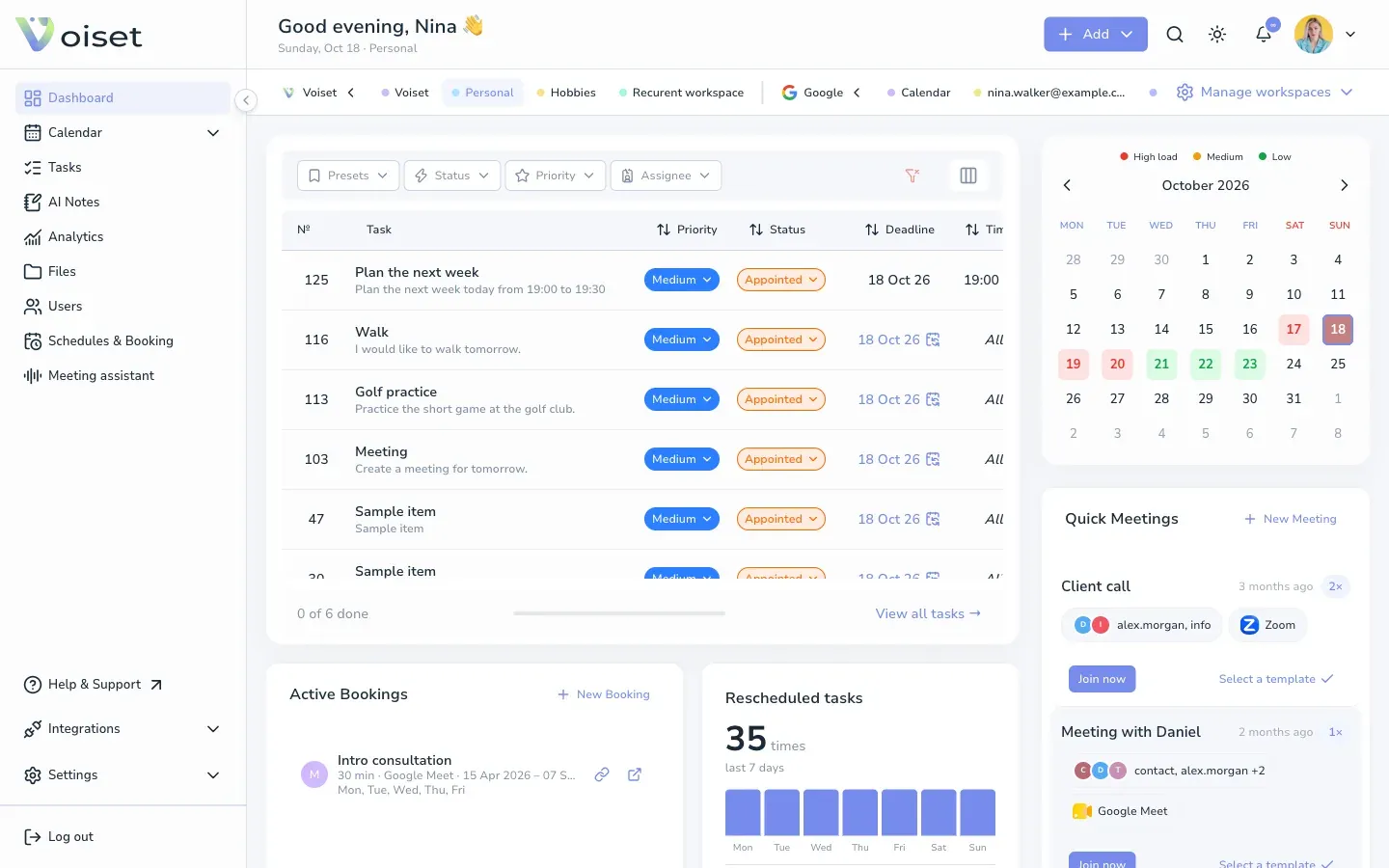
Top of the page
- Greeting and date: under the greeting you see today's date and the current workspace.
- Add: create a task, a note or a call.
- Search: find anything, or press Ctrl+K / Cmd+K. See Search and Quick Actions.
- Theme: switch between light and dark.
- Bell: your notifications. See Notifications.
- Your photo: plan, billing, settings, help and log out.
- Workspace bar: all your workspaces and calendars. See Switch Between Workspaces.
Panels
Tasks. Today's tasks of the current workspace. Change the status or priority right in the table, use the filters, and open the full list with View all tasks. The bar at the bottom shows how many tasks are done.
Calendar. A month at a glance with workload colors: red is a busy day, yellow is medium, green is free. See Workload and Drag and Drop in the Calendar.
Quick Meetings. Your recent calls. Join a call or repeat it with the same people. See Quick Meetings.
Active Bookings. Your booking pages with buttons to copy the link and open the live page. See Manage Booking Pages.
Rescheduled tasks. How many times tasks were moved in the last 7 days and which tasks were moved most. A task that keeps moving may need to be split or given to someone else.
AI Notes. Your latest notes. Click Add note to capture a new one.
Contacts. The people you work with most often. Click New Contact to add someone.
Collapse the menu
Click the arrow at the edge of the left menu to make it narrow and give the page more room.