

Contact Card
Click a contact in Users > Contacts to open their card.
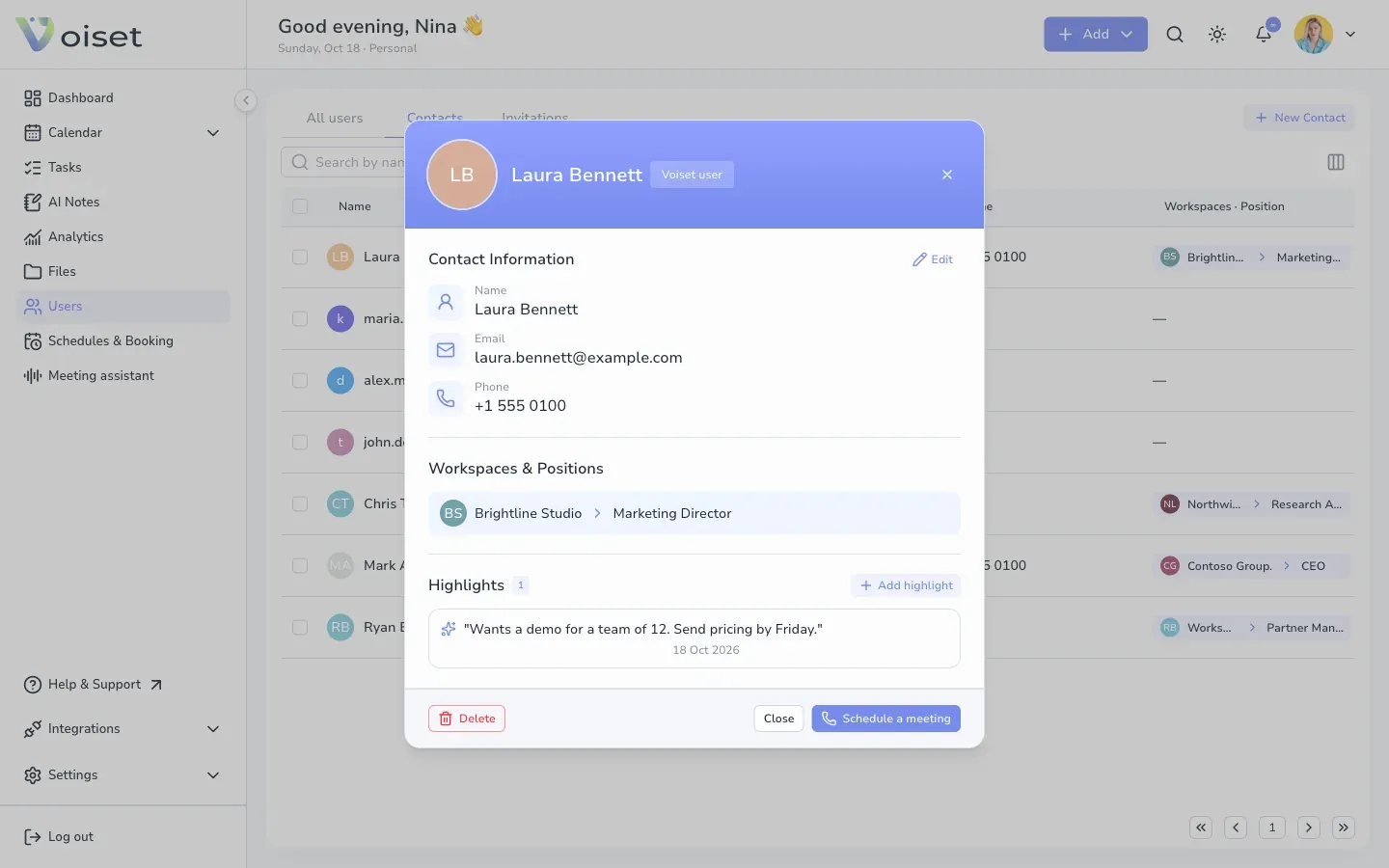
The card shows:
- Contact Information: name, email and phone,
- Workspaces & Positions: the company and job title,
- Highlights: short notes about your conversations.
Add a highlight
Highlights help you remember what matters about a person: topics you discussed, agreements, next steps.
- Click Add highlight.
- Write the note.
- Click Save.
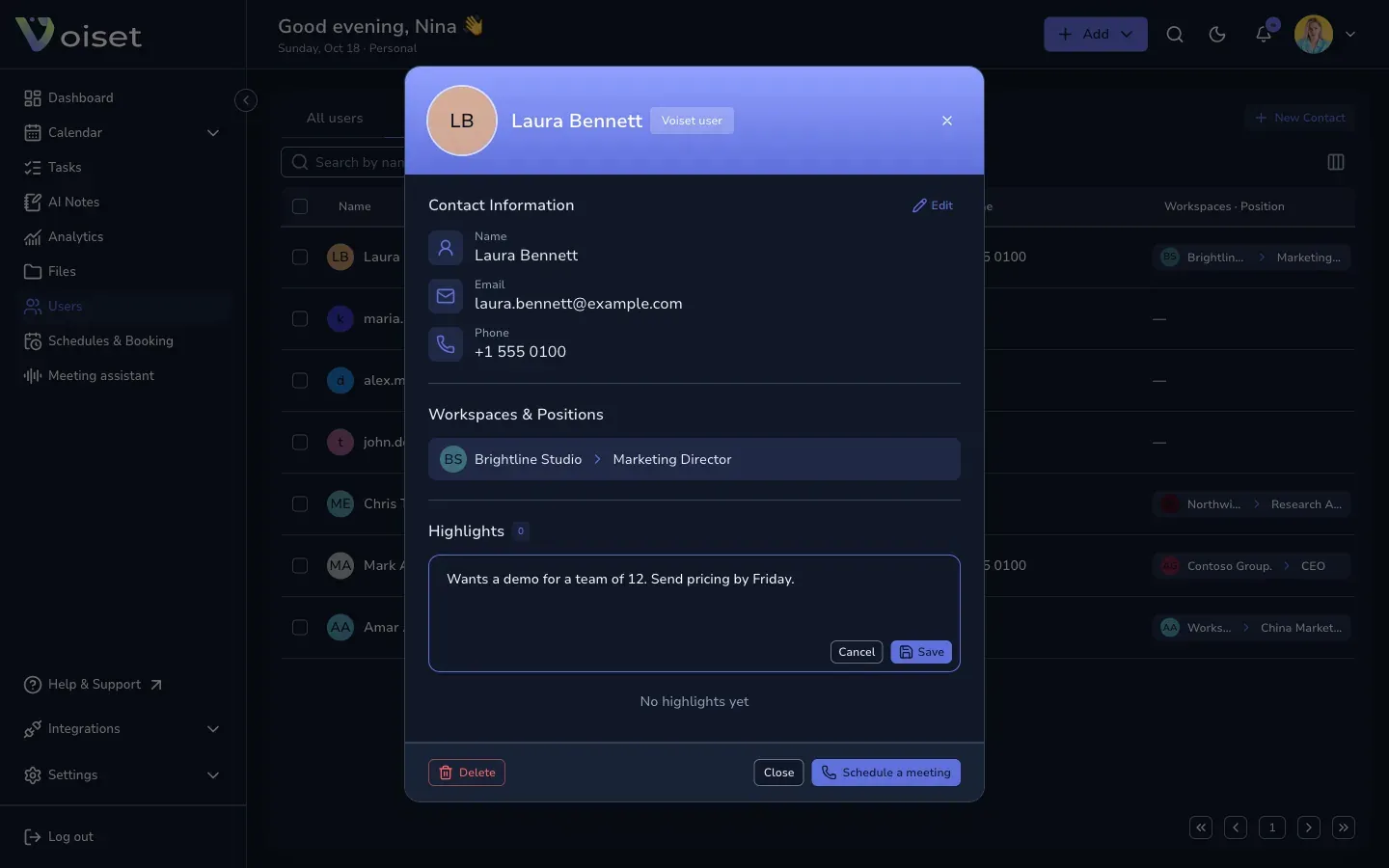
The highlight appears in the card with the date.
Edit the contact
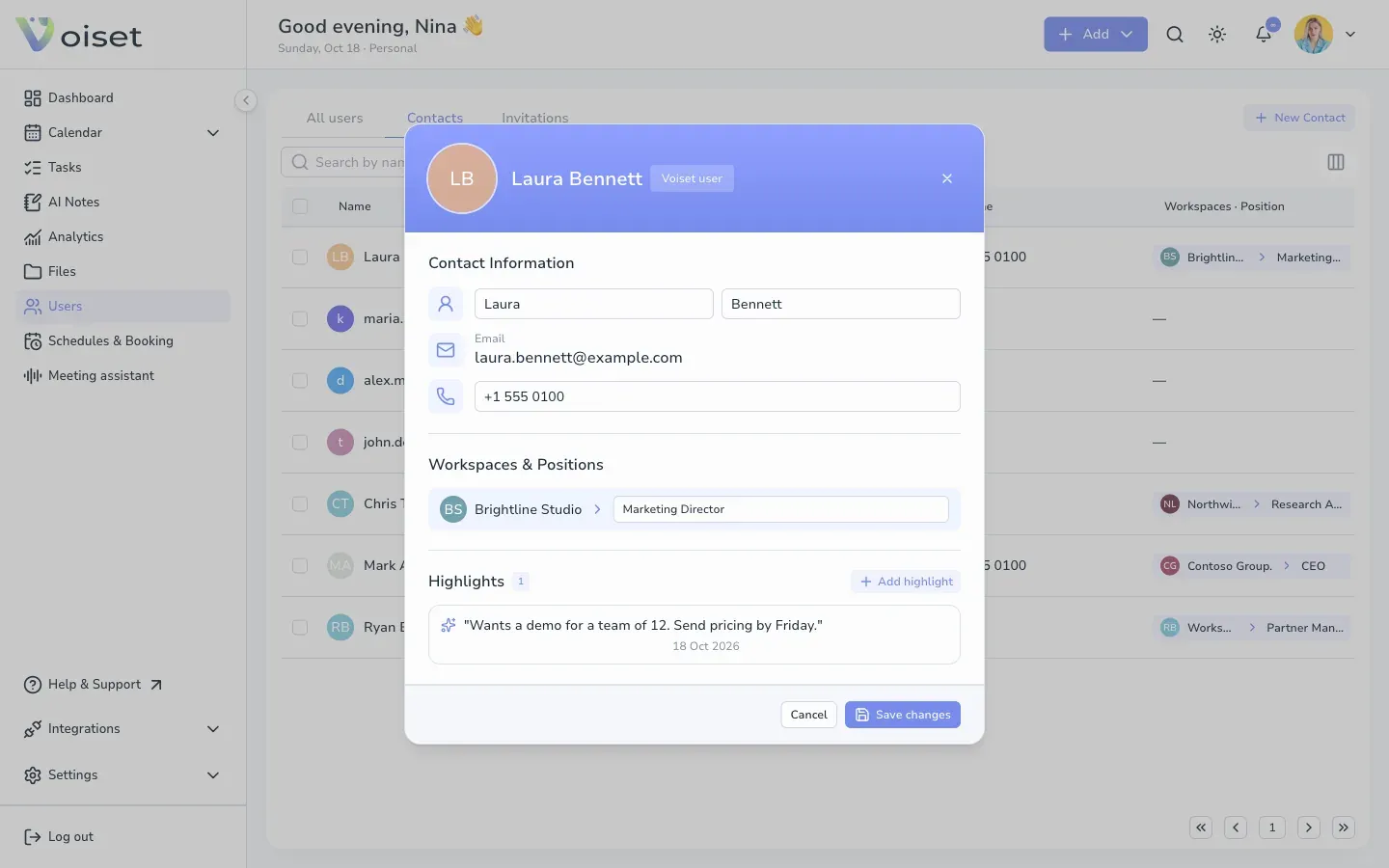
- Click Edit next to Contact Information.
- Change the name, email, phone, company or job title.
- Click Save changes.
Schedule a meeting
Click Schedule a meeting. The call form opens with this contact as a participant. See Schedule a Meeting with a Contact.
Delete the contact
Click Delete at the bottom of the card.