

Add a Contact
Contacts are the people you work with outside your workspaces: clients, partners, candidates. Voiset keeps them in one list and suggests them when you plan calls.
1. Open Contacts
Click Users in the left menu and open the Contacts tab.
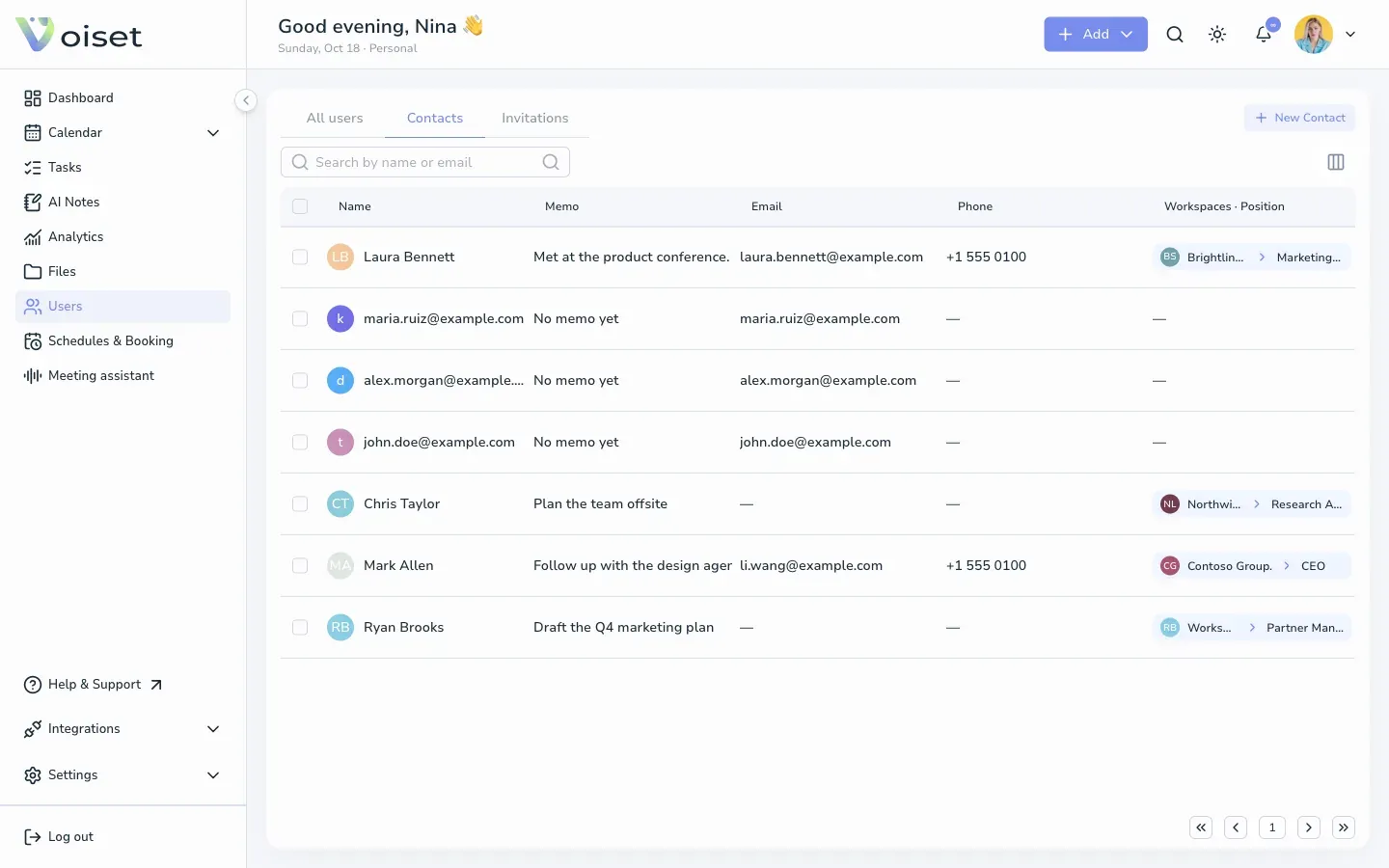
The list shows each contact's name, a memo, email, phone, and company with job title. People you invited to calls can also appear here.
2. Add a contact
- Click New Contact. You can also press Ctrl+K or Cmd+K and choose Add contact.
- Fill in First name and Email (required).
- Add Last name, Phone, Company and Job title if you know them.
- Write a Note, for example where you met.
- Click Create contact.
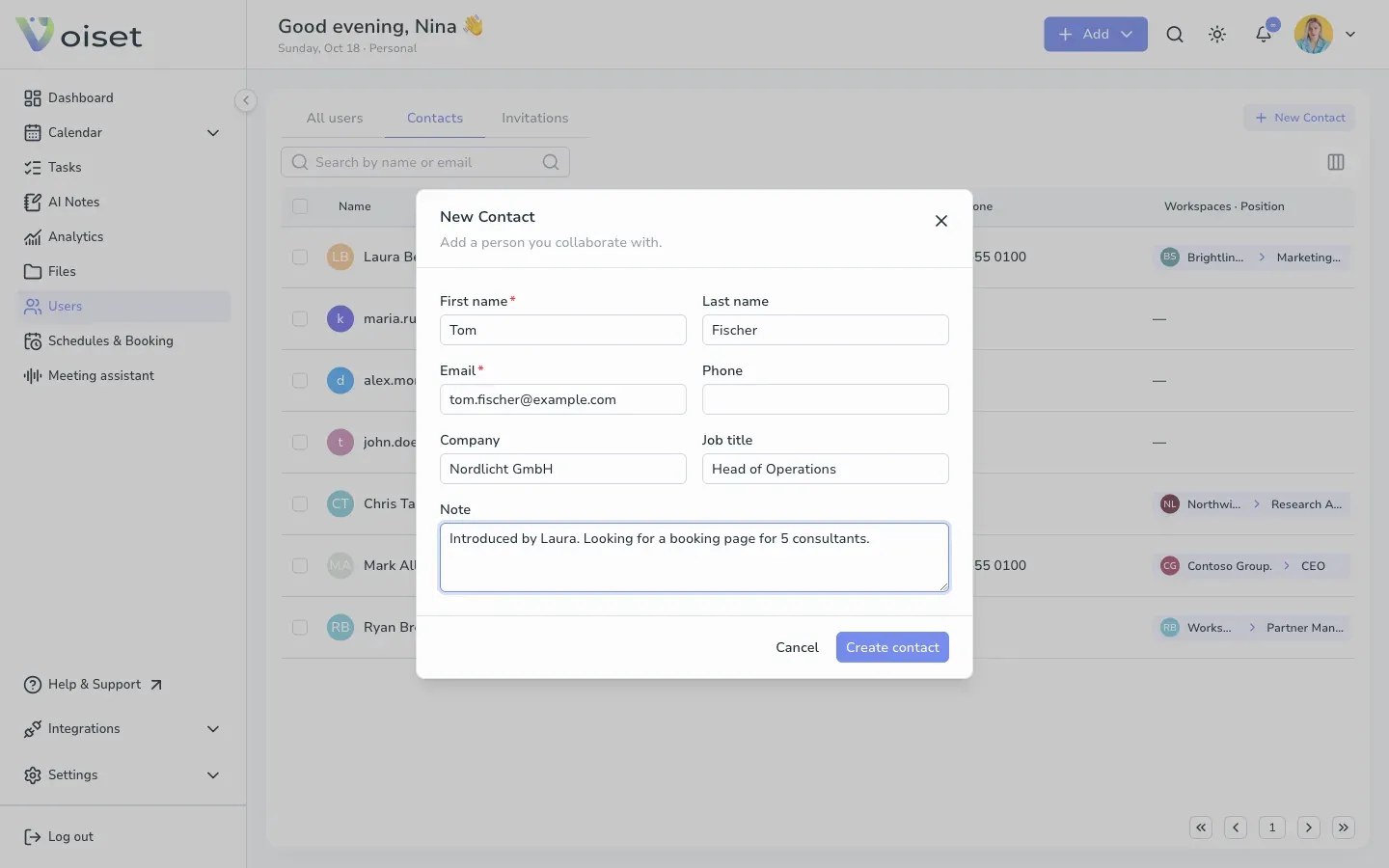
The contact appears at the top of the list. The note is shown in the Memo column.
3. Find a contact
Type a name or email in Search by name or email above the list.
What's next
- Open the contact to add highlights or edit details. See Contact Card.
- Book a call with them. See Schedule a Meeting with a Contact.
- Your frequent contacts also appear in the Contacts panel on the Dashboard.